Tired of manually configuring networks for each VM? Perhaps you’re not alone. Virtual network management is time-consuming and error-prone. If I told you there’s a simpler way? This essay examines a PowerShell script that does that. Making your life easy is key. This will teach you how to quickly Bulk Configure VM networks with PowerShell.
This PowerShell script revolutionizes. Create a private switch and assign it to all VMs automatically. Imagine setting up networks without manually selecting VMs. The script verifies network’s existence. If not, it binds your VMs to a new private switch. Automation saves time and reduces errors. Efficiency at its best.
Before you start, make sure you have everything. PowerShell must be installed and running first. Additionally, the script requires administrative permissions to make significant modifications to your VM setup. View your VM network settings. Using this will prevent configuration conflicts. Checked everything? You can automate your VM network setup now.
The Script
$NewSwitchName = Read-Host "Enter the name for the private switch network"
$NewSwitch = Get-VMSwitch -Name $NewSwitchName -ErrorAction SilentlyContinue
if ($null -ne $NewSwitch) {
    Write-Error "Network $NewSwitchName Already Exists"
    end
}
New-VMSwitch -Name $NewSwitchName -SwitchType Private -

$VMs = Get-VM
foreach ($VM in $VMs) {
    $networkAdapters = Get-VMNetworkAdapter -VMName $vm.Name
    if (!($networkAdapters.name -contains "$NewSwitchName")) {
        Add-VMNetworkAdapter -VMName $vm.Name -SwitchName $NewSwitchName -Name $NewSwitchName
        Connect-VMNetworkAdapter -VMName $vm.Name -Name $NewSwitchName -SwitchName $NewSwitchName
    }
    Start-Sleep -Seconds 5
    Get-VMNetworkAdapter -VMName $vm.Name | Select-Object VMName,SwitchName,MacAddress,IPAddresses,Status,connected | ft
}
The Breakdown
Let’s unravel this script line by line to understand exactly how it simplifies your VM network configurations.
Reading the Switch Name:
First, the script prompts you to enter a name for your new private network switch. It uses this name to create or identify the switch.
$NewSwitchName = Read-Host "Enter the name for the private switch network"
Checking for an Existing Switch:
It looks up an existing switch by the entered name. If found, it proceeds; if not, it silently handles the error without stopping the script.
Each step is crafted to ensure your VM networks are set up efficiently and correctly, without manual repetition. This script is your shortcut to smarter VM management. A great way to Bulk configure VM networks with PowerShell.
Running the script
Running the script is easy. PowerShell needs administrator access to modify VM networks. Go to your script directory. Enter [YourScriptName].Type ps1 and Enter. Enter the network switch name as instructed on-screen. Each VM is configured by the script. Watch it streamline your network one VM at a time.
Fixing Common Problems
Despite this handy script, things may not always go well. Here are some common issues and their solutions:
Script Not Starting: Verify administrative permissions. Without these, the script can’t alter network settings.
Error “Network Already Exists”: A switch with the specified name already exists. Change the name or remove the switch if it’s unnecessary.
Adapters Not Connecting: Make sure your VMs can accept updated network configurations. VMs may need restarts to acknowledge updated settings.
Recheck each script step for typos or access rights if you find any issues. PowerShell errors typically indicate the problem, so check the output.
Conclusion
Congratulations on automating VM network setups with PowerShell! Your virtual machine management improved significantly. Try tweaking the script to meet your environment and watch how smooth your operations perform. Share a story or tweak? Leave a comment—let’s learn from each other and establish a smart system admin community!
What can we learn as a person?
Throughout my life, I’ve seen how friends often come from friends. My best friend? I met him because of a kid from the playground, and my wife, well, I met her through someone in a chat room. Even those pals from Discord were introduced by someone else. It’s kind of like that PowerShell script we talked about—making connections that make everything work better.
Building these networks, whether they’re the tight-knit kind or the more extensive, professional types, is crucial. It’s just like setting up networks in PowerShell. You’ve got your internal network—those are your close friends, the ones who really get you. And then there’s your external network, which includes acquaintances and professional contacts. Both are key for different reasons.
Networking events? They’re gold. They throw you into a room with people who might just have the same quirks or career goals. It’s about planting seeds that could grow into either your next job opportunity or into someone you can rely on when things get rough.
Just as our script ensures smooth communication across VMs, weaving through networking events helps build a solid web of contacts. Every handshake or quick chat could be the start of something big—think of each as connecting a new node in your vast network.
Keep it balanced, keep it genuine, and watch as your network—both personal and professional—flourishes. Just like a well-run system of VMs, a well-nurtured network supports and enhances your life in ways you might not even expect.
Over the years of Intune deployments, I have searched for a way to let my end users know that an application is being installed or uninstalled from their computer. I have used things ranging from notification bubbles to blanking a screen. All of these methodologies are poor at best. I found a few paid items that companies just didn’t want to pay for due to the insanity of the pricing. For example, one company wanted us to pay 150 USD per deployment. Times that by 1500 devices, that adds up quickly. It wasn’t until I found the PowerShell App Deployment Toolkit that I found what I was finally looking for.
What is the PowerShell App Deployment Toolkit?
This toolkit is an immensely powerful and amazingly simple setup. You can download the tool kit here. It provides a framework to install and uninstall applications using PowerShell through a signed application. This allows us to deploy complex and confusing deployments as a single package. A good example would be AutoCAD. Recently, I was tasked with standardizing AutoCAD in a single department. Some members used AutoCAD 2016, some used 2024. This was a problem as the 2024 files did not work with the 2016 AutoCAD. Thus, I needed to uninstall the previous versions of AutoCAD before I installed the current version. As all files are backed up, I didn’t have to worry about them losing any files. The toolkit was perfect for this.
Key items I like of the toolkit
Simple packaging
Many application toolkits come with complex packaging. It’s normally an application that wraps itself around another application that keeps doing this until it’s all transparent. With the PowerShell App Deployment Toolkit, all you need to interact with is the deploy-application.ps1 file. That’s assuming you are doing more than an a MSI file. If you are only using an MSI file, all you need to do is drop the file in.
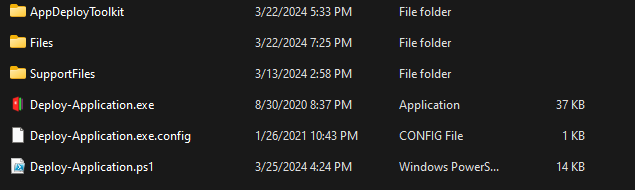
As you can see in the screen shot, this is the package. When you download the zip file, you will be greeted with this amazing structure. The Deploy-Application.ps1 is where our code will go. The Files folder is where the installer files would go. Following our auto cad example, the installer and updates would all be placed inside the Files folder.
Deploy-Application.ps1
This file has an amazing setup. It first has a wall of documentation inside the file itself. The file explains each step along the way. It is broken up into installation, uninstallation, and repair. Each section has a Pre, during and post process in each section. This is great if you need to kill some services, send a message or more. It’s also helpful because it gives you a structure to work within.
The Commands
Inside this packaging there are many useful commands. As I stated in the intro, it’s full of ways to communicate what you are doing with the end user. During an application install, you can show which applications needs to be turned off for the install to work by using the show-installationwelcome command.
This example shows us it wants to close the applications and gives the user a 60 second window to do so. This isn’t the only thing this command can do.
Other commands like execute-process, will launch processes that you need from the file directory and more. All while logging what’s going on. You can find a full help system for all the unique commands inside the tool kit. Navigate to the tool kit > AppDeployToolkit > AppDeployToolkithelp.ps1 will bring up a gui that allows you to read all about the commands.
Using the Toolkit with Intune
If you want the tool kit to work with the end user profile, then you will need to grab a unique little tool from MDT. We will need the ServiceUI.exe from the MDT software. You can download MDT here. Once you have the MDT installed. we need to pull the ServiceUI.exe out of the MDT install. Navigate to, C:\Program Files\Microsoft Deployment Toolkit\Templates\Distribution\Tools\x64 and copy the ServiceUI.exe file. Place this file in the home of your PowerShell App Deployment Toolkit file structure.
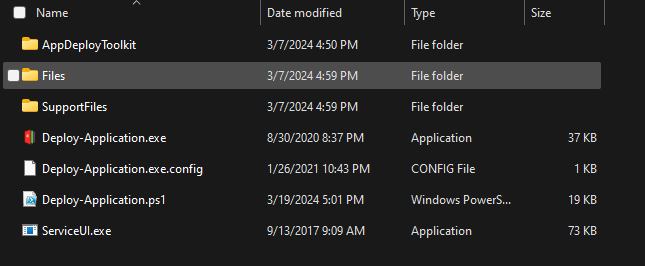
As you can see, the ServiceUI.exe is in the root folder. Now we need to create the package. We can create a win32 app package. I covered this here. This is the same concept.
The folder would be the folder with your toolkit
The setup file would be the Deploy-Application.exe
The output file would be wherever you want the Intune app to be dumped.
and we don’t need to catalog the folder.
Once you have your application built, it’s time to see how it works inside Intune. We start by building your application package. As stated in the previous blog, we start the application by uploading. The big difference here is our install and uninstall commands.
Understanding the commands
Our install command will be the using the ServiceUI.exe and the deploy-application.exe
By default, the Deploy-application.exe will be interactive. There are two flags for the Deploy-Application and here are what they are.
DeploymentType: (Super Straight forward)
Install: Installs the application
Uninstall: Uninstalls the application
Repair: repairs the application.
DeployMode:
Interactive: Shows all of the prompts needed.
NonInteractive: Only shows the required prompts.
Silent: Shows no prompts.
We can translate the command above by using these flags. By default the Deploy-application.exe is install and interactive. So, we know that the application would be prompted and the end user will see the command. The uninstall command will uninstall and it will be interactive. The ServiceUI.exe allows you to run applications as the user in and the system at the same time. The biggest issue with the ServiceUI.exe is the application will not install until someone logs in. No flags are needed here.
Over all, PSappdeploytoolkit changes the ball game with deployments. I encourage anyone and everyone to dig deeper into it.
What can we learn as a person today?
I live in the south of United states. From time to time I will hear people battling over belief systems. In my life time I have come to an understanding of how these systems work. I liken “objective truth” as fish in a sea. Our belief systems is the net we use to capture those fish. Some nets are better than others. The water of the sea is useless, distracting, or misinformation. It only makes it harder to bring those pieces of the objective truth into ourselves. A good net can capture a lot of fish, and let the water out at the same time. A bad net, like a tarp, captures some but becomes unmanageable due to the water. This is the same way with our beliefs. We are only strong enough to lift so much at different points in our lives.
Premade Nets
I see organized religions as premade nets. Think of it like a tool kit. It’s a format that is easy to use and allows you to do stuff with it. Does the toolkit work for everyone, no. Just like this PowerShell toolkit, it would be useless in a world without powershell. So chromeOS, this toolkit isn’t useful. This is the same with some beliefs. They are useful where they are, but not useful in other places. Sometimes these toolkits/nets, are useful for some but not others. If you don’t know PowerShell, this toolkit wouldn’t be useful to you. If you are shame sensitive, some religions are not for you.
Everyone has their own tool set or net. No single tool set is inherently bad. It’s how we use them and where we use them. If you take a net to a small pond, get ready to waste your time and damage your net. If you throw your net aggressively into a aggressive sea, get ready to lose that net.
Homemade Nets
Once someone understands how the nets are made and how to repair them, It’s always best for them to start building their own nets using the techniques they have used on their previous nets. By having a net/toolset of your own, this allows you to have full knowledge and be able to repair quickly. This belief system would be uniquely yours and different from others. So, when it breaks, you can grow it, replace parts, and more without having any problems. It’s yours and no one elses.
This past month I was given a task to Uninstall a few applications in Intune. However, the app’s uninstall feature did not work according to plan. However, a bunch of these worked with the cim methods of uninstall. Which I thought was funny. After writing a bunch of the same code over and over again, I decided to write a General Uninstaller for Intune. This also requires a custom Detection Script.
Here we have a general uninstaller for Intune. This script allows us to feed the product name as is or we can add wild cards to the name. We start off the script by grabbing the product names from the user. This will be done during the intune setup. When it deploys, the first thing this script does is grab all the applications inside the win32_product. If the application didn’t register in this windows system, then this script is going to be pointless for you.
Once we have the products, we go through each Product Name. We first check to see if the product is on the system. If it isn’t, we output success and exit with a unique exit code. This will be used later. However, if the product is on the machine, we grab the install location. Then we pipe the product into the uninstall method in the cim method command. Finally, we see if the install location exists inside the installed object. Some applications give us this information some don’t. Some give us multiple locations while others don’t.
To work around this, we check if install location property is null. If it isn’t null, then we move on and start a loop. The loop is only because some install locations have more than one location. Then we test if the file path still exists. Sometimes, the applications uninstaller will remove the folder, sometimes, it doesn’t and that’s why we test. If the file location is there still, we remove it with a good old force and recurse. Finally, we exit with the unique exit code.
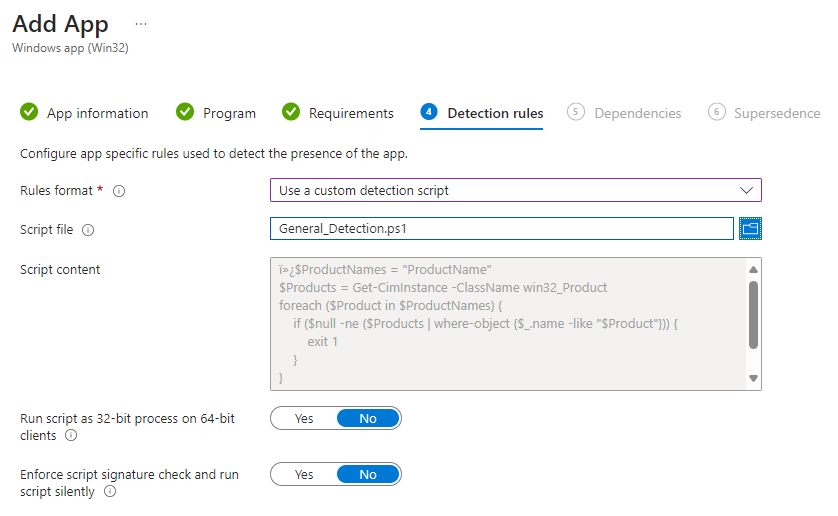
With any custom script installs or uninstalls, a custom detection script is necessary. The first step is to grab the product names. Just like before, it’s a list of strings. So they can do more than one. Then we grab all the products with our cim instance and win32_product. Then we loop through each product name and see if the product exists still. If it does, we exit with a 1. This basically says, I failed! Intune needs a string and an exit code of 0 to be successful. The exit of 1 without the string ends the script and without that string, intune assumes failure. However, if we go through them all, and none trigger the exit, then we are safe to exit with a 0 and the beautiful word success.
Building it out in Intune.
Building the IntuneWin File
The first thing you will need to do is save your script into a folder and then download the WinIntuneApp, aka, Win32 Prep Tool, to package up the powershell script. Unpackage this tool and start up your command prompt. The application will guide you through the process of setting up a intunewin app.
General Uninstaller for Intune
Please specify the source folder: This is the folder that will have your script inside of it. If you wanted to create something more complex, this part would change your way of deployment. Future blog post coming.
Please Specify the setup file: This is going to be the powershell name. General-Uninstall.ps1
please specify the output folder: This is the folder that the intunewin file will be dropped.
Do you want to specify catalog folder (Y/N)? This one is for more advanced packages. We can say no to this option for this setup.
Setting Up Intune for Your Uninstaller
Now we have the IntuneWin file. It’s time to setup the intune Deployment. This is where you will be able to add things like the productname to our General Uninstaller for Intune.
Navigate to Endpoint Manager
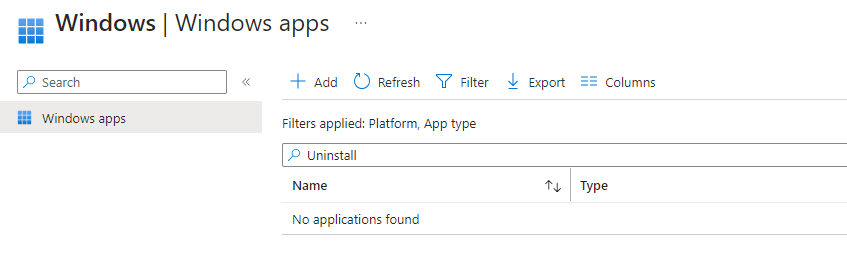
Click Apps
Click Windows
Click Add
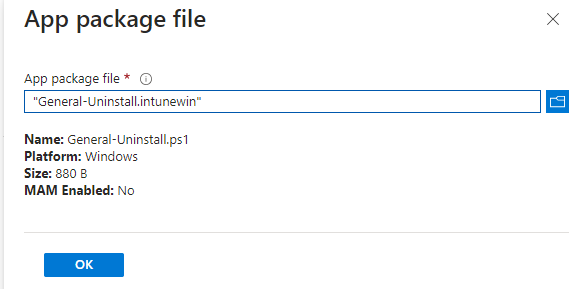
Click the Select App Package File.
Add the General-Uninstall.IntuneWin file.
Click ok
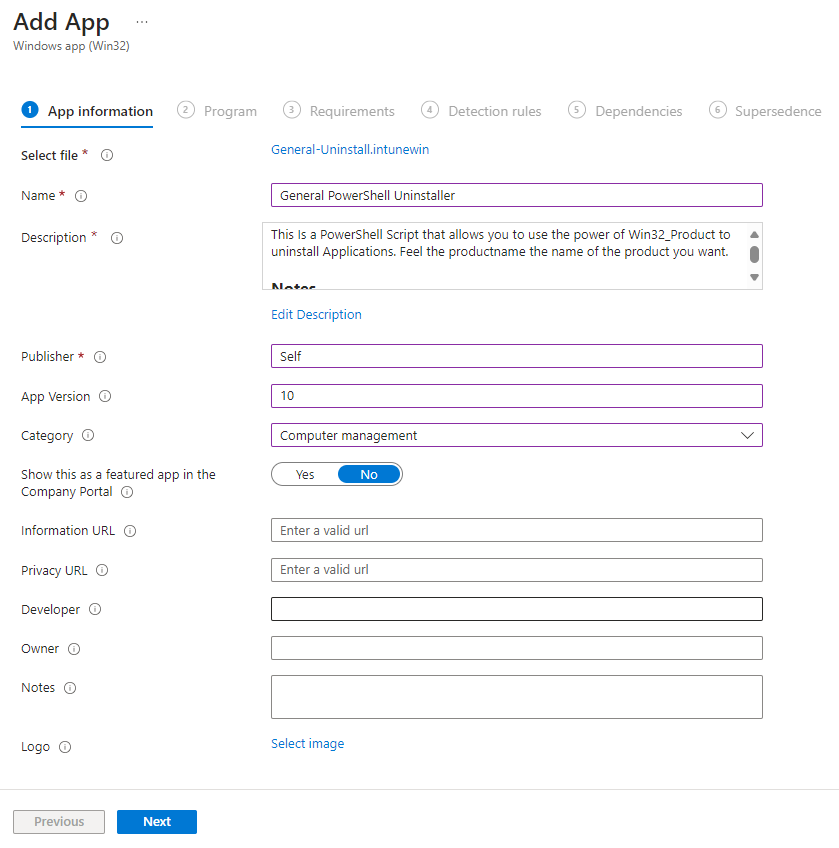
Change the Name
Click the edit Description and add a detailed description for other users. Make sure to provide instructions on what to do with the detection script.
The publisher can be your company or in my case self.
The gategory is going to be computer management as it is a general uninstaller.
Feel free to add any additional information. Link this blog post if you wish for the information URL.
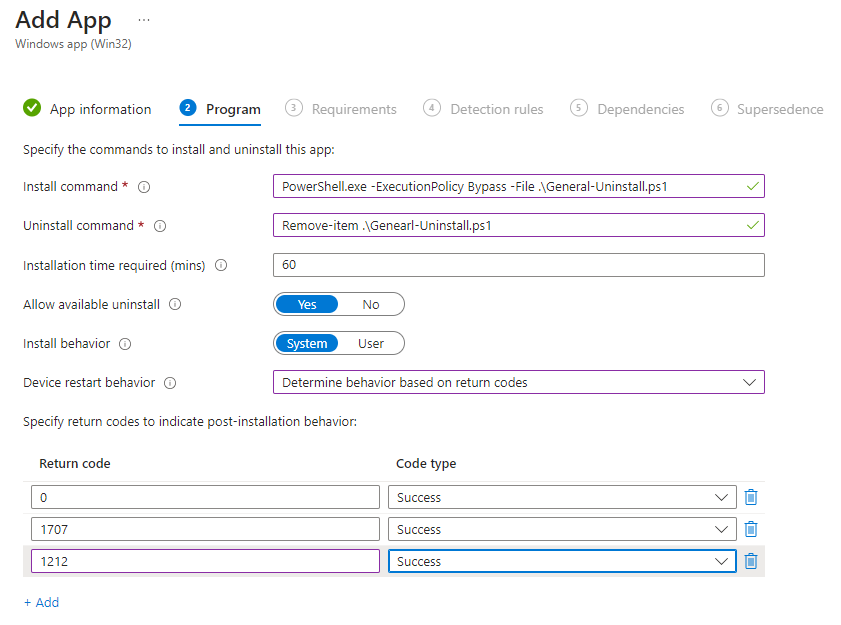
The Uninstall command can be as simple as a removal file.
Device Restart Behavior: Determine behavior based on return codes
Return Codes: Remember that unique exit code we had in the script. This is where you would place that code. I have it as 1212 is a success.
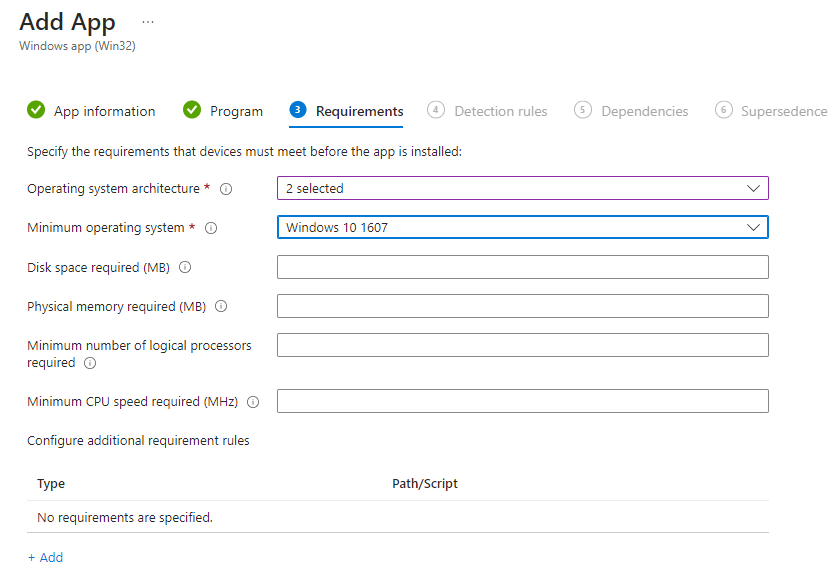
The next screen the requirement screen. We can do a lot with this screen, but we don’t need to here.
Operating System Architecture:
32
64
Minimum Operating System: Windows 10 1607.
Now we need to setup the custom detection.
Select User A custom Detection Script
Validate your product names to be uninstalled.
Upload and click next.
Accept the defaults for Dependencies and Supersedences.
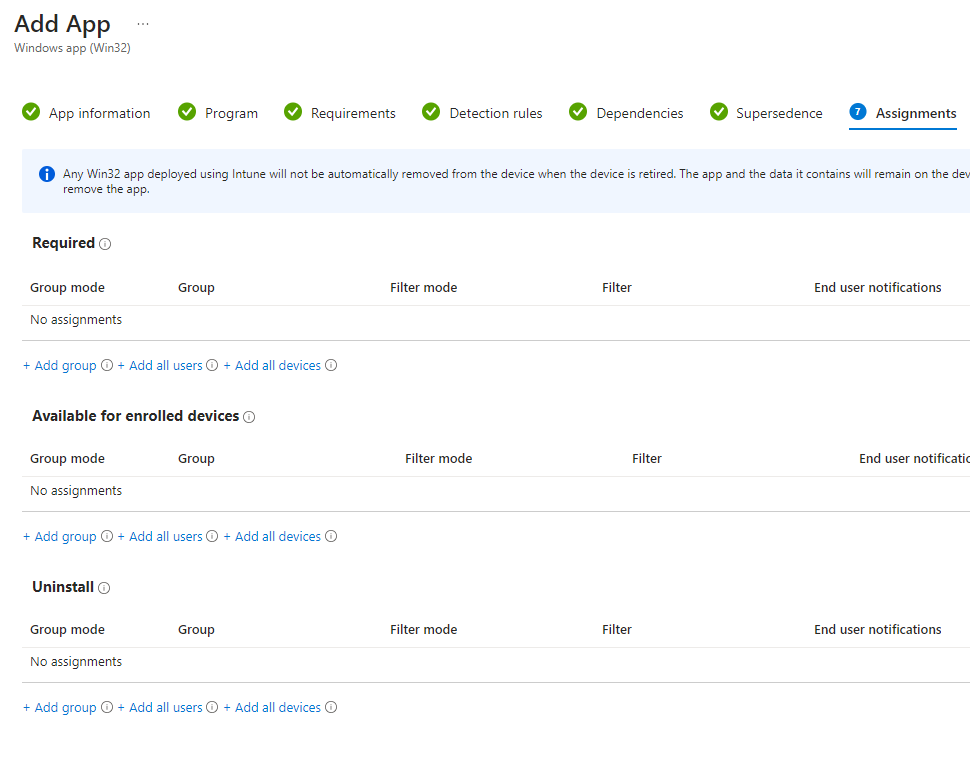
The final screen is where you are able to assign the script to people. There are three sections. Required, aviable for enrolled devices and uninstall. This is where you will select who is going to get what.
Testing, Monitoring, and deployment
The assignment area is where you assign the script to who you want. This is very important. Here is where you would want to test the users. Have a test group and apply it first. H
Deploy the uninstall app to the test device group.
Monitor the Intune deployment status for the app to ensure successful deployment to devices/users.
Test if the application is still on a target computer. This can be done with control pannel, powershell, and more options.
Redefine and correct any issues and restart the testing.
Deploy
What can we learn as a person today?
When was the last time you threw a rock? How about a rock in a lakes? The last time you did, did you notice the ripples? Just like a deployment like this can cause ripples in your company, removing things from your life can cause just as many ripples in yourself. Make sure you are ready to let go of that thing you are holding onto. It’s always a good idea to test it out, or have a support group to help you. Those ripples can do some damage. So be ready to Uninstall parts of your life before you do it.
In the intricate web of modern network management, the security and integrity of user accounts stand paramount. “AD User Audit with PowerShell” isn’t just a technical process; it’s a critical practice for any robust IT infrastructure. Why, you ask? The answer lies in the layers of data and accessibility that each user account holds within your organization’s Active Directory (AD). Whether it’s for compliance, security, or efficient management, auditing user accounts is akin to a health check for your network’s security posture.
Understanding the last login times, password policies, and group memberships doesn’t only highlight potential vulnerabilities; it also paves the way for proactive management and policy enforcement. PowerShell, with its powerful scripting capabilities, emerges as an indispensable tool in this endeavor. It transforms what could be a tedious manual audit into an efficient, automated process.
Why Perform an AD User Audit?
An “AD User Audit with PowerShell” serves multiple purposes:
Security: Identifying inactive accounts or those with outdated permissions reduces the risk of unauthorized access.
Compliance: Regular audits ensure adherence to internal and external regulatory standards.
Operational Efficiency: Understanding user activities and configurations aids in optimizing network management.
The first thing we do in this powershell script is the import module. We are importing the ActiveDirectory. Then we are going to setup a nice little function to help grab the expiry date of the account. The function here will depend on the dates and time as the parameters. The function resolves the time span needed. Next we will grab the data we need. That’s the Name, Samaccountname, enabled, last logon date, password last set, member of, locked out, and finally when created. From there we will use select object. This is where some of the good stuff happens. When we select the pasword expire date, we are going to use the @ name and expression. Lets break that down some.
Inside the select object command, you can select different properties and give custom properties. Having a name or label is the first part. The Expression can be it’s own command line. Here we have the function from earlier. We are pushing the get-aduser’s password last set and running it through the get-passwordexpirydate. Make sure to wrap the expression inside curly brackets. We can do this same thing with the group membership.
The Group Membership pulls apart the memberof and passes it through the get-adgroup. From there we grab the name of the group. Now since we want to export this into a csv, it would be best to use a join to make it easy. Once we have that information setup. We export it to a csv. Then we are done. This information can then be passed on to the security admin to work with.
Script Deployment and Usage
The execution of this script in your environment is straightforward but requires administrative privileges. It’s designed to run seamlessly, outputting a comprehensive report that encapsulates the health and status of each user account in your Active Directory. This report not only informs your immediate security strategies but also assists in long-term IT planning and policy development.
What can we learn as a person today?
Just as “AD User Audit with PowerShell” ensures the health of an IT infrastructure, journaling serves as a personal audit. It’s a practice that offers self-reflection, tracking progress, and identifying areas for improvement in our personal lives.
Self-Reflection
Journaling is a gateway to the soul, a mirror reflecting our deepest thoughts and feelings. In the quiet moments with our journal, we engage in an intimate conversation with ourselves. This practice allows us to confront our fears, celebrate our successes, and ponder our aspirations. It’s a safe space where we can express emotions without judgment, helping us understand and accept who we are.
Imagine a day filled with stress and uncertainty, where words left unsaid create a storm inside you. In your journal, these unspoken thoughts find a voice. You write about the meeting that didn’t go as planned, the conversation with a friend that left you unsettled. As the words flow, there’s a sense of unburdening, a weight lifting off your shoulders. It’s in this self-reflection that clarity emerges, often bringing peace and a newfound understanding of your emotional landscape.
Tracking Progress
Like a lighthouse guiding ships through a stormy sea, journaling illuminates our path through life’s complexities. It helps us track where we’ve been and where we’re heading, offering insights into our personal evolution. By regularly documenting our experiences, thoughts, and feelings, we create a tangible record of our journey. This practice can reveal patterns in our behavior and responses, helping us recognize both our strengths and areas for growth.
Consider a journal entry from a year ago, describing feelings of apprehension about starting a new venture. Fast forward to today, and your journal tells a different story—one of growth, learning, and newfound confidence. The contrast between then and now is stark, yet it’s a powerful testament to your resilience and adaptability. Reading your past entries, you feel a surge of pride in how far you’ve come, reinforcing your belief in your ability to face future challenges.
Identifying Areas for Improvement
Journaling not only captures our current state but also acts as a compass, pointing out the areas in our life that need attention. It can highlight recurring issues, whether in relationships, work, or personal habits, prompting us to seek solutions or make necessary changes. This process of self-audit through journaling encourages us to be honest with ourselves, to confront uncomfortable truths, and to take actionable steps towards betterment.
Imagine writing about the same problem repeatedly—a strained relationship with a colleague or a persistent feeling of dissatisfaction. Seeing these recurring themes in your journal can be an eye-opener, signaling a need for change. It might inspire you to initiate a difficult conversation, seek external advice, or explore new opportunities. The journal becomes a catalyst for transformation, nudging you towards decisions and actions that align with your true desires and values.
Final Thoughts
In each stroke of the pen, journaling offers a chance for introspection, growth, and healing. It’s our personal audit, tracking our emotional health and guiding us towards a more mindful and fulfilling life. Just as “AD User Audit with PowerShell” ensures the health of our digital environments, journaling safeguards the wellbeing of our inner world.
Today we are going to go over how to create hundreds of users at once using PowerShell in active Directory. This is great for building a home lab to test things out with. To learn how to build your own AD lab, you can look over this video. Towards the end of this video he shows you how to do the same thing, but, today, I am going to show you a simple way to get unique information. This way you can use PowerShell to Create Bulk Users in your Active Directory.
This script is very dependant on a csv file that magically seems to appear. Well, it doesn’t. The first thing we need is to get a CSV of bulk users to create bulk users. To do this, you can navigate to a site called fake name generator. This site allows you to quickly generate user information to use to build your site.
Navigate to the https://www.fakenamegenerator.com/.
Select Common Sepearted (CSV) and the compression is zip.
Then select your country. I selected American.
Note: Some languages will cause issues with AD due to unique characters. If you do select this, make sure to correct for it.
Select your country of choice. I choose the US.
Select the age and gender ranges. You can keep this standard
Then I selected All on the included fields.
Select how many you want and enter email
Note: A single OU doesn’t display more than 2000 users. This script creates sub OUs just for this case based on the zodaic signs.
Then verify and place your order.
Once you have the file, we can get started explaining what we are going to do to Create Bulk Users in Active Directory with the Power of PowerShell.
The Breakdown
It’s time to break down this script. The first two lines are the domain information. I’m using therandomadmin.com as a example. The next is the Bulk Users csv. These are the lines you want to change if you want to use this in your own lab. The next line grabs the OUs names. We want the full state names in this case from the csv. Next we will create the Employees OU that will host all of the other OUs.
Now we have the OU built, we will make a path for later. by dropping the Employees and the domain ou into it’s own variable. using this variable, we enter a foreach loop using the OUs. We want to build a new OU for each OU in the OUs.
Next, we will go through the loop of users. In each loop, we want to build a splat. Splatting was covered here in a previous blog. In this splat, we are looking over the New-ADUser commandlet. Lets break it apart.
Using the csv file. We are using the Given name, Surname, and Middle Initial. Using this information, we make the display name, given name, sur name and the name. Then we use the city, color and occupation. The next part is we want to build the usernames.
Using the same structure as the name, We just add dots and for the email, we just add the domain. Then we will grab the street address, city, state, country, and home phone.
StreetAddress = $user.StreetAddress
City = $user. City
State = $user. State
Country = $user. Country
HomePhone = $user.TelephoneNumber
Next we want to use do the company information. We want the department as the color, the Title will be the occupation, employee id will be the users number, the employee number would be the social and finally the division would be the state.
Company = "The Random Admin"
Department = $user. Color
Title = $user. Occupation
EmployeeID = $user. Number
EmployeeNumber = $user.NationalID.replace("-",'')
Division = $user. State
Now we have company information, we want to make account information. Things like being enabled, password changing, the password and finally the OU. We want to do the Full state name for the OU. This way it matches with the OUs we built before hand.
Finally, we want to push though the command itself. These are the cmdletbinding() flag commands like verbose and error action.
ErrorAction = "SilentlyContinue"
Verbose = $true
Now the splat is done. It’s time to build the try catch with a useful error. By default the Error message is massive. So, making it easier with just the Name is very much more helpful. We will make sure to splat in the new-aduser information.
That’s all for this script. It’s not hard, but it should allow you to create a lab quickly. You can download the CSV here if you wish.
What can we learn as a person today?
Unlike the God’s of old, we are not able to create new people in our lives to meet our needs. Instead, we have to find people. Like we pointed out last week, networking is massive. How we are to other with our networking is extremely important. Without networking, we tend to find ourselves in a hole. Imagine a giant hole in the ground with oiled up smooth metal walls and all you have to get out is a rope that is at the top of the hole. There is a lot that can happen here. The rope can stay there. Someone can throw you the rope.
Throwing the rope
Someone can throw you the rope and walk away. The rope will land in the hole with you. You can try to throw the rope out, but without something to cling to, the rope will just fall back down to you. This is like the man who says to just study for this exam or that exam. He threw you a rope, but hasn’t really done anything else.
Now image if someone secured that rope to something like a car or a rock and threw the other end to you. Now you have something to climb up with. This is the person who has given you resources to look into. For example, I hear you want to get into networking but have no experience. I’m going to say study the network plus exam and then tell you about professor messor on youtube. This is super helpful and most people can climb out of the hole with the rope. However, in this senerio, the wall’s are oiled up. Thus, footing is an issue.
Finally, we have the guy who ties the rope to his car, and throws you the other end. Then backs up with his car pulling you out of the hole. This would be a manager, or a senior member of an IT company taking a new person under their wing and leverging the company to help them learn new things. This is the kind of company, I would want to work with.
Final Thoughts
When you are working with people helping them with their career, some people just need the rope. Some people need the anchor and finally some needs to be pulled out of the hole. A lot of this is due to society and situations. Being aware of these facts can help you network with others better and grow your support team. Being aware of yourself allows you to know who you need as well. Do you need the truck? Do you need an anchor? What is it that we need to get you out of the holes that we find ourselves in? What can we be to others?
We use cookies to ensure that we give you the best experience on our website. If you continue to use this site we will assume that you are happy with it.