

Had a client ask me last week "wait, why did MY personal phone just get a work profile pushed on it" and thats basically how this post started. They werent trying to break anything. They just enrolled a device because Intune let them. Nobody had ever told it not to.
So lets talk about who can actually enroll devices into Intune, where that gets decided, and the one setting most tenants forget even exists until something weird shows up in their device list.
The short answer
By default, in a brand new tenant, any licensed user can enroll a device into Intune. Windows, iOS, Android, macOS, doesnt matter. If they have a license that includes Intune and nobody has restricted anything, they can walk up to Settings on their phone, add a work account, and its managed.
That is rarely what you actually want. So there are two separate settings you need to know about, and people mix them up constantly.
Who's actually allowed in: MDM user scope
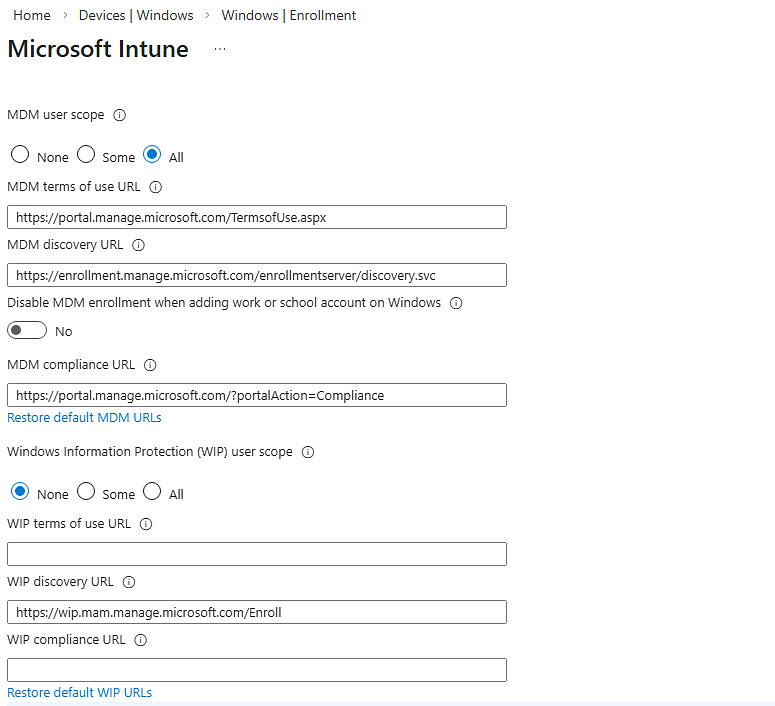
This one lives in Microsoft Entra, not Intune, which is why half the admins I talk to dont even know it exists. Go to Microsoft Entra admin center > Mobility (MDM and MAM) > Microsoft Intune. There you'll find MDM user scope, and it has three options: None, Some, and All.
- None means nobody auto-enrolls or gets redirected to Intune when they try to add a work account. Enrollment is effectively off tenant-wide.
- Some lets you pick specific security groups. Only members of those groups can enroll. This is what most orgs should be running, honestly.
- All is the wide open default I mentioned above.
This setting decides whether a user is even allowed in the door. Everything else in Intune is fine tuning after that.
Fine tuning who gets through: enrollment restrictions
Once someone is inside the MDM scope, Intune itself has its own restriction policies under Devices > Enrollment in the Intune admin center. Two kinds matter here.
Device platform restrictions control which operating systems and versions are allowed to enroll. Want to block personally owned Android devices but allow corporate ones? This is where that lives. Want to stop anyone showing up with an ancient iOS version? Same place.
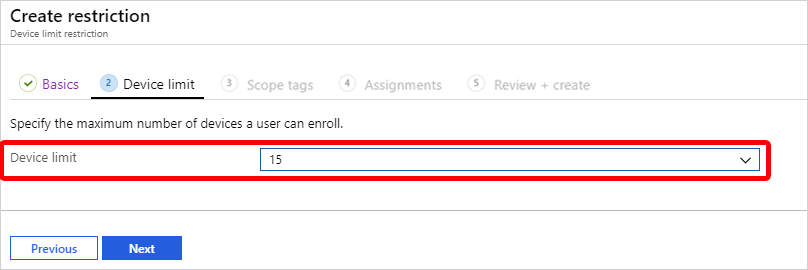
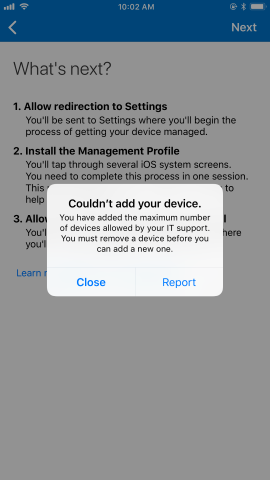
Device limit restrictions control how many devices one person can enroll, from 1 to 15. That default limit has bailed out more than one helpdesk when a user's kid enrolled three tablets under the family Microsoft account by mistake.
Both of these are assigned to groups and evaluated by priority order, lowest number wins, with the built in "All users" restriction sitting at the bottom as the fallback. So if you create a custom restriction for a group, give it a lower priority number so it actually gets applied before the default one steps in.
Changing these settings, step by step
For MDM user scope:
- Microsoft Entra admin center > Mobility (MDM and MAM)
- Select Microsoft Intune
- Set MDM user scope to Some, then pick your group (or groups)
- Save. Give it a few minutes, Entra caches this stuff sometimes and it doesnt always apply instantly
For enrollment restrictions:
- Intune admin center > Devices > Enrollment
- Pick either "Enrollment device platform restrictions" or "Enrollment device limit restrictions"
- Create a new restriction, configure what you need, assign it to a group
- Go back to the restriction list and reorder priority so your custom one sits above the default
Forgetting that last step is probably the most common mistake I see. You build a beautiful restriction, assign it, test it, and nothing changes because the default policy is still winning on priority.
The part people actually ask me about: enrollment managers
This is the piece that trips people up when they're setting up kiosks, shared devices, digital signage, that kind of thing. Normally a device enrolls under a specific user's identity, and it counts against that user's device limit. Fine for a normal employee. Not fine when you're trying to enroll 40 lobby kiosks and none of them belong to a real person.
That's what the Device Enrollment Manager role is for. It's a special account, assigned in the Intune admin center under Devices > Enrollment > Device enrollment managers. An account with this role can enroll up to 1,000 devices without hitting the normal per-user device cap, and it isn't blocked by platform restrictions either.
The workflow usually looks like this: create a dedicated account, something like kiosk-enroll@yourtenant.com, dont give it a real mailbox or normal user permissions, just make it exist. Add it as a device enrollment manager. Then use that account to enroll all your shared kiosk hardware. Every device enrolled under it shows up tied to that account instead of a real person, which also makes cleanup way easier later when you're trying to figure out which devices are "real employee devices" versus "that thing bolted to the wall in the lobby."
A few things worth knowing before you go set this up:
- Enrollment manager accounts still need an Intune license, same as any enrolled user
- They're meant for shared and dedicated devices, not as a workaround for a regular employee who just hit their device limit
- Devices enrolled this way still get whatever compliance and config policies you'd normally assign, nothing about being enrollment manager owned exempts them from policy
- Dont delete the enrollment manager account once its enrolled devices, that breaks things for those devices
Putting it together
If you only remember one thing from this, remember there are two gates, not one. MDM user scope in Entra decides who gets in the building at all. Enrollment restrictions inside Intune decide what they're allowed to bring with them once they're in. And enrollment managers are the side door for devices that dont belong to any one person, like your kiosks.
Go check your MDM user scope setting today if you havent looked at it before. Theres a decent chance its still set to "All" from whenever the tenant was first stood up, and thats usually not a choice anyone actually made on purpose.
What can we learn as a person
I think about MDM user scope more than I probably should, because its really just a fancy way of answering "who gets access to me." Set to All, anyone with a login can walk in and start pushing things onto your device. Sound familiar? A lot of us run our own lives that way. Anyone with a phone number gets a work profile pushed straight onto our evenings. Anyone who asks gets a yes. We never set it to Some.
And then theres the enrollment manager thing, one dedicated account taking on the kiosk devices so it doesnt fall on fifteen different people's shoulders. I think thats a good model for life too honestly. Not everything needs to be YOUR device cap. Some stuff, the shared stuff, the repetitive stuff, is better handled by one clear owner instead of everybody carrying a little piece of it and nobody really owning it. That's usually where things fall through the cracks, when its everyone's job a little bit and nobody's job fully.
So what's your MDM user scope set to right now. Who's in it. And is there something in your week that really should have one clear owner instead of quietly being everyone's problem?