Today, I needed to convert a mac address to a CIDR. The lesson I learned about this is to go back to the basics instead of looking around for a quick answer. So, to the basics first.
A mac address is a 4 octet number that represents a binary position. It ranges between 1 and 255. This means something like 255.255.255.0 is represented in binary as: 1111 1111 1111 1111 1111 1111 0000 0000
It's easier to remember the 255 number instead of all those ones and zeros. However, what's that CIDR? Well, what's a CIDR? A CIDR represents the mac address and how many positions there are. If you count the number above, it turns into 24 1s and 8 0s. Thus the CIDR is 24. Very simple.
Now, how do you change 240.0.0.0 to a cidr? You can go to a chart and look or we can use PowerShell. The first thing we need to do is split up this string.
"240.0.0.0" -split '\.'
We split the string up with a split command and tell it to split it up by the . item. We use an exit \ because the . is a special character for regex. Next, we loop through this list of octets with a foreach-object loop.
$Mask -split '\.' | ForEach-Object {

    }
Then we break down each octet into a binary number. We do this with a system.convert and tell it the number we bytes we want which is 2.
[System.Convert]::ToString($_, 2)
We then pad that information because sometimes 0s will produce more useless items.
The code above will give us the 1s and 0s of the binary number. Now we need to count the ones. We do this by converting the string to a char array with at .toochararray(). We search the string with a where-object for the number 1 and finally count it.
Now we need to add each item up. We do this by adding a variable before the loop set to 0 and then add the variable to the variable and the count. Finally, after the loop, display the information.
Need 1000 or unique user photos for your lab? There is a great website for just such a thing. https://thispersondoesnotexist.com/image. Let's break down some code to see how we can pull a few hundred pictures.
The first thing we need to know is how many we want. We are going to get 1000 faces for this example. Next, we need a safe location. Finally, we need an sleep time for the site to regenerate an image. Lets get started.
$StartCount..$FinishCount
the two . in this code allows you to loop through two values. Next we need to pipe this command into a foreach object loop.
$StartCount..$FinishCount | foreach-object {}
Inside the for each loop we start the real work. We are going to use the Invoke-WebRequest. Our URI is the site "https://thispersondoesnotexist.com/image" We will select where we want to save the file using the -outfile location. We are going to save it in the save location we choose earlier. We will put the name as the number you are currently using. Finally we will add a -disablekeepalive flag to stop the system from keeping the connection alive. We do this out of respect for the site.
Next we need to do a sleep cycle. We do this because if we do a request after another request, we will get the same image. 7 Seconds seems to be the magic number. We do this with Start-Sleep -Seconds 7.
Start-Sleep -Seconds 7
That's it, It's a simple process. The Invoke-WebRequest will get the needed image and save it to your computer. The site will generate a new picture each time you reach out.
Often times I am asked to give user a the same rights as user b. Since everything is setup with groups, this is easy to do. All I have to do is copy all the security groups to the new users. Normally I would use the command Get-ADPrincipalGroupMembership whoever, that has become less trust worthy over time for us. So I made a different approach.
The above command grabs the source users member of and filters it out for just the name. Then it loops through each and gets the group name. From here we can filter even farther to get the security and then loop those and added the single member making a one liner, but I want this thing to be bigger and better. A good function that can do distribution, security, universal, global and domain local groups to more than one single user with credentials or not. I want this thing to be nice. Here is the heart beat of the command:
foreach ($Target in $TargetUser) {
        $Groups | ForEach-Object {
            try {
                if ($PSBoundParameters.ContainsKey('Credential')) {
                    Write-Verbose "Add $($_.Samaccountname) a $($_.GroupCategory.tostring()) a $($_.GroupScope.tostring()) to $Target"
                    Add-ADGroupMember -Identity $_.samaccountname -Members $Target -Credential $Credential
                } else {
                    Write-Verbose "Add $($_.Samaccountname) a $($_.GroupCategory.tostring()) a $($_.GroupScope.tostring()) to $Target"
                    Add-ADGroupMember -Identity $_.samaccountname -Members $Target
                }
            } catch {
                Write-Verbose "Failed to add $($_.Samaccountname) to $Target"
                Write-Warning "$_ could not apply to $Target"
            }
        }
    }
We target each user with this information. Then we add the group accordingly. So, how do you split the Security group vs Distribution group? We do this by using PSboundparameters and a Where-object group. So we declare a parameter in the parameter area and then ask if it is being used. If it is, we use the where object to search for the groupcategory.
Have you ever had troublegetting lockout information for a single user? The DCs have the logs, but getting them can be tough. The core idea is to use the Get-Winevent command to gather the logs needed. Doing this from a remote computer is time-consuming. However, using the Invoke-Command tends to speed things up. Inside this example, I am going to use something called Splatting. Splatting allows you to drop everything a command needs into a command quickly and easily by creating a hash table. Now, not all commands like splatting, so be aware of that. Here is the heart of the code:
The first thing we are doing is creating the parameters that will be splatted. Just like a hashtable, it's something = something. So the computer name is the Array computername. The computer name inside the Invoke-command can handle arrays. Making this much easier as we want the DCs.
Next is the script block. This is where the invoke-command will be executing everything from. We start off with a Param () block. It will get it's input from the Argumentlist later. The Argumentlist is the variables we will be dropping into the command. In this case, it will be time. As in this script you can build your time based on how far back you want to search your logs.
Next is the filter table. The Get-winevent command likes hashtables. So we start off with our starttime, basically how far back we are going to go. Then the end time which is the time of execution. The Logname is the type, there is an application, security, system, and more. Since the lockouts are security, we choose security. Finally, we want the ID. For account lockouts, the ID is 4740. There is an online Encyclopedia for windows logs. (Link)
The Get-WinEvent command is followed by the FilterHashtable flag. We dump this into the events variable for sort throu. Now we search each Event in Events. We express this with an E because $event is a system variable and we don't want to cause any issues. We want the time it was created. The ID, what DC it came from. The SID of the user. The Domain. The username of the user, and finally we want the calling workstation. Once all that is put together we splat it into the command Invoke-Command.
That is the heart, but not the power. This script allows you to call back from the day, hour, and minute back. If you don't put in a input, it makes it a day for you. It also can target a single user or different computers. Finally it gives you the ability to use different credentials. Lets take a look at the parameters.
param (
        [parameter(Helpmessage = "Username of target")][Alias('User', 'Samaccountname')][String[]]$Username,
        [parameter(Helpmessage = "Days back")][int]$Day,
        [parameter(Helpmessage = "Days back")][int]$Hour,
        [parameter(Helpmessage = "Days back")][int]$Minute,
        [parameter(Helpmessage = "Computers to target, default is domain controllers.")][Alias('Computer', 'PC')][String[]]$ComputerName = (Get-ADDomain).ReplicaDirectoryServers,
        [Parameter(HelpMessage = "Allows for custom Credential.")][System.Management.Automation.PSCredential]$Credential
    )
We first are looking for a list of usernames. Notice we don't have to declare this variable. So, if we just want all the lockouts, we just don't delcare it. This is done by using the PSBoundParameters.ContainsKey option. So, if the script sees the username is being used, it will follow this command.
if ($PSBoundParameters.ContainsKey('Username')) {
        foreach ($user in $Username) {
            $Return | Where-Object { $_.Username -like "$user" } | Sort-Object Time | Select-Object Username, Domain, SID, Time, Computer, PSComputerName
        }
    }
The next parameters are also optional. It is days, hour, and minutes back. So, you can state 1 day, 3 hours, and 2 minutes ago and it will find the times during starting at that moment forwarder. This is good if you plan to use this script as an auditor (what it was built for). How this is achived once again is the use of psboundparameters.containskey.
We first declare the time with the current time/date. Then based on the input, we remove days, hours, or minutes from the current time. If there is no input, we tell time to remove 1 day. Depending on the size of your organization and how many logs you have, this can be useful. The $time will be used in the argumentlist.
Now we have the Computername parameter. If you have differentiating computers than your DCs that handles these logs, you can target them with this command. Otherwise, we grab the dc information with a single line of code.
(Get-ADDomain).ReplicaDirectoryServers
Finally we have the ability to add the credentials. Once you delcare the credentials, we add the credential flag to our splat. To do this we create a hashtable with a single item and add it to the parameter.
if ($PSBoundParameters.ContainsKey('Credential')) {
        $parameters += @{Credential = $Credential }
    }
Now, lets put all this together in a single script so you can copy it and move along with your day.
I hope you enjoy this little script and I hope it helps you grow your company. If you find any bugs, let me know. Thank you so much and have a great day!
You read that right, access PDQ information with PowerShell. You will need the PS SQL Lite module first. This module will allow you to access the SQL lite server. The second thing you will need is a Powershell script on the server accessing the module information. Then finally you will need to be able to access that script remotely. Let's install the PSSQLite first. Do this on the PDQ server as the script that will be interacting with the SQLite database is on that server.
Now we ill build a script on the PDQ server. The folder should be accessible by anyone you want to run this script. Let's look at the starting points.
First we will import the module using the Import-Module command.
Import-Module PSSQLite
Next we need to declare the database. By default the database is located under the C > ProgramData > Admin Arsenal > PDQ Inventory > Database.db if it is not, you will need to declare it here.
Before we continue, this script is designed to grab just a single computer's information. If you choose to grab more than one computer, this can cause PDQ to crash and even the server to crash. So, play itself and don't be too greedy. With that said, Let's grab the computers with the computer name. from the server. This is our first SQL query of the script. It's also the most important as it gives us the Computer ID. Without it, nothing else will work.
$Computer = Invoke-SqliteQuery -DataSource $Database -Query "SELECT * FROM Computers WHERE Name LIKE '$ComputerName'"
The Command to grav the SQL lite database information is Invoke-SQLiteQuery. Watch out because I made the mistake of adding an additional L while typing it. We select the data base as the data source. And the rest is very much like SQL commands. Inside our Query we select everything from the computers table where the name is like the computer name we provide. This gives us a lot of useful data that can be used else where. Once again, the ComputerID is the most important part of this data.
We will repeat this process but instead of looking for the name, we will be looking for the computerID inside our SQL Query from each table.
Apps = Invoke-SqliteQuery -DataSource $Database -Query "SELECT * FROM Applications WHERE ComputerID LIKE '$($Computer.ComputerID)'"
Here we are selecting everything from the Application table where the ComputerID is like $($Computer.ComputerID). Without the first command the second command would not run. From here you can do each table like this until you create a list of data you want. You can place the data inside the [pscustomobject] and pump that out for use else where. Here is a full list of items I grab.
[pscustomobject]@{
    Computer = $Computer
    CPU = Invoke-SqliteQuery -DataSource $Database -Query "SELECT * FROM CPUs WHERE ComputerID LIKE '$($Computer.ComputerID)'"
    CustomInfo = Invoke-SqliteQuery -DataSource $Database -Query "SELECT * FROM CustomComputerValues WHERE ComputerID LIKE '%$($Computer.ComputerId)%'"
    Apps = Invoke-SqliteQuery -DataSource $Database -Query "SELECT * FROM Applications WHERE ComputerID LIKE '$($Computer.ComputerID)'"
    PDQDeployments = Invoke-SqliteQuery -DataSource $Database -Query "SELECT * FROM PDQDeployments WHERE ComputerID LIKE '$($Computer.ComputerID)'"
    DiskDrives = Invoke-SqliteQuery -DataSource $Database -Query "SELECT * FROM DiskDrives WHERE ComputerID LIKE '$($Computer.ComputerID)'"
    Displays = Invoke-SqliteQuery -DataSource $Database -Query "SELECT * FROM Displays WHERE ComputerID LIKE '$($Computer.ComputerID)'"
    EnvironmentVariables = Invoke-SqliteQuery -DataSource $Database -Query "SELECT * FROM EnvironmentVariables WHERE ComputerID LIKE '$($Computer.ComputerID)'"
    HardwareDevices = Invoke-SqliteQuery -DataSource $Database -Query "SELECT * FROM HardwareDevices WHERE ComputerID LIKE '$($Computer.ComputerID)'"
    HotFixes = Invoke-SqliteQuery -DataSource $Database -Query "SELECT * FROM HotFixes WHERE ComputerID LIKE '$($Computer.ComputerID)'"
    LocalUsers = Invoke-SqliteQuery -DataSource $Database -Query "SELECT * FROM LocalUsers WHERE ComputerID LIKE '$($Computer.ComputerID)'"
    LocalGroups = Invoke-SqliteQuery -DataSource $Database -Query "SELECT * FROM LocalGroups WHERE ComputerID LIKE '$($Computer.ComputerID)'"
    LocalGroupMembers = Invoke-SqliteQuery -DataSource $Database -Query "SELECT * FROM LocalGroupMembers WHERE ComputerID LIKE '$($Computer.ComputerID)'"
    MemoryModules = Invoke-SqliteQuery -DataSource $Database -Query "SELECT * FROM MemoryModules WHERE ComputerID LIKE '$($Computer.ComputerID)'"
    NetworkAdapters = Invoke-SqliteQuery -DataSource $Database -Query "SELECT * FROM NetworkAdapters WHERE ComputerID LIKE '$($Computer.ComputerID)'"
    LocalPrinters = Invoke-SqliteQuery -DataSource $Database -Query "SELECT * FROM Printers WHERE ComputerID LIKE '$($Computer.ComputerID)'"
    ProductKeys = Invoke-SqliteQuery -DataSource $Database -Query "SELECT * FROM ProductKeys WHERE ComputerID LIKE '$($Computer.ComputerID)'"
    Profiles = Invoke-SqliteQuery -DataSource $Database -Query "SELECT * FROM PowerShellScanner_4aa0b92dc0524234a90075fa296d3f84_View WHERE ComputerID LIKE '$($Computer.ComputerID)'"
    Scanns = Invoke-SqliteQuery -DataSource $Database -Query "SELECT * FROM ScanProfileComputers WHERE ComputerID LIKE '$($Computer.ComputerID)'"
    Services = Invoke-SqliteQuery -DataSource $Database -Query "SELECT * FROM Services WHERE ComputerID LIKE '$($Computer.ComputerID)'"
    Shares = Invoke-SqliteQuery -DataSource $Database -Query "SELECT * FROM Shares WHERE ComputerID LIKE '$($Computer.ComputerID)'"
    SharesPermission = Invoke-SqliteQuery -DataSource $Database -Query "SELECT * FROM SharePermissions WHERE ComputerID LIKE '$($Computer.ComputerID)'"
    WindowsFeatures = Invoke-SqliteQuery -DataSource $Database -Query "SELECT * FROM WindowsFeatures WHERE ComputerID LIKE '$($Computer.ComputerID)'"
    WindowsTaskSchedules = Invoke-SqliteQuery -DataSource $Database -Query "SELECT * FROM WindowsTaskSchedules WHERE ComputerID LIKE '$($Computer.ComputerID)'"
    DesktopShortcuts = Invoke-SqliteQuery -DataSource $Database -Query "SELECT * FROM Files WHERE ComputerID LIKE '$($Computer.ComputerID)'"
    Activation = Invoke-SqliteQuery -DataSource $Database -Query "SELECT * FROM PowerShellScanner_6162ffd7f94249d6a4964b5c08fad9b3_View WHERE ComputerID LIKE '$($Computer.ComputerID)'"
    Bitlocker = Invoke-SqliteQuery -DataSource $Database -Query "SELECT * FROM PowerShellScanner_f609ba7492b54dbeaf1d7d72b05d50e4_View WHERE ComputerID LIKE '$($Computer.ComputerID)'"
    GPO = Invoke-SqliteQuery -DataSource $Database -Query "SELECT * FROM WMIScanner_31_View WHERE ComputerID LIKE '$($Computer.ComputerID)'"
}
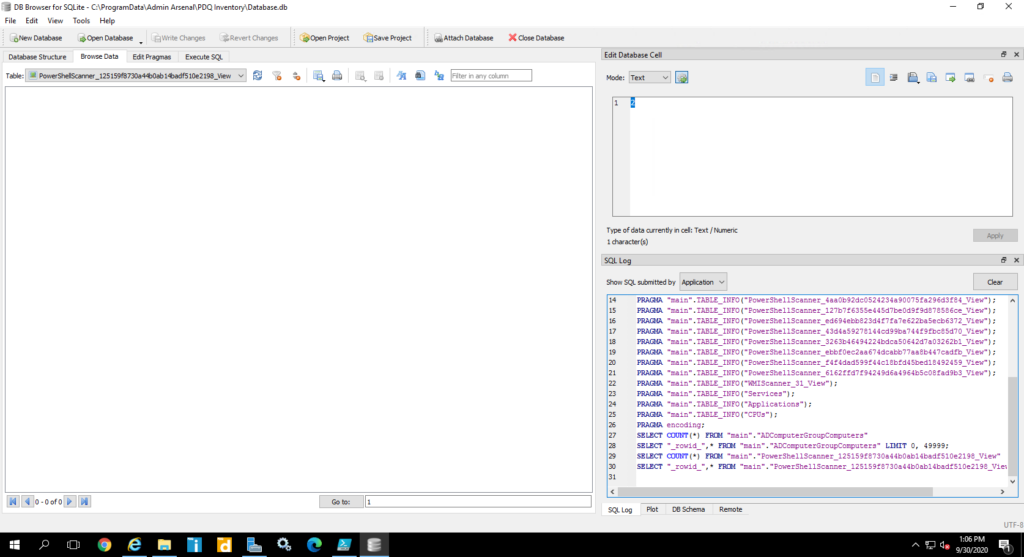
I want to point out the Profiles object. This is the PowerShell scanner name for the profile size scanner. To grab the table names I suggest using the SQLite browser. You can download it here: Link.
Notice the bottom right hand side there is text. This text is the commands. You can browse around and find good information.
The call
Now you must create a function to call the script. This part is the easy part. We will be using the Invoke-command to trigger the script in question.
The above code is part of a script that will give me quick information. As you see, it should be treated as an XML because the data is loaded like an XML.
One of the things I have done is used this inside my universal dashboard to allow quick information that is formatted nicely.
Watch out
Here are some gotyas. If the database is busy, sqlite will break down on you.
If the disk is busy, the SQL lite will break down on you.
Don't make to many requests as it slows everything down.
We use cookies to ensure that we give you the best experience on our website. If you continue to use this site we will assume that you are happy with it.