

The other day, I was showing a friend how to set up Intune deployments. Then it hit me: I have unique scripts for script detections and things like that here on therandomadmin.com. However, I haven’t really gone through the detection rules for built-in items. I was like, well now I have to fix that. So here we are going to fix that with the Intune Detection Rules. Let’s get started.
Types of Intune Detection Rules
There are three built-in detection types that we will go over today. They are the MSI, File, and Registry.
- MSI is like the easy button, (no not the staples one from the commercials… did I just age myself?)
- File is my least favorite one, but it works for legacy apps
- Registry is my favorite one and it’s the one that I will spend some time on for you all.
Other than the built-in items, there are scripted items which is unique in it’s own rights. You can take a look at how these scripts work here. Andrew has a good tutorial on his blog as well. Today will be all about the built-in items.
The Built-In MSI Rule

The MSI rule is the easy button of the detection scripts. If you are using an MSI, it will pull the information directly from the MSI. Once you get to the detection rule part you can follow these steps:
- Click Add
- Select MSI
- And click save
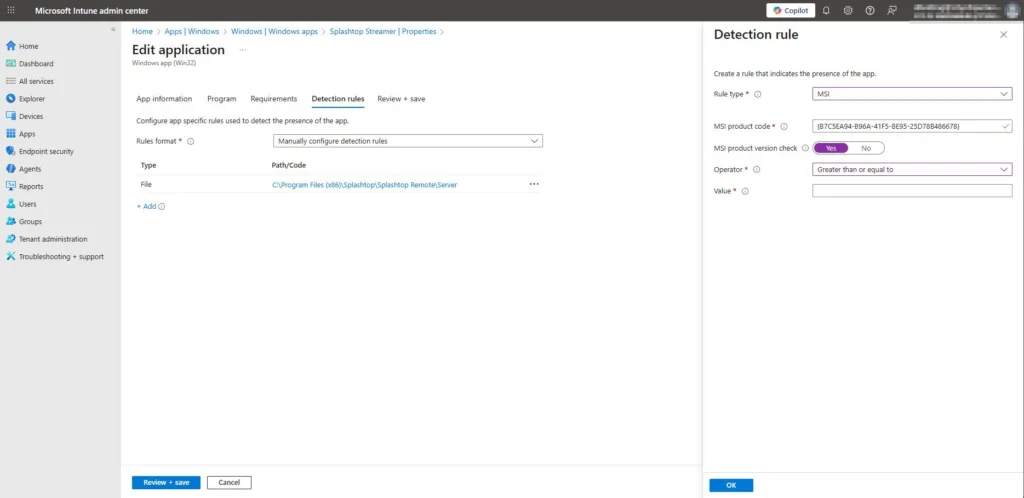
Magic, right? The other thing you can do is select “MSI Product Version Check.” Here you can select an operator like “greater than or equal to” and then give it the value. Which is the product version. This helps with auto-updated items. Which I always suggest using. Below is a screenshot.
File Detection Rule
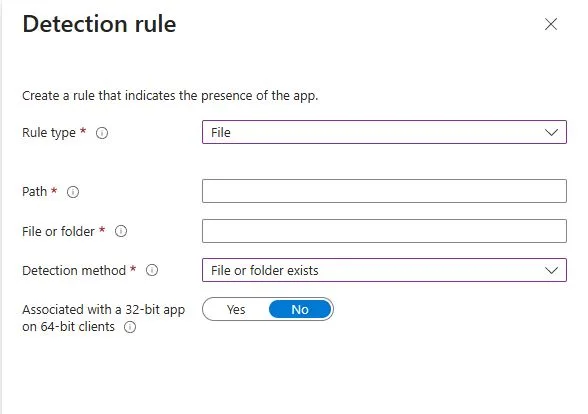
Our next built-in detection rule is for files. This is good if you have an app that doesn’t install like normal apps. Older apps or more niche apps are like this. For example. We installed a special Creo app. It installed in the C:\PTC location, and it didn’t add itself to the registry uninstall strings. It didn’t come in an MSI; it was an EXE with custom everything. This app was a pain in the backstracher. So we used the File location rule. Here is how you can set it up.
- Inside your detection rule, click Add.
- Rule type: File
- Path: The folder that you want to check. In this case it was C:\PTC
- File or Folder: Here we wanted to see if the creo.exe existed. So, that’s what I put here.
- Detection Method: We used file or folder existed.
Greater than or equal to string
As you will learn, I am all about the version numbers. If you select the string (version), you will need to get that version number from the file you are pulling from. You can do this with PowerShell pretty quickly.
(Get-Item "C:\Program Files\VideoLAN\VLC\vlc.exe").VersionInfo.ProductVersion
Once you have this information, you will then proceed to input it into the value section once you select the string (version) and greater than or equal to options.
Built-In Intune Detection Rule for Registry
The registry key is the most common and the most useful as well. Most apps install themselves in this method. The script below is going to be your best friend. What it does is give you the information you need. Lets break down what each item is so we can look at the script and make this happen. I’m giving this the most focus because it’s the most common.

- Registry Type: The type we are using.
- Key Path: The path of the uninstall string that we will be using
- Value Name: What we are looking for, this case we will be looking for displayversion
- Detection Method: Version Comparison
- Operator: Greater than or equal to
- Value: What value we are looking for
- Assocated: Is it a 32 or 64.
Script
So you will have to go digging into the registry for this information. However, this registry area is just confussing and really hard to manually dig through. So powershell is once again, our friend.
$AppName = "chrome"

$Paths = @(
    "HKLM:\Software\Microsoft\Windows\CurrentVersion\Uninstall\*",
    "HKLM:\Software\WOW6432Node\Microsoft\Windows\CurrentVersion\Uninstall\*"
)

$info = Get-ItemProperty $Paths |
Where-Object {
    $_.DisplayName -and $_.DisplayName -like "*$AppName*"
}
foreach ($In in $info) {
    [pscustomobject]@{
        RuleType         = 'Registry'
        KeyPath          = $in.PSPath -replace '^Microsoft\.PowerShell\.Core\\Registry::',''
        ValueName        = 'DisplayVersion'
        DetectionMethod  = 'Version comparison'
        Operator         = 'Greater than or equal to'
        Value            = $in.DisplayVersion
        AssociatedWith32 = $false
    }
}
All you have to do is replace the app name. It will provide you with everything you need inside the built-in detection rule. This is the output that it provides:
RuleType         : Registry
KeyPath          : HKEY_LOCAL_MACHINE\Software\Microsoft\Windows\CurrentVersion\Uninstall\{6EB73F60-E858-3AF3-913A-0C1783656B42}
ValueName        : DisplayVersion
DetectionMethod  : Version comparison
Operator         : Greater than or equal to
Value            : 143.0.7499.170
AssociatedWith32 : False
This script really makes finding apps easier. If the app installs in another place, good hunting, my friends.
What we can learn as a person
I am still missing my keys. I have the backup fob for my car, but I have no idea where my normal keys are. So no house key right now. Sometimes, I need to backtrace what I have done to find where I am going. Which is ok. This is why I document so much because I don’t have the brain space to remember everything I have done. This is also why this blog post exists. I realized I never once really did explain how to use the built-in tools. Now I have a place to come and get the script I need and anyone else needs. So that will be nice later down the road, and I will thank myself later. Giving myself the little micro successes in the future is what I am going for here. The keys, on the other hand, I didn’t set up a space for them to go with the new desk I have. Thus, they are in the ether somewhere, and when I find them, they will go into my little cubby on my new desk. So, set yourself up for micro successes, whether you know it or not, in the future. This will reduce a lot of stress and anxiety in the future. Remember, 80% of life is the systems that you have put into place. So, let’s make good systems. Then you can set up your own Intune detection rules for your life to detect when you gave yourself successes. Like, when I see the wallet inside the new cubby. I can give myself a little thanks.