It's time to Install Sentinel One. In this blog, we are going to go through the process of installing Sentinel One through Intune. We are going to be using the IntuneWinAppUtil program, and the MSI download of Sentinel one that you can obtain from your Sentinel one login portal. I will not go over how to download the msi installer.
File/Folder Structure
The next item you will need is the Microsoft Win32 Content Prep Tool [Link]. Once you have downloaded this file, I suggest creating a file structure as follows
Intune
Files
IntuneWin
After that, Extract the intunewinapputil.exe file to the top level of your file structure, intune. Place the MSI inside the Files location. Then we should be ready to run intunewinapputil.exe. Before you do, I always suggest reading the help by using the /? command line prompt. Here is the command we are going to use to convert our file.
Intune Win App Util
.\IntuneWinAppUtil.exe -c c:\Intune\Files -s SentinelOneInstaller.msi - o c:\Intune\IntuneWin
Afterward, we use the command above to convert our file into a intune installer file. This will give us a large amount of control. Things like detection rules, custom msi inputs and more. Which we will be using.
Intune - Setting up the installer
Next, It's time to crack open the intune process. Log in to https://endpoint.microsoft.com/ with an account with intune rights.
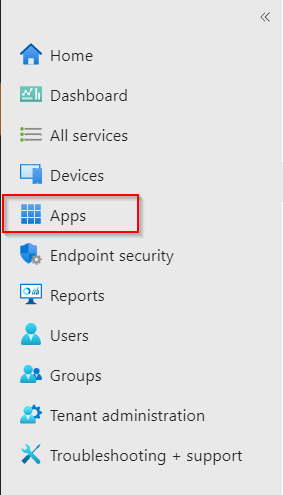
Once you have logged into the endpoint management system. Click the Apps on the left-hand side of the screen.
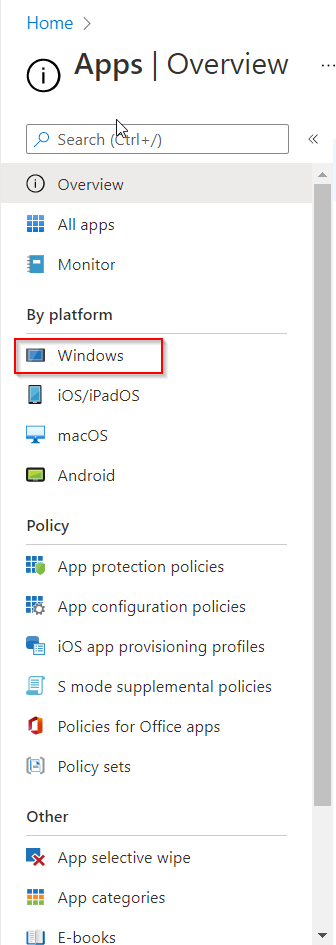
Since we are deploying sentinel one to windows machines, under by platform, click the windows icon.
Uploading the Installer
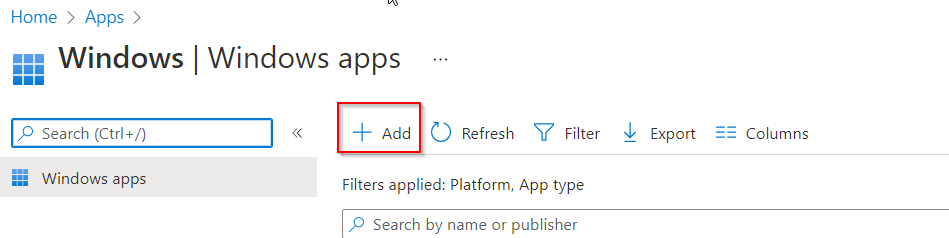
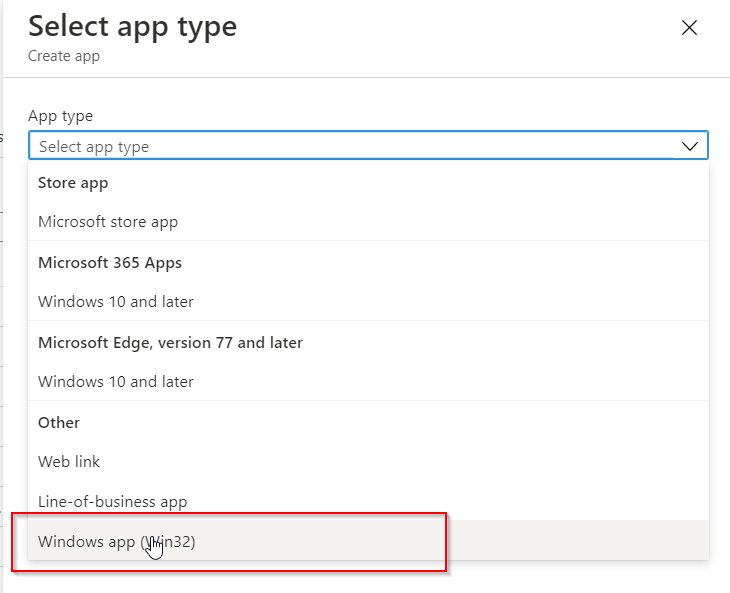
Now we are going to click the add button on the right-hand side of the screen. This will bring up the add dialog box. We are deploying out the final option. Click the Windows App (Win32) option.
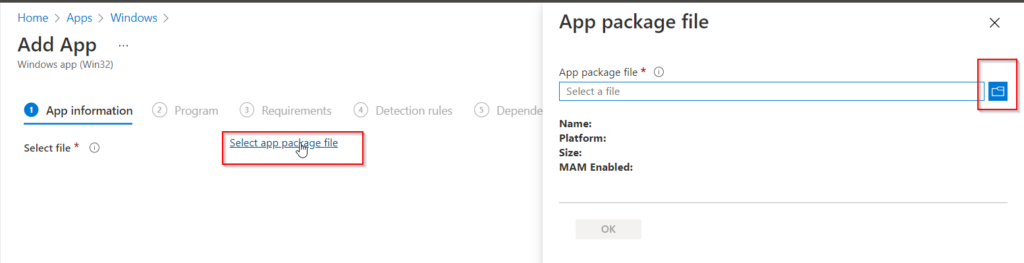
You will be brought to an upload page. Here you select the app package file and click the blue button on the right-hand side of the screen. This is where we go to the file we created in the previous steps. We upload the file here. Once it uploads it will populate the information like name and other items. Click ok to move to the app information page.
Setting the rules
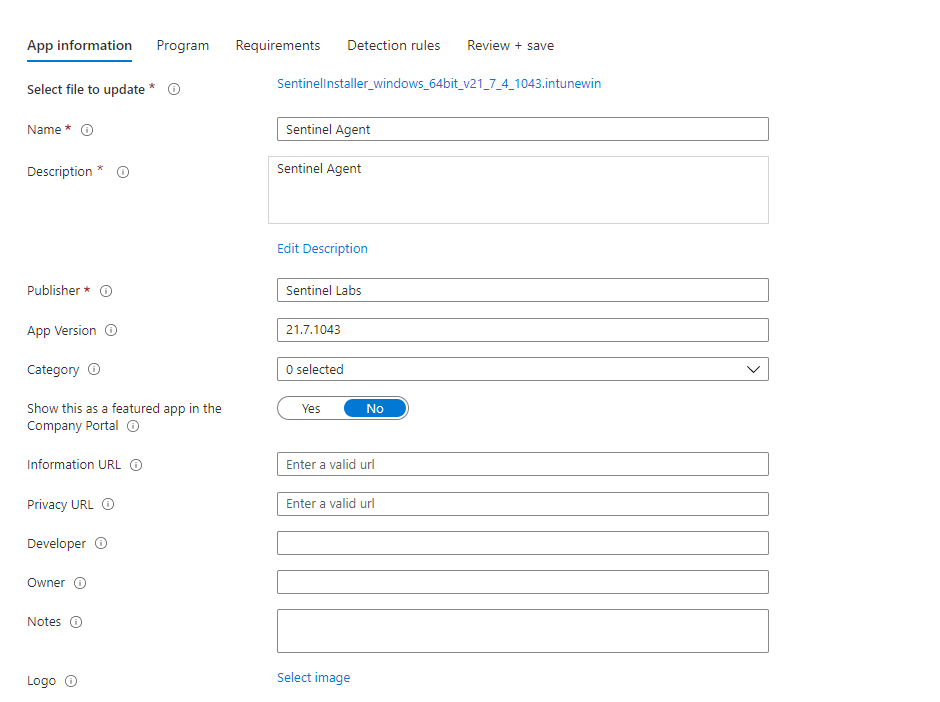
Here we can change the name. Add a unique, html, description. Update the publisher, the application version and more. The category we are going to select is computer management. They show this as a featured app in the company portal. You want to check that one. This allows people to download this version of perch. If you want to feel in any of the other information you are welcome to. Once you have the required information, click next to go to the Program page. Where we determine how to install this application.
Adding the Key
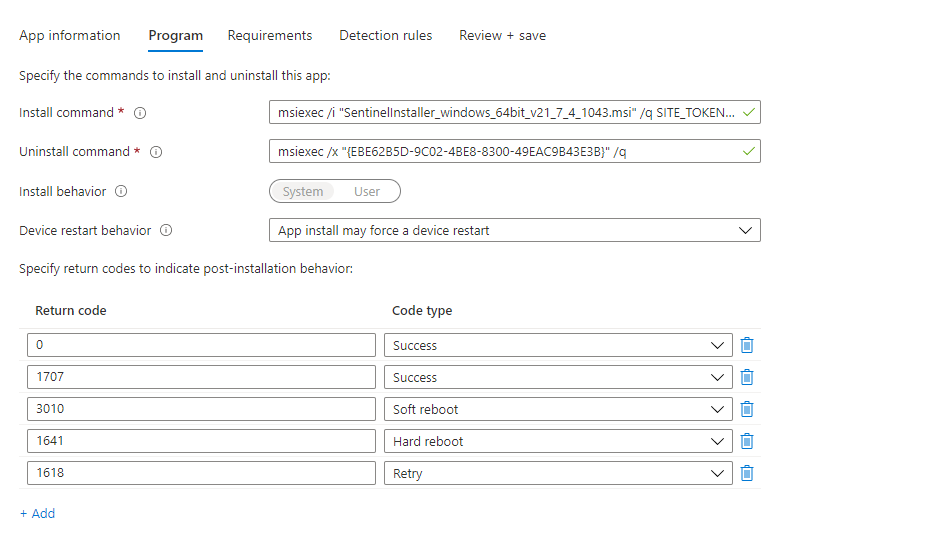
On this page, we want to show the install and uninstall commands. This is where research comes into play. If you don’t know the silent install command of your program then that’s a problem. If you don’t know how your program responds to installs and the error codes or success codes it produces. that’s also a problem. You will need to know these things for other applications. Sentinel One is unique as it's commands is a little different. Here is the install command:
Keep the uninstall command the same. As the MSI installer of Sentinel One is the app code. The biggest problem with the uninstall command with S1 is that it doesn't work without prior approval. You have to log into the S1 Portal and approve its uninstall. Keep the default and continue.
Another thing to point out, this kicked my tail, the SITE_TOKEN does not have a /, I repeat NO /.
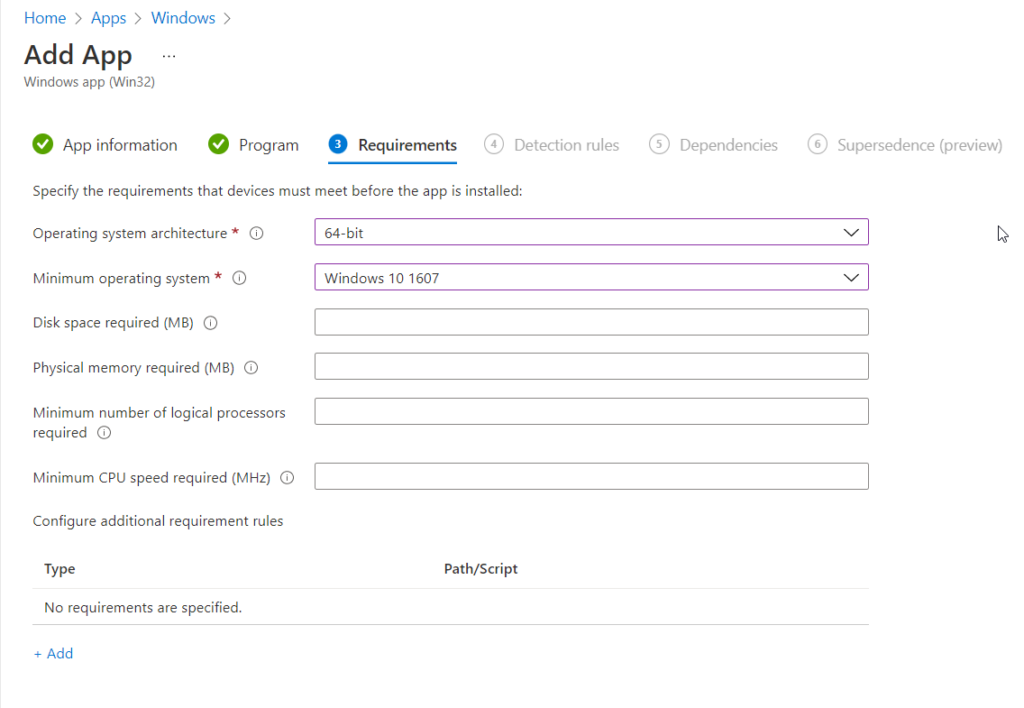
On this page, we can scan the system to make sure we meet the requirements. So if you know this is a heavy application, you can say to have at least 8GB of ram. You can even have PowerShell scripts that can trigger. A good example would be a user. If user Bob is on this PC don’t install it. The required items are the OS Arch and the minimum os. Which is going to be windows 10 1607 as that is intune's min. Don’t get this confused with the next item. These are the requirements. Not meeting the requirements will prevent the app from installing. Once you have added what you want, click next.
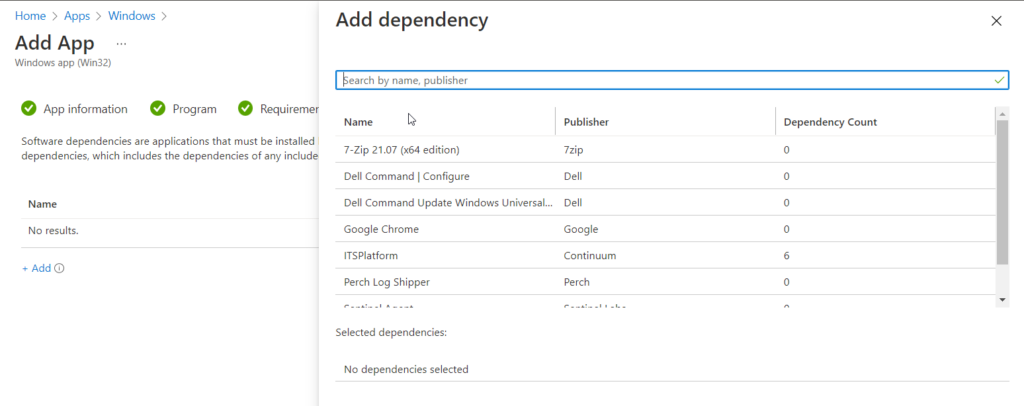
On this page, we are going to select any dependencies that the application may need. Something unique about Sentinel One is, it will capture all of your custom PowerShell deployments. It's best to set those as dependencies on this installer. This way they will deploy before S1 does. S1, doesn't need any additional dependencies from my current knowledge and testing.
Detection Rules
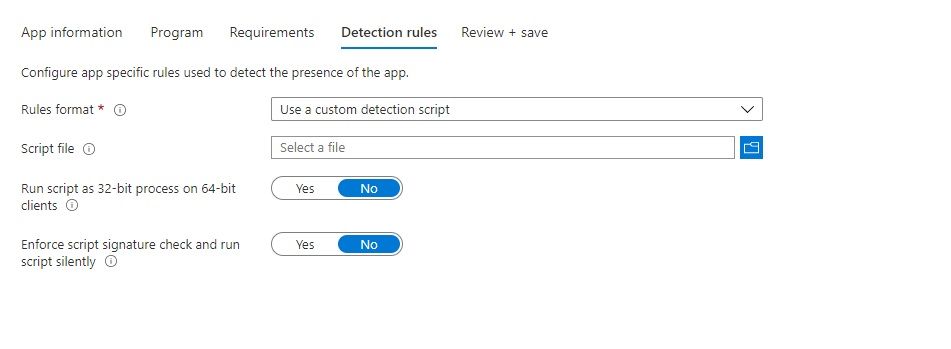
We are going to use a Powershell Script to validate the install. Click on the Rule Format and select Use Custom Detection script. Upload your script file using the blue folder icon.
This script checks for the Sentinel Agent every 30 seconds after installation. Then it increases my timer, by 30. It finally stops at 300 seconds. If services are null, it just exits, and thus a failure is seen in intune. If it is installed, it exits with a string. This tells the system that the installation was successful. What I like about this part is, that if the edit needs to be done, it can be done at this point using PowerShell.
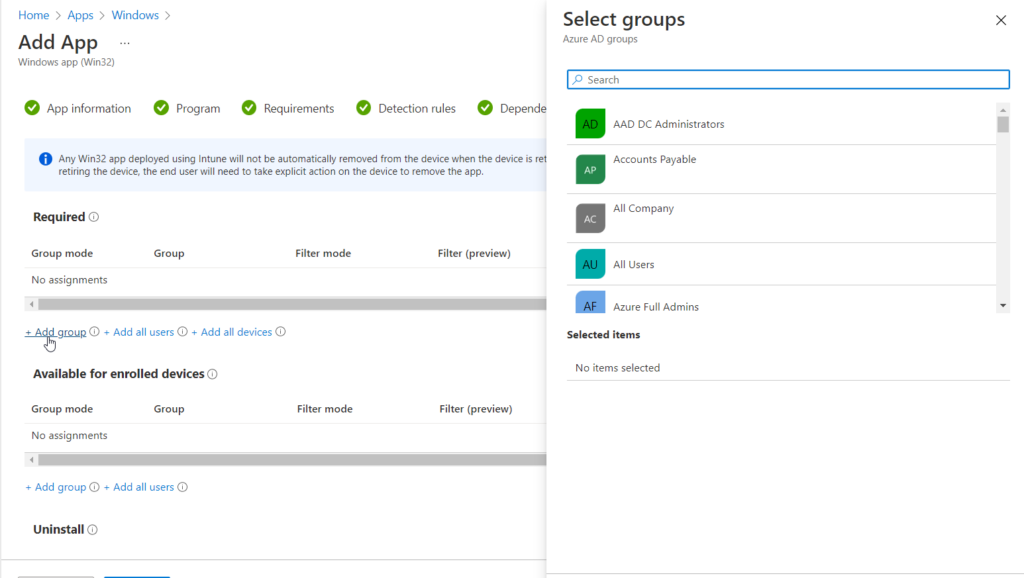
The next screen supersedence is where you can choose what will replace the application. This is a preview feature at the moment and the idea is for upgrades. The final section is the Assignment, this is where you will select a group of devices for S1 to deploy out to.
I hope this is helpful for everyone viewing this page.
Recently I covered how to install perch using PowerShell. Today we are going to Install Perch Log Shipper with Intune. This is very useful for tools like continuum where there is very few software deployment tools built-in. Intune is a powerful tool that you can use to deploy software for a client. Today we are going to be looking at how to deploy Perch through intune.
The first thing we need is a fresh perch installer. You can acquire one here. [link]. Once you have the installer, you will need to download the Microsoft Win32 Content Prep Tool [Link]. Let's setup our directory like so. Top Folder = Intune. Two subfolders, one called Files and the other called intunewin. Extract the exe from the Microsoft win32 content prep tool to the intune folder. Copy the perch installer to the files folder. Now we have a setup that is easy to remember.
By default, you can not deploy EXE programs via intune. You must convert them to the win32 application or a .intunewin file. The tool you just downloaded can do just that. The Tools name is IntuneWinAppUtil.exe.
IntuneWinAppUtil.exe
Start a command prompt and navigate to your intune folder using the CD command. Run the intunewinapputil.exe /? command to view the help selection. Notice we are going to be using the -c -s and -o commands. Here is the following command you will use to convert the perch installer into a intunewin application.
Now we have a perch installer for Intune. Lets move to intune and take a look.
Intune Apps
It's time to crack open the Intune process. Log in to https://endpoint.microsoft.com/ with an account with intune rights.
Once you have logged into the endpoint management system. Click the Apps on the left-hand side of the screen.
Since we are deploying perch to windows machines, under by platform, click the windows icon.
Now we are going to click the add button on the right-hand side of the screen. This will bring up the add dialog box. We are deploying out the final option. Click the Windows App (Win32) option.
Upload the Package
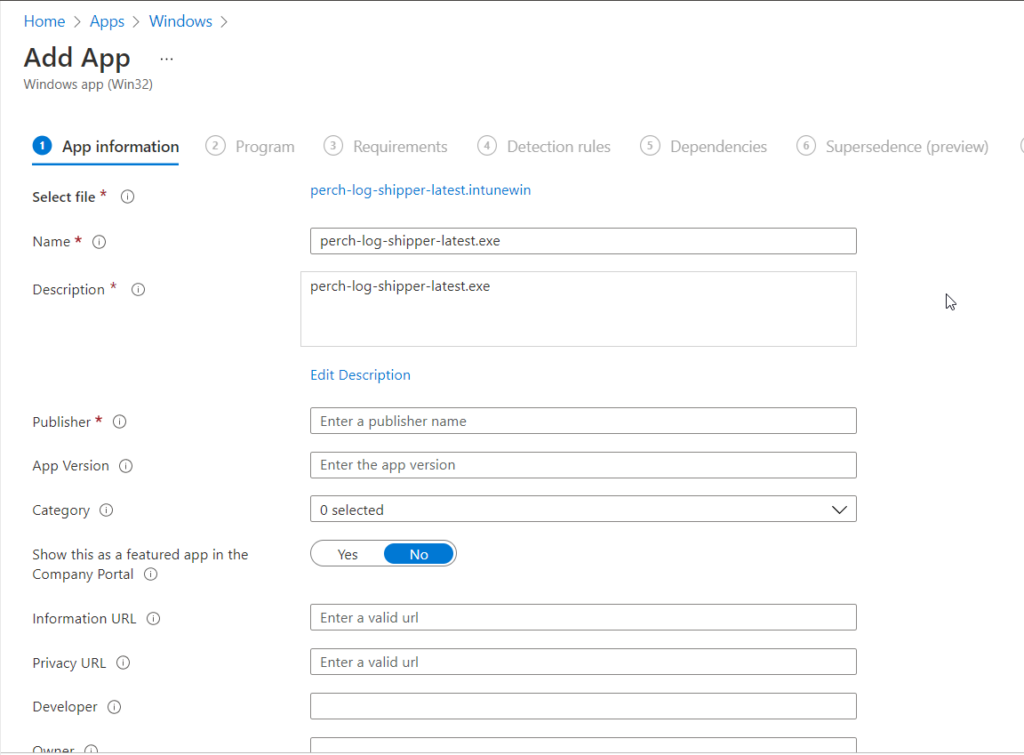
Afterward, we are brought to the app page. Here you select the app package file and click the blue button on the right-hand side of the screen. This is where we go to the file we created in the previous steps. We upload the file here. Once it uploads it will populate the information like name and other items. Click ok to move to the app information page.
App Information
Here we can change the name. Add a unique, html, description. Update the publisher, the application version and more. The category we are going to select is computer management. The show this as a featured app in the company portal. You want to check that one. This allows people to download this version of perch. If you want to feel in any of the other information you are welcome to. Once you have the required information, click next to go to the Program page. Where we determine how to install this application.
Program Information
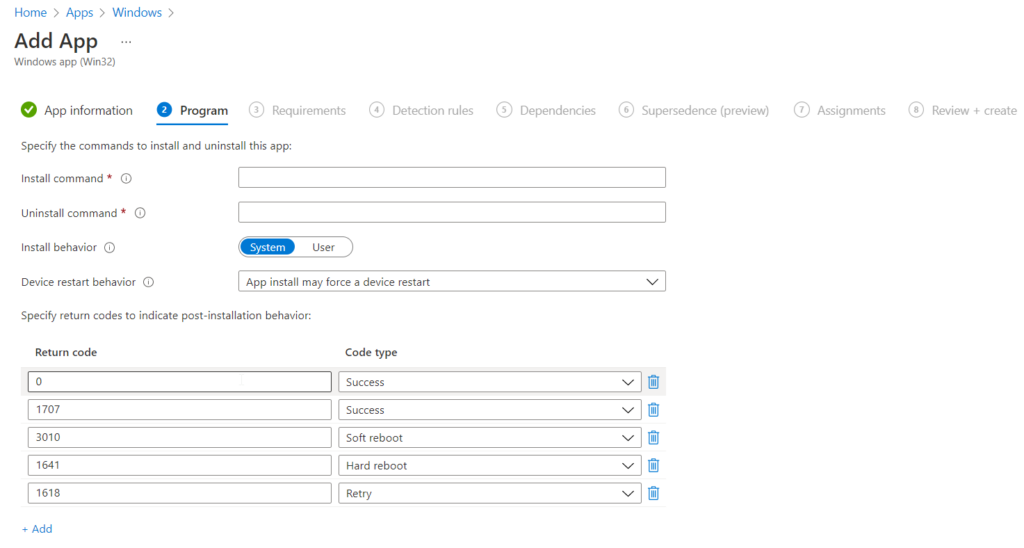
On this page we want to show the install and uninstall command. This is where research comes into play. If you don't know the silent install command of your program then that's a problem. If you don't know how your program responds to installs and the error codes or success codes it produces. that's also a problem. You will need to know these things for other applications. Thankfully perch follows the basic ones. Here is the installer command:
Once you have the installer and uninstaller in place, click the next button to go to the requirement page.
Requirements
On this page, we can scan the system to make sure we meet the requirements. So if you know this is a heavy application, you can say to have at least 8GB of ram. You can even have PowerShell scripts that can trigger. A good example would be a user. If user Bob is on this PC don't install. The required items are the OS Arch and the minimum os. Which is going to be windows 10 1607 as that is intunes min. Don't get this confused with the next item. These are the requirements. Once you have added what you want, click next.
Dependencies
On this page, we are going to select any dependencies that the application may need. For example, let's say your application needs 7-zip. Set up an install for 7 zip and make it a dependency and have it install the dependency. One hack I found is if you know the app is going to break other apps while installing as the ITS Platform does, then you can set the other applications as dependants and install them. Thankfully perch does not have any additional dependants. So, when it does it's taxes, life is easier. (American joke).
Detection Rules
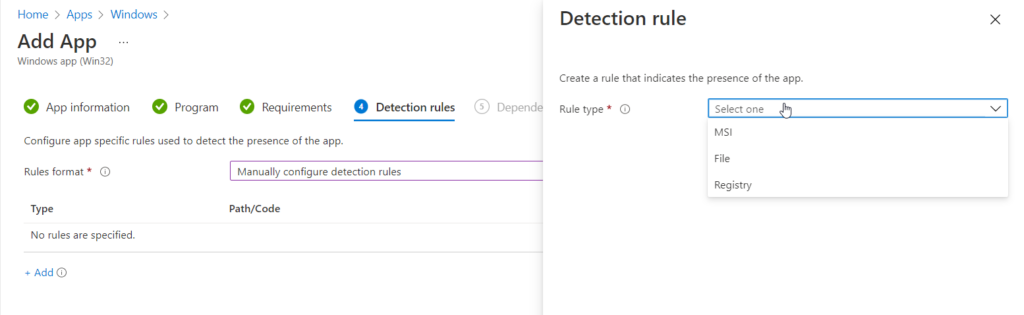
Detection is very important. if the rule doesn't exist, then intune has no idea if it was installed. If the detection policy is incorrect, the same issue. It's very wise to know what you are looking for. In this case perch always installs on c:\program files\perch. So we will select the manual to configure detection rule. Then select add. We will select a file from the drop-down list and enter the folder path of c:\program files and the folder name perch. Then click folder or existing file. That's your detection policy.
Group Assignments
In like fashion, The next window of importance is the Assign. If you want the app to deploy with autopilot, you must select the app as required, or be tied into another application install dependency. Here we are adding a group of computers. This is very common. The other options are available for enrolled devices. If the computer has the company portal, they can download it without needing admin rights. The final option is to uninstall which would uninstall from the select computers.
Finally, the last page is to review all the settings. Once you click save the file will upload and it might take some time. The bigger the file the longer it will take. This is how you Install Perch Log Shipper with Intune.
Conclusion
Hopefully this guide helped you through the process of setting up an Install Perch Log Shipper with Intune
Lets talk about Handle. Handle is an amazing program that allows you to see which program has access over a folder or file. This is a sysintel tool. Working with handle inside your powershell script is not a native thing. The first thing you will want to do is download handle.
We first create the folder we want handle to be downloaded in. In this case, the c:\temp folder will work. Notice we check first to see if it exists with the test path. We will continue this trend so we don't have to go through the download and creation process repetitively.
Now we test to see if handle has already been downloaded before. If not, we download it. We are going to be downloading the handled application from http://live.sysinternals.com/handle.exe All of the Sysinternals tools are on this website and you can programmatically download them at any time. We are going to save the handle.exe in our c:\temp folder we created a few seconds ago.
Now we have handle, it's time to get a handle on handle inside PowerShell. As command prompt program it needs to be called from the command prompt. We want to capture the output. Thus, using something like start-process is out of the question and here is why. Start process starts another processes. It does not keep the process in the current window. Thus you can not capture that data without doing some PowerShell magic which may or may not work. So, what we do instead is use the cmd.exe itself. We will use the /c flag and then the path to the handle software.
$ProcessHandles = cmd.exe /c C:\temp\handle.exe -a -u "$FilePath" -accepteula
Let's break this down a little more. We are starting the handle application with an -a. The A is dumping all the handle information. This is a ton of information. The -u shows the owning user name when searching for handles. So we are grabbing all the information and the user information. We want to do this because it gives us the programs as well. Then we give it the path of the folder we want. So we basically give it a target. Now we are pulling all the handle information from a target folder with the user name/process name. The final handle flag is -accepteula. This basically makes it more automated. We call the handle using the cmd.exe /c. This brings the command output into our terminal which we can capture by placing into the $processHandles. Bam, now we have a bunch of confusing string information. The next step is to parse this string. Here is what the string looks like:
Now we need to handle the handle strings. So we search each string for the file name or file path with a simple where-object. This should create an array of information.
In this case, we only have one, but we want to make sure it doesn't break if there is more than one. So we start a foreach loop. We loop through each handle in our handles. Each handle loops like this:
They are split apart by spaces. So, what we are going to do is use the split features. We are going to then search each line for an *.exe as most programs are .exe at the end of the day. We could expand upon this, but we will leave it here at this level. Once we have the .exe we want to remove that .exe with the replace command. Here is what the code will look like so far.
Notice how we pipe one command into another and then wrap it with the replace. Simple one-line power right there. From here we need to test if the $process is empty. We do this because if the file in question isn't locked down, we don't want to error out. So a simple, if null is not equal to process, is set. The goal is to push these items into a smart system that will kill the process. However, there is one item I have discovered over the years doing this that tends to get killed by going down this route and that's explorer.exe. I have killed it more than once. This is why I place an exclusion for explorer.exe. To do this we just check if the name matches with another if statement. So here is what the code looks like so far for this loop.
Now, here is the fun part. We can kill these tasks from the script itself. All we have to do is loop it through and stop each process with a stop-process. I placed a kill switch in the parameters just for this. So, if the kill switch is true, then we loop through each task killing it. If not, then we just display the processes. It's that simple. Here is what that code looks like:
if ($kill) {
        foreach ($Task in $tasks) {
            Stop-Process -name $Task -Force
        }
    } else {
        $Tasks
    }
It's that time, let's put it all together and make the script.
Do you need to find Old Snapshots on a hyper-v server? It's super easy. So, today we will go through how to get some basic information that allows us to make judgment calls.
The first part of the script is getting the age requirements. In this case, we want to know anything older than 7 days. So we use the Get-Date command. We add -7 days and this will give us the date to compare by.
$Date = (Get-Date).AddDays(-7)
In this case, we only want the running machines. The reason I want running machines is that the powered-off machines might be in a decommissioning process or for other reasons. So we look at the state of each VM to see if it's "Running". We do this with a where-object.
Now we have the running VMs to work with, we want to get each one's snapshot. We want to compare each snapshot to see if it's older than the date. The information we want is the name of the snapshot, the snapshots creation date, the vm, and the hostname. So we start for each loop. Inside the look, we ask with an if statement the creation time is less than the date we created earlier. Then from there we create a PS custom object and pull out the information we want.
Then finally we output the $return value. We can export this to a CSV and drop it into a file share. I personally do this with a nextcloud instance. You can read more about that here. Another option is to email the report using a Microsoft Graph API or an SMTP email system. Finally, if you have confidence in your choice, you can delete the VMs.
Conclusion
Running this script and combining it with the file drop and a few other pieces of automation changed how I worked with multiple clients. This was a good cleanup process and saved many of my clients' much-needed storage space. Let me know how you use this code for your systems.
Perch is an event log tracker that can catch a lot of useful information. I like perch because it captures failed login information. It's easy to sort and exportable. This is why many companies use the software. There are some gatchya's with perch installs though. If you are installing it on a server, some services don't auto start. Installing it from PowerShell also has a gatchya. This post is about how to install perch via PowerShell scripts. This method uses your token for the client's site. Let's Install Perch with PowerShell.
Let's break down the script. The first thing we do is create the download repo. I personally like to use the C:\Temp. Not all machines have a c:\. This is why I use the variable $Env:SystemDrive. If the OS drive is d, the code will add a D:\Temp. and so on and so forth.
The next line is the URL for the latest and greatest Perch installer. This keeps your download up to date. With that stated, this also means if they change something you will need to be able to catch that change. So you will need to stay up to date with their deployment. A good way to do that is by registering with their updates emails. I like to have a ticket every 3 to 6 months, randomly placed, to review deployments like this one. This is just a good habit.
Now we have the url, we want to create a path. Using the Env:SystemDrive we place the perch-log-shipper-latest.exe into the temp folder, our local repo. This will make the next command easier.
Now we invoke-webrequest this bad boy. Just like curl and wget, we are able to download the file. Using the PerchURL in the URI position and then the outfile will be the perchfullfilename. Of course, we use the basic parsing just in case it's an older version of PowerShell. At the time of this writing, the default PowerShell is 5.1 on windows 10.
Now we start the installation. We start-process. Using the PerchFullFileName as the target. See, using parameters helps. Our argument list is /qn for quiet. The output is going to be the token. Finally our token value, value is our token from perch's site.
Getting the token
To get the token, you will need to log into your perch system. At the top, select the company you wish to get the token from.
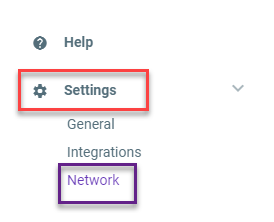
Next, you will need to click on the settings icon on the bottom left-hand corner. Then click the Network icon.
Normally we want to add a -wait flag to the end of the installer. Things like google chrome do great with the -wait flag. However, in this case, we don't want to do that. The reason we create advanced checks is due to the multiple sub-processes inside of the perch install process. The wait flag only captures the first process.
Confirming Install Perch with Powershell
With all that, it's time to confirm the installation. The most simple way to do this is by watching the services. Perch installs 2 services. It installs perch-auditbeat and perch-winlogbeat. During the confirmation process, we wait. If a timeout occurs, we get the error. If the application installs, we get the results. At this point, we want to start our time-out timer. That's why we have a $timeout = 0. We then start a do until. Each time the system loops, we wait for 5 seconds. Then we add 5 to the timer. This effectively creates a timer for us. This process is repeated until the conditions are met. The services with the name perch* are greater than or equal to 2, or the time-out reaches 500.
If the services are installed or if the timeout is reached, we moved to the next step. By default, the auditbeat is set to manual. So we check to see if we have the two services. If we do, we then set the perch-auditbeat to automatic and start the service. If not, we throw an error saying the services did not install. This will alert the deployment engineer to dig deeper into this machine. From my experience, it's because another application is installed.
We use cookies to ensure that we give you the best experience on our website. If you continue to use this site we will assume that you are happy with it.