

Years ago onboarding a new hire meant somebody on IT physically imaging a laptop, installing the fifteen apps by hand, joining it to domain, then shipping it or hand delivering it. Took most of a day per machine if nothing went wrong, which something always did. Now the box just shows up at the person's house, they open it, sign in, and by the time they've cracked open a Dr Pepper the thing is already domain joined and pulling down apps on its own. Thats Autopilot, and its genuinely one of the better tricks Microsoft has pulled off in this space.
What Autopilot actually is
Windows Autopilot is a zero touch deployment system. The device ships straight from the OEM to the end user, no IT hands ever touch it, no custom image gets built. It uses whatever Windows install the manufacturer already put on it. All the actual configuration happens automatically the moment the user turns it on and connects to a network.
From the user's side, this is genuinely almost nothing:
- Unbox it, plug it in, turn it on
- Pick language, locale, and keyboard if needed
- Connect to Wi-Fi or plug in ethernet
- Sign in with their work account
Everything after that is automated. The device joins Microsoft Entra ID, enrolls in Intune, and starts pulling down whatever apps and policies you've assigned to it.
How the device even knows what to do
Every device has a hardware hash, basically a fingerprint generated from its hardware. Autopilot registration is just getting that hash into your tenant so Intune recognizes the device the moment it shows up on the network. There are two common ways this happens:
- OEM registration, the reseller or manufacturer registers the hash for you at time of purchase. This is the actual zero touch version, you buy it, it ships, its already known before it even arrives.
- Manual registration, you run the
Get-WindowsAutopilotInfoPowerShell script against the device, which uploads the hash directly, or exports it to a CSV you import into the Intune admin center yourself under Devices > Enrollment > Windows Autopilot > Devices.
Once the hash is in and a deployment profile is assigned to the group that device belongs to, Autopilot has everything it needs.
Setting up a deployment profile
The deployment profile is what actually defines the OOBE experience, this is the part people usually mean when they say "set up Autopilot."
- Intune admin center > Devices > Windows > Enrollment > Deployment Profiles
- Create Profile > Windows PC
- Name it, give it a description
- On the Out-of-box experience page, pick your Deployment mode, User-driven for devices tied to a specific person, Self-deploying for devices with no user, like a kiosk, which skips the sign in step entirely
- Choose whether the device joins Microsoft Entra ID or Microsoft Entra hybrid join
- Configure the OOBE screens, hide or show the EULA, hide or show privacy settings, set the user account type to Standard or Administrator
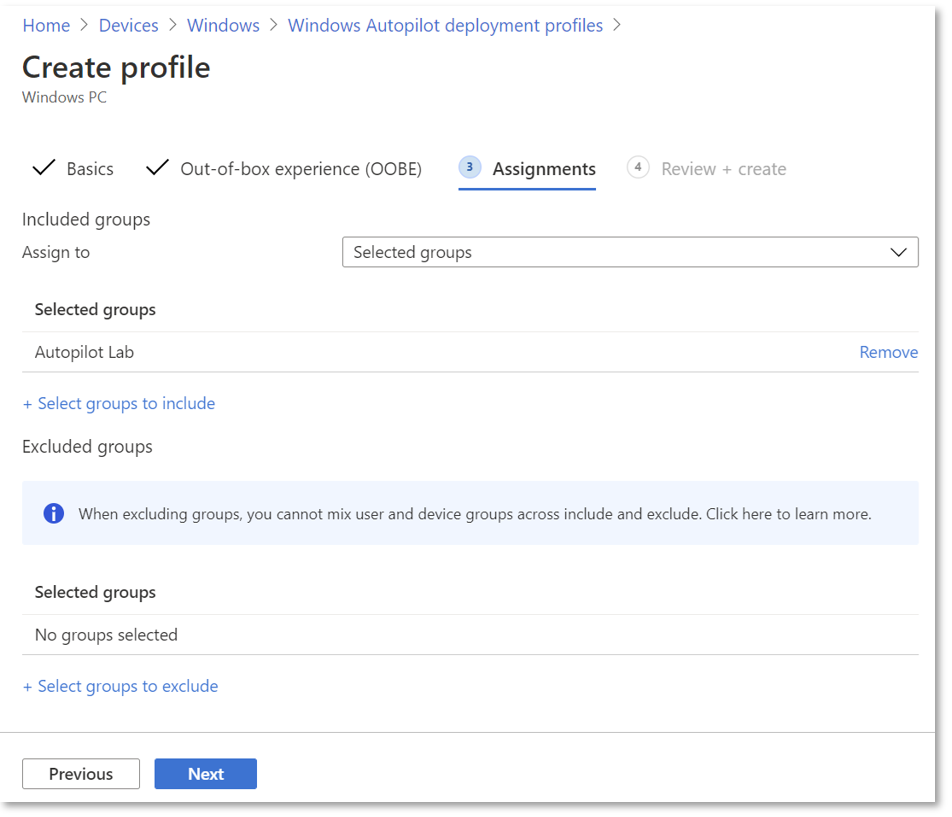
- Assign it to the device group that contains your registered hardware hashes
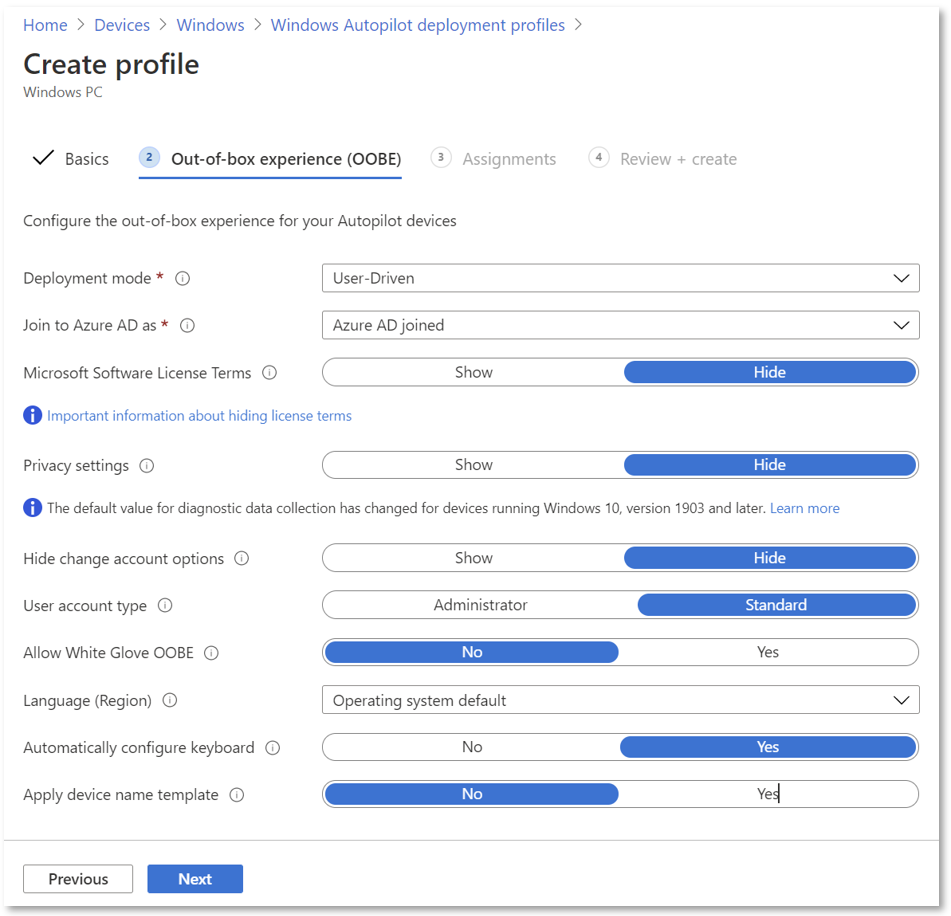
That name template setting is worth calling out specifically. You can set device names automatically during enrollment using macros, %SERIAL% for the hardware serial number, or %RAND:4% for a random four digit string. Saves you from a fleet of laptops all named DESKTOP-7F3K9X2.
The part that installs the company app and sets up the account: the Enrollment Status Page
This is the piece people are usually actually picturing when they imagine Autopilot, a progress screen that shows apps and settings landing on the machine before the user is let loose on it. Thats the Enrollment Status Page, ESP.
ESP runs in two phases:
- Device ESP phase, Windows configures itself and installs anything assigned to the device itself, before any user signs in
- User ESP phase, once the person signs in with their own account, whatever's assigned to that user, their specific apps, their specific config, gets applied
To set it up:
- Intune admin center > Devices > Windows > Enrollment > Enrollment Status Page
- Select Default, or create a new profile
- Turn on Show app and profile installation progress
- Decide if you want Block device use until all apps and profiles are installed, this is the setting that actually stops the user from bailing out to the desktop before your company app finishes installing
- Assign it, same as any other profile

So the actual flow a new hire experiences: box arrives, they power it on, connect to Wi-Fi, sign in with their work email. Device phase runs quietly for a minute. Then the user phase kicks in, the ESP shows a progress bar while your company app installs and their account gets fully configured. When it hits 100 percent, they're sitting at a working desktop with everything already there. No helpdesk ticket, no IT visit, no imaging.
Worth knowing before you flip it on
- Self-deploying mode requires specific hardware, TPM 2.0 and a few other things, since theres no user around to authenticate
- Assignment isnt instant, Intune periodically checks assigned groups and it can genuinely take a while depending on group membership and hash sync timing, dont panic if a brand new device doesnt pick up its profile in the first five minutes
- If you're going the manual registration route instead of OEM registration, that PowerShell script needs to run either during OOBE itself via Shift+F10 for a command prompt, or from an already set up device
Putting it together
Autopilot is really three pieces working together. The hardware hash tells Intune this device exists and belongs to you. The deployment profile tells it what the OOBE screens should look like and whether a user is involved at all. And the Enrollment Status Page is what actually holds the user back long enough for your company app and their account to finish setting up before they get free rein on the machine. Get those three pieces right and shipping a laptop straight to someone's house stops being a leap of faith.
What can we learn as a person
What gets me about Autopilot is that the device doesnt need anyone standing over it to become useful. It just needs to be registered ahead of time, know where its supposed to end up, and be given a little patience while the pieces land in the right order. Nobody's hovering, nobody's babysitting each step, it just quietly becomes what its supposed to be if you set the groundwork up front.
I think a lot of us wait for someone to hand deliver us fully configured too, wait for a mentor, a plan, someone to walk us through every screen personally, before we believe we can actually become anything. But most of the time the groundwork was already there. We were already registered, so to speak. We just needed to turn on and give the process room to run instead of white knuckling every single step ourselves.
So whats the deployment profile you've already got sitting there, ready to go, that you just havent powered on for yet?