

A client asked me if he could just export his Group Policy Objects and import them into Intune in an afternoon. I wish. Twenty years of GPOs do not lift and shift into the cloud in one clean drag and drop. But moving from Group Policy to Intune is a lot less painful than most admins expect, because Microsoft built a tool that does the boring analysis for you. Let me walk through it.
If you're pushing devices toward cloud management and want to cut the on-prem cord, this is where you start.
Why Group Policy to Intune isnt a straight copy and paste
Group Policy and Intune deliver settings in completely different ways. A GPO reaches a domain-joined machine through SYSVOL and LDAP, on your network, over a trust. Intune reaches a device through MDM configuration service providers, over the internet, with no domain required.
The good news is that Intune already has many of the same settings your GPOs do. They live in the Settings Catalog, a giant searchable list of everything Intune can configure. So a lot of your policy does translate. It just moves into a new home built for cloud-native Windows instead of a domain controller.
The tool that does the heavy lifting: Group Policy analytics
Group Policy analytics is a feature inside Intune that reads your actual GPOs and tells you what will carry over. It imports a GPO, checks each setting against what MDM supports, and reports a percentage. No guessing which settings have a cloud equivalent.
Step one: export the GPO as XML
- On a machine with the tools, open the Group Policy Management console (GPMC.msc).
- Expand your domain, then Group Policy Objects.
- Right-click the GPO you want and choose Save Report.
- Set Save as type to XML File and save it somewhere easy to find.
Keep each file under 4 MB. If a single GPO is bigger than that, trim its settings or split it before you export.
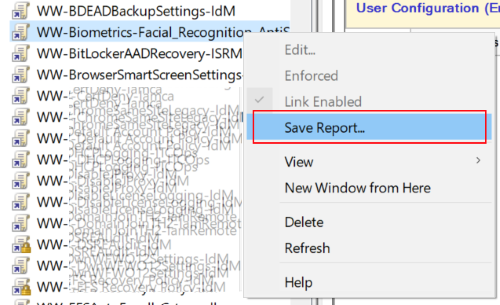
Step two: import it into Intune
- In the Intune admin center, go to Devices > Manage devices > Group Policy analytics.
- Select Import, pick your XML file, and choose a scope tag if you use them.
- Select Next, then Create. Intune analyzes the file automatically.
Once the analysis finishes, each GPO shows an MDM Support percentage. That number is the share of its settings that have a matching setting in Intune. Select the percentage to drill into the individual settings and see exactly which ones map and which ones dont.
Read the migration readiness report
Before you migrate anything, look at the readiness report. Go to Reports > Device management > Group policy analytics. It sorts every setting into three buckets.
- Ready for migration, the setting has a match in Intune and can move straight over.
- Not supported, no MDM equivalent exists, so this one stays behind or needs a different approach.
- Deprecated, the setting targets old Windows or old Edge versions nobody runs anymore.
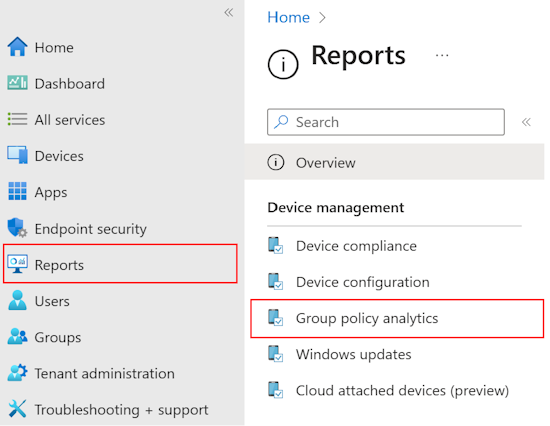
This report is the honest conversation about your environment. That deprecated bucket is usually bigger than people want to admit, and every setting in it is one you get to stop carrying.
Migrate the settings into a Settings Catalog policy
Now the actual move. Back in Group Policy analytics, you turn supported settings into a real Intune policy.
- In Devices > Manage devices > Group Policy analytics, check the Migrate box next to the GPO you want.
- Select Migrate to see every setting inside it.
- On the Settings to migrate tab, check the specific settings you want in the new policy.
- Review the values, name the profile something clear like "Windows: Imported Edge GPOs," and assign it to a group.
- Select Create. The new Settings Catalog policy shows up under Devices > Configuration.
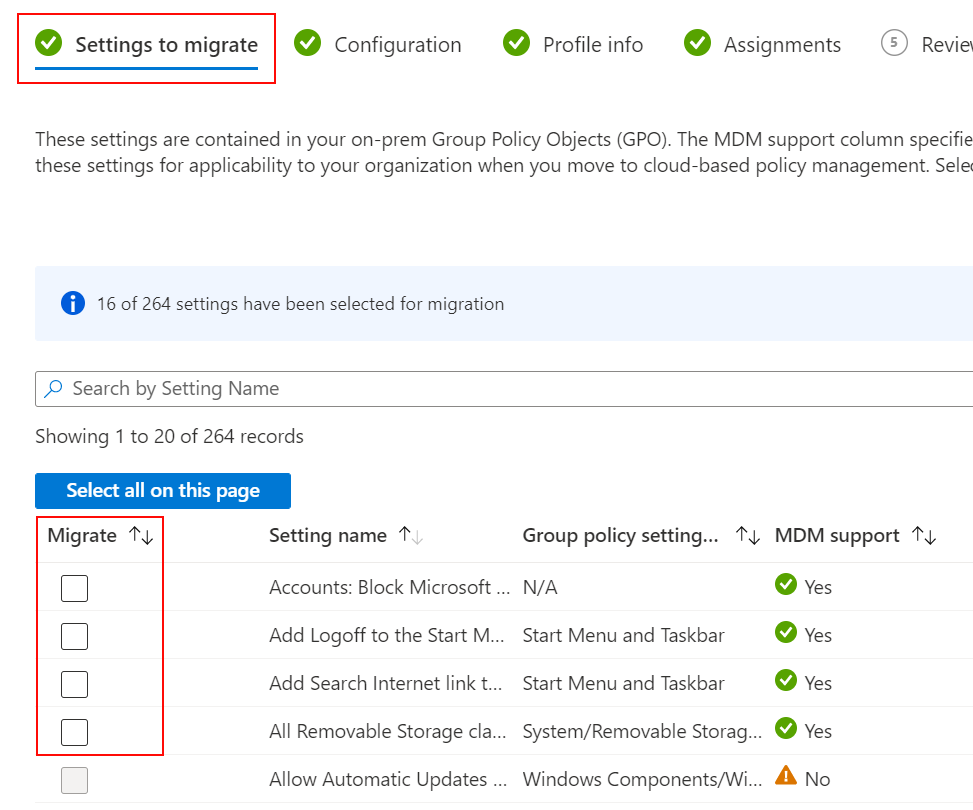
One nice touch. If two of your GPOs set the same thing to different values, the tool catches the conflict right there and makes you pick a winner before it lets you continue. Thats a problem you'd normally only find months later when a machine behaves weird.
What wont come across cleanly
Set expectations before you start, because a few things need a different plan.
- Domain-dependent settings. Anything that assumes a domain controller on the network doesnt make sense on a cloud-native device.
- Group Policy Preferences. Drive maps, logon scripts, and printer mappings dont map one to one. Use Intune's own features for those instead.
- Non-English and non-ADMX settings. The analytics percentage only reads non-ADMX settings in English, so the number can be off for other languages.
- Security settings. Many belong in compliance policies or security baselines, not the Settings Catalog.
Do not migrate all your settings just because you can. Review each one. After the policy lands, confirm it applied by checking which policies are on the device, the same way you'd check any other Intune profile.
Putting it together
Migrating Group Policy to Intune is really four moves. Export your GPOs as XML, import them into Group Policy analytics, read the readiness report to see what actually translates, then migrate the supported settings into a Settings Catalog policy. Start with one well-scoped GPO like your Edge settings, pilot it against a small group, and prove it works before you touch the big ones. The tool removes the guesswork. Your job is deciding what deserves to come with you.
What can we learn as a person
The readiness report is the part I keep thinking about. It looks at everything you built over the years and quietly sorts it into three piles. This still works. This has no place where you're going. And this one is just deprecated, left over from a version of the environment that doesnt exist anymore.
I moved into a new chapter recently, and I tried to carry my whole old config with me. Every habit, every defense, every rule I wrote for a domain I dont live in anymore. Some of it translated fine. A lot of it was deprecated and I just hadnt run the report to notice. The healthiest thing wasnt migrating everything faster. It was being honest about what no longer applied.
So if you ran a readiness report on the settings you carry day to day, what would land in the deprecated pile? And what are you still enforcing out of habit that the new version of your life doesnt even support?