Now the object is created, you can review the object by using the Get-Member command. This object has 4 properties and 4 methods. We can now edit the properties. We will edit the RelyingParty and state.
 $sar.RelyingParty = "*"
 $sar.State = "Enabled"
Now we place the edited items into the user's account.
This past week I have had multiple terminals up with different clients on different terminals connected to different Microsoft services. I quickly realized that I needed to know if I was already connected or not to each Microsoft service. I knew that Get-PPSession was a key to this, but what surprised me was azure and msols didn't have a PPSession to review. I use 4 different connections on a daily basis. The Msol, Exchange Online, Compliance, and Azure AD. Here is how you can quickly test each service to see if it's connected.
Msol Service
With Msol we want to test a command to see if it works. We output that command to null. The command I found to be the quickest for this is Get-MsolDomain. Once we run the command we check to see how successful that command was with $?. I like to put things into arrays for future use. So, I dropped it into a $Results and then present those display those results.
With Exchange online, we can use the Get-PSSession. We search the connection uri for outlook.office365. We also look at the state to be opened. We then ask if how many sessions there are. if it's greater than 0, then we are good to go. Believe it or not, this is a one-liner.
With Compliance, it's similar to the exchange online. We are using the Get-PSSession again. This time we are looking for the word compliance and the state open as well. Once again, this can be a one-liner.
Finally, we come to the Azure AD, Just like the Msol, we have to check it using a command. I have seen people use the Get-AzureADTenantDetail commandlet. So we will use that commandlet and pipe it into out-null. Then we confirm if it worked with the $? command.
Need to find duplicates in an array? It's as simple as using a group object. So we take an array, and group the array by property or group of properties. Then we search those groups for any group that has a count of 2 or greater. Then we display those groups. Here is the heart of the code:
Now it's as simple as wrapping this one-liner into a function. The Group-object property switch can take multiple inputs. So it's best to set that as a list of strings. Here we go:
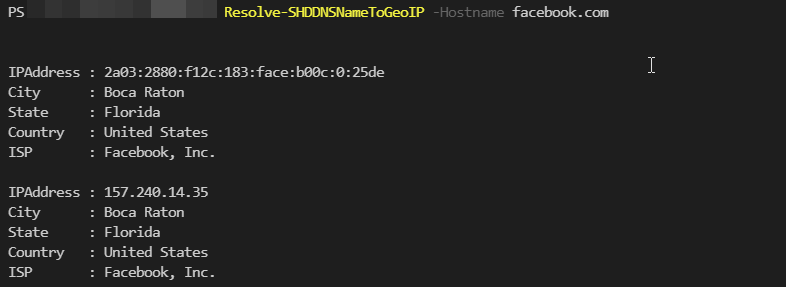
With everything that happened with Facebook yesterday, I began to wonder where does my query goes when I type in facebook.com. So, I did a few things and found out. The first thing I did was resolve the name facebook.com to an IP address, or group of IP addresses in this case with the command resolve-dnsname.
Resolve-DnsName -Name facebook.com
Then from there, I used the site, ip-api.com to pull the location information of the IP address. This awesome little site gives you city, state, country, zip codes, and even the ISP information of an IP address.
$Info = Invoke-RestMethod -Method Get -URI "http://ip-api.com/json/$IP"
That's the base of the code that we will explore. It's very straightforward, but I want to clean it up some. I want to make a Get GEO IP information and a Resolve DNSname to Geo IP. I want it to all work together even if there is multiple IP addresses and hosts names. So, lets start off with the scripts and break them down. This will contain two functions for what we are wanting.
Get-SHDGeoIP
function Get-SHDGeoIP {
    [cmdletbinding()]
    param (
        [parameter(Mandatory = $true)][ipaddress[]]$IPAddress,
        [switch]$Complete
    )
    foreach ($IP in $IPAddress) {

        $Info = Invoke-RestMethod -Method Get -URI "http://ip-api.com/json/$IP"
        if ($Complete) {
            $Info
        }
        else {
            [pscustomobject]@{
                IPAddress = $info.Query
                City      = $Info.city
                State     = $Info.regionName
                Country   = $Info.country
                ISP       = $Info.isp
            }
        }
    }
}
This script is going to pull the geo information for us. We start off with the parameters. We are testing the parameters to see if the IP address is an valid IP address. We do that with [ipaddress]. This tests for both IPv4 and IPv6. We tell it to be a array of IPaddresses with the [] inside of it. [ipaddress[]]. Just for cleaner fun, I have a switch for a complete information dump. This way
Since this is an array of IP addresses, we will start a foreach loop for each IP address in the array. We start the foreach loop by grabbing the IP information. If the user selected complete, we just dump the information we gathered to the user. if they didn't select complete, we create a custom object with the IP address, city, state, country and ISP information.
The next function uses the previous function and combines it with Resolve-DnsName. We start off with a list of strings for our hostname parameter and our complete parameter. We start our loop like before of the host names. Then we use the Get-SHDGeoIP -IPAddress command with the Resolve-DnsName -Name and the link name. We then select the IP addresses which is an array. We place that array inside the Get-SHDGeoIP and bam, we have our information. Converting a hostname like Facebook.com to IP information.
With these two little scripts, you will be able to find quick information about a website and where it is being hosted. For example, this site is hosted in new jersey. I personally didn't know that.
There are 171,476 or so words in the English language. This doesn't include names or other items. Datamuse is a very powerful database of English words. It contains rhyming, like, anonymous, Synonyms and much more. What I like about this site is it has a simple API that can be stacked. You can find the API here.
What do I mean by stacked. Some APIs use the URL and gathers all the information from that. While others uses the custom header and body of requests. Datamuse uses the URL. It returns a nice json to work with as well inside its content area. Basically, it's my kind of API. The below API is an example of a url API. After words? each XX= has the word to query with. Each item means something different. The ML means, means like and the sp is spelled like. So we are looking for words that means like black and starts with the letter b.
https://api.datamuse.com/words?ml=Black&sp=b*
URL API's are super easy to work within PowerShell. The key is to make a string of what you are looking for. If you have a flag of $meansLike = Black. Then it will add the &ml=black to the string. Same as $Spelling="B*". It will add the &ml=Black&sp=B*. Then we just remove the first character of the string and we have our string. We do that with substring. Let's take a look at the full script.
The Script
function Get-SHDWords {
    [cmdletbinding()]
    param (
        [string]$MeansLike,
        [string]$SoundsLike,
        [string]$SpelledLike,
        [string]$LeftContext,
        [string]$RightContext,
        [string]$Topic,
        [string]$NounModifiedByAdjective,
        [string]$AdjectiveModifiedbyNoun,
        [string]$Synonym,
        [string]$Trigger,
        [string]$Antonym,
        [string]$KindOf,
        [string]$MoreGeneralThan,
        [string]$Comprises,
        [string]$Meronym,
        [string]$FrequentFollowers,
        [string]$FrequentPredecessors,
        [string]$Rhymes,
        [string]$NearRhymes,
        [string]$Homophones,
        [string]$Consonant,
        [switch]$Random
    )
    $actionstring = ""
    if ($PSBoundParameters.ContainsKey('MeansLike')) { $actionstring = "$($actionstring)&ml=$MeansLike" }
    if ($PSBoundParameters.ContainsKey('SoundsLike')) { $actionstring = "$($actionstring)&sl=$SoundsLike" }
    if ($PSBoundParameters.ContainsKey('SpelledLike')) { $actionstring = "$($actionstring)&sp=$SpelledLike" }
    if ($PSBoundParameters.ContainsKey('LeftContext')) { $actionstring = "$($actionstring)&lc=$LeftContext" }
    if ($PSBoundParameters.ContainsKey('RightContext')) { $actionstring = "$($actionstring)&rc=$RightContext" }
    if ($PSBoundParameters.ContainsKey('Topic')) { $actionstring = "$($actionstring)&topics=$Topic" }
    if ($PSBoundParameters.ContainsKey('NounModifiedByAdjective')) { $actionstring = "$($actionstring)&rel_jja=$NounModifiedByAdjective" }
    if ($PSBoundParameters.ContainsKey('AdjectiveModifiedbyNoun')) { $actionstring = "$($actionstring)&rel_jjb=$AdjectiveModifiedbyNoun" }
    if ($PSBoundParameters.ContainsKey('Synonym')) { $actionstring = "$($actionstring)&rel_syn=$Synonym" }
    if ($PSBoundParameters.ContainsKey('Trigger')) { $actionstring = "$($actionstring)&rel_trg=$Trigger" }
    if ($PSBoundParameters.ContainsKey('Antonym')) { $actionstring = "$($actionstring)&rel_ant=$Antonym" }
    if ($PSBoundParameters.ContainsKey('KindOf')) { $actionstring = "$($actionstring)&rel_spc=$KindOf" }
    if ($PSBoundParameters.ContainsKey('MoreGeneralThan')) { $actionstring = "$($actionstring)&rel_gen=$MoreGeneralThan" }
    if ($PSBoundParameters.ContainsKey('Comprises')) { $actionstring = "$($actionstring)&rel_com=$Comprises" }
    if ($PSBoundParameters.ContainsKey('Meronym')) { $actionstring = "$($actionstring)&rel_par=$Meronym" }
    if ($PSBoundParameters.ContainsKey('FrequentFollowers')) { $actionstring = "$($actionstring)&rel_bag=$FrequentFollowers" }
    if ($PSBoundParameters.ContainsKey('FrequentPredecessors')) { $actionstring = "$($actionstring)&rel_bgb=$FrequentPredecessors" }
    if ($PSBoundParameters.ContainsKey('Rhymes')) { $actionstring = "$($actionstring)&rel_rhy=$Rhymes" }
    if ($PSBoundParameters.ContainsKey('NearRhymes')) { $actionstring = "$($actionstring)&rel_nry=$NearRhymes" }
    if ($PSBoundParameters.ContainsKey('Homophones')) { $actionstring = "$($actionstring)&rel_hom=$Homophones" }
    if ($PSBoundParameters.ContainsKey('Consonant')) { $actionstring = "$($actionstring)&rel_cns=$Consonant" }
    if ($Random) {
        $Character = [char](Get-Random -Minimum 65 -Maximum 90)
        $actionstring = "$($actionstring)&sp=$Character*"
    }
    $actionstring = $actionstring.Substring(1)
        (Invoke-WebRequest -Uri "https://api.datamuse.com/words?$actionstring").content | convertfrom-json
}
The Breakdown
Ok, first notice that we have each of the items from the datamuse site as string values that can take input. None of them are mandatory. The first thing after the parameters is our blank action string.
Next, we start questioning the input like a youtube conspiracy theorist. We do that by asking if the bound parameters contains a key. If it does we add to the action string.
if ($PSBoundParameters.ContainsKey('MeansLike')) { $actionstring = "$($actionstring)&ml=$MeansLike" }
Here we are recreating the string by taking the value of the string and adding the &ml=$MeansLike. We do this for each parameter we use except for random. Random we just grab a random english word character and ask for a word that starts with that word. After we have created our action string we use our substring command to remove the first & from the string.
$actionstring = $actionstring.Substring(1)
Once we have the action string formatted right, we are ready to go. We use the invoke-webrequest command and we will grab the data. We will select only the content, which is in a nice json format. Then we will pipe that information into convertfrom-json to create a Powershell object.
Here we are looking for all the words that start with the letter L and that Rhyme with Pink.
Example 2 - Lash
Get-SHDWords -MeansLike anger -SoundsLike love | Where-Object {$_.tags -contains "v"}
Here are the results:
word score tags
---- ----- ----
lash 14742 {v}
In this example, we are looking for words that mean anger but sound like love. Some of the results will have tags. Items like means like and sounds like have tags that you can filter through. With this example, we are looking for verbs. So we look with the where-object command.
In this example, we get a random list of words that start with a random letter. Then we select from that list a random item. We do that with the get-random with a minimum of 0 and the maximum of the test count. Then we select the word. All that produced the word ominous.
Taking a step farther - Passwords
Let's take this one step further and make a two-word password. The first thing we want is a word. So we use the command Get-SHDwords again. We are going to use the word trust.
Here we generate 3 random characters. We then select our word, trust by putting it into the $One. We can replace our word by replacing the $One input. Then we get the second word with two. Get-SHDWords -Rhymes $One Then we grab just one of those words like before. This time we replace all the vowels with the character we generated at the beginning. Then we combine it all together. The first word, $One, the middle character, $characterMiddle, the second word $two, and finally the ending Character $CharacterEnd. Now we have an easy-to-remember password.
Datamuse offers even more options than what this script offers. Check them out and see what amazing things you can create.
I'm going to leave off here with a challenge this week. Can you write a poem using datamuse based off the word:
We use cookies to ensure that we give you the best experience on our website. If you continue to use this site we will assume that you are happy with it.