

Had a ticket land on my desk that just said "my laptop is doing something weird, is it a policy." Thats it. No which policy, no what its doing, just a vague feeling that Intune did something to them. Fair enough honestly, thats a real question and a lot of admins dont actually know how to answer it fast. So heres how you check, both directions.
There are two totally different questions hiding in "is it a policy." One is "what's applied to this specific machine." The other is "which machines have this specific policy." You need both eventually, so lets cover both.
From the device: what's actually applied here
This is the one people ask about most, because its usually a "this one machine is misbehaving" situation.
- Intune admin center > Devices > All devices
- Select the device (an end user can get the exact device name out of the Company Portal app if you dont already know it)
- Select Device configuration
Every profile assigned to that device shows up here with a status. The ones you care about:
- Conforms / Succeeded, the device got it and reports back that it matches
- Not applicable, the setting doesnt apply to this platform, like an iOS setting showing up against an Android device
- Pending, the device hasnt checked in yet, or checked in but hasnt reported status back
- Conflict, two policies are fighting over the same setting and Intune cant pick a winner on its own
- Error, it failed, and usually comes with an error code worth actually looking up instead of guessing
Select any policy in that list and you get the individual settings inside it and how each one landed on this specific device. If you see a Conflict, select that row and Intune shows you every other profile that also touches that same setting, which is usually the fastest way to actually find the thing fighting with your policy instead of staring at two profiles side by side guessing.
Troubleshooting Panes
Theres also a proper troubleshooting pane built for exactly this, separate from just browsing the device page.
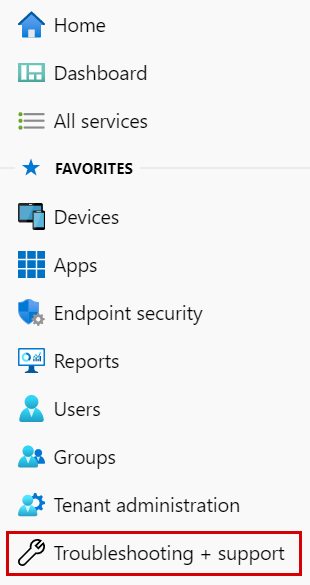
- Intune admin center > Troubleshooting + support > Troubleshoot
- Select user, pick the person having the issue
- Confirm their Intune license shows the green check, sounds dumb but I've genuinely seen "policy isnt applying" turn out to be "user never got licensed"
- Under Devices, find their device and check the Managed column says MDM (or EAS/MDM). If it doesnt, the device was never actually enrolled and none of this applies to it yet
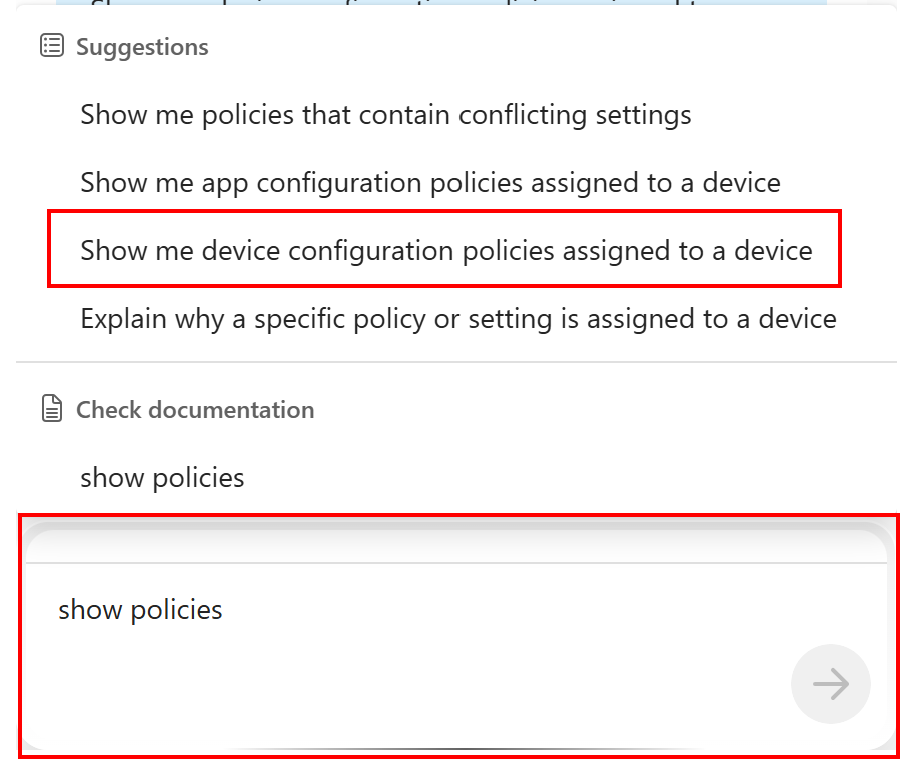
If you've got Copilot in Intune available, theres also a shortcut. Open the device under All devices, select Summarize with Copilot, or in Copilot Chat just type "show policies" and pick the prompt for showing configuration policies assigned to a device. It'll list configuration profiles, compliance policies, and app configuration policies in one shot instead of you clicking through each blade separately.
From the policy: which machines actually have this
This is the other direction. Maybe you just changed a policy and want to know how many devices actually picked it up, or you're trying to prove a policy is or isnt the cause of something org wide instead of just one machine.
- Intune admin center > Devices > Manage devices > Configuration > Policies tab
- Select the policy
From here you get three different reports and they are not the same thing, which trips people up constantly:
- Device and user check-in status, every device or user that has checked in with this policy, and whether it succeeded, errored, conflicted, or is still pending
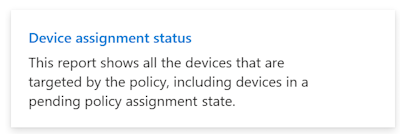
- Device assignment status, a report you have to actually generate, shows the latest assignment state per device. This can lag 24 to 48 hours behind recent group membership changes, especially on bigger tenants, so dont panic if a device you just added to the group isnt showing yet
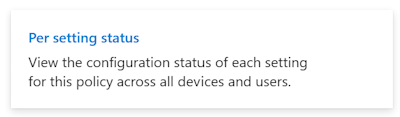
- Per setting status, breaks it down to the individual setting level, how many devices report success versus error versus conflict for each specific setting in the policy
It's normal
Its normal, and expected, for the numbers between Device and user check-in status and Device assignment status to not match exactly. They're pulling from slightly different data and refresh on different schedules. Dont treat a mismatch there as a bug, its just how the reporting is built.
Selecting View report under Device and user check-in status gives you the actual list, which devices got it, which users are attached to those devices, and the last time each one checked in. You can select a specific device right from that list too, so this direction and the "from the device" direction eventually meet in the middle.
Putting it together
Vague complaint about one machine, start from the device, Devices > All devices > Device configuration, or the Troubleshoot pane if you want the fuller license and enrollment picture at the same time. Question about a policy's reach across the whole org, start from the policy itself and use the check-in status, assignment status, and per setting status reports. Both paths end up showing you the same underlying data, they just start from opposite ends.
What can we learn as a person
What gets me about the Conflict status is that Intune doesnt just say "something's wrong," it actually shows you every other policy touching that same setting so you can go find the real source. Most of us dont do that for our own conflicts. Something feels off, a mood, a relationship, a habit, and we just label it "stress" and move on, we never drill into the setting details to find the other thing thats actually competing for that same space in us.
And the "pending" status gets me too honestly. Sometimes the fix already got sent, we just havent checked in long enough to report back that it worked. Not everything broken is actually still broken, sometimes its just waiting on us to sync.
So next time something in your life shows up as a conflict, what are the other policies actually competing for that setting? And is there something in you thats already pending, just waiting for you to check back in?