
An iPhone three versions behind is a security ticket waiting to happen. A store tablet that updates itself in the middle of the holiday rush is a different kind of ticket. Intune Apple and Android updates work nothing like Windows update rings. Apple also just changed how its side works, so the policies a lot of tenants built a few years ago are on their way out.
Apple moved updates to declarative device management
The old way had Intune send an update command to the iPhone and then keep asking how it was going. With declarative device management, or DDM, Intune tells the device the version it needs and the deadline. The device handles the rest and reports its own progress.
Apple deprecated the old update commands in its 26 releases and drops them completely in the 27 releases. Microsoft says it is removing the legacy iOS/iPadOS and macOS update policies from Intune in the coming months. If you still have policies under Devices > Apple updates, plan to replace them now.
- DDM updates need iOS/iPadOS 17 or newer, or macOS 14 or newer.
- They work with Device Enrollment and Automated Device Enrollment, not User Enrollment.
- On a Mac, enforcing a version needs a supervised device. On an iPhone, it works supervised or not.
- On iPhones, the deferral and automatic install controls only work on supervised devices.
Create a DDM update policy
- Intune admin center > Devices > Manage devices > Configuration > Create > New policy
- Pick iOS/iPadOS or macOS, then Settings catalog.
- Click Add settings and open Declarative Device Management.
- Pick Software Update to target a specific version, or Software Update Enforce Latest to always chase the newest one.
- Fill in the settings and assign it to a device group.
- Target OS Version: The version devices must reach, like 26.0.
- Target Build Version: Optional. If it disagrees with the OS version, the OS version wins.
- Target Date Time: The deadline, in the device's own time zone.
- Details URL: A link users see in the update prompt, like your IT help page.
- For Software Update Enforce Latest: Delay in Days and Install Time, in 24-hour format.
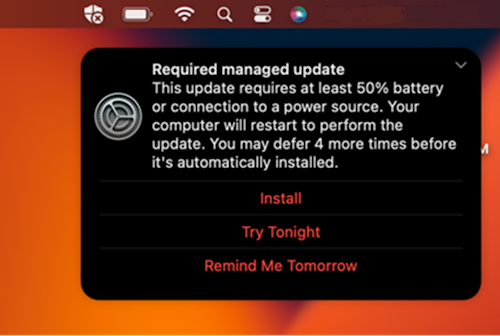
At the deadline, the device shows a one-minute countdown, then installs and restarts. A device that was powered off gets one hour after it powers back on. If the device sits idle before the deadline, it may install early.
Software Update Settings
The same Declarative Device Management area has a Software Update Settings category. It controls whether standard users can install updates, automatic downloads and installs, and Apple's fast security fixes, which Apple now calls Background Security Improvements. It can also hide updates for a set time, offer major or minor updates, and keep update notifications quiet until an hour before the deadline. These replace the old Defer software updates and Delay visibility of software updates settings in device restrictions.
What users see
The reminders get more frequent as the deadline gets close. Do Not Disturb is ignored for the last 24 hours. An iPhone needs the passcode to start the update. At the deadline, a Mac force quits every open app, so warn people to save their work.
Checking Apple updates
Go to Reports > Device management > Apple updates. The Summary tab shows the latest version for iOS, iPadOS, and macOS, and how many devices are up to date, waiting, downloading, installing, or failed. The Reports tab has the Apple software update report with per-device detail.
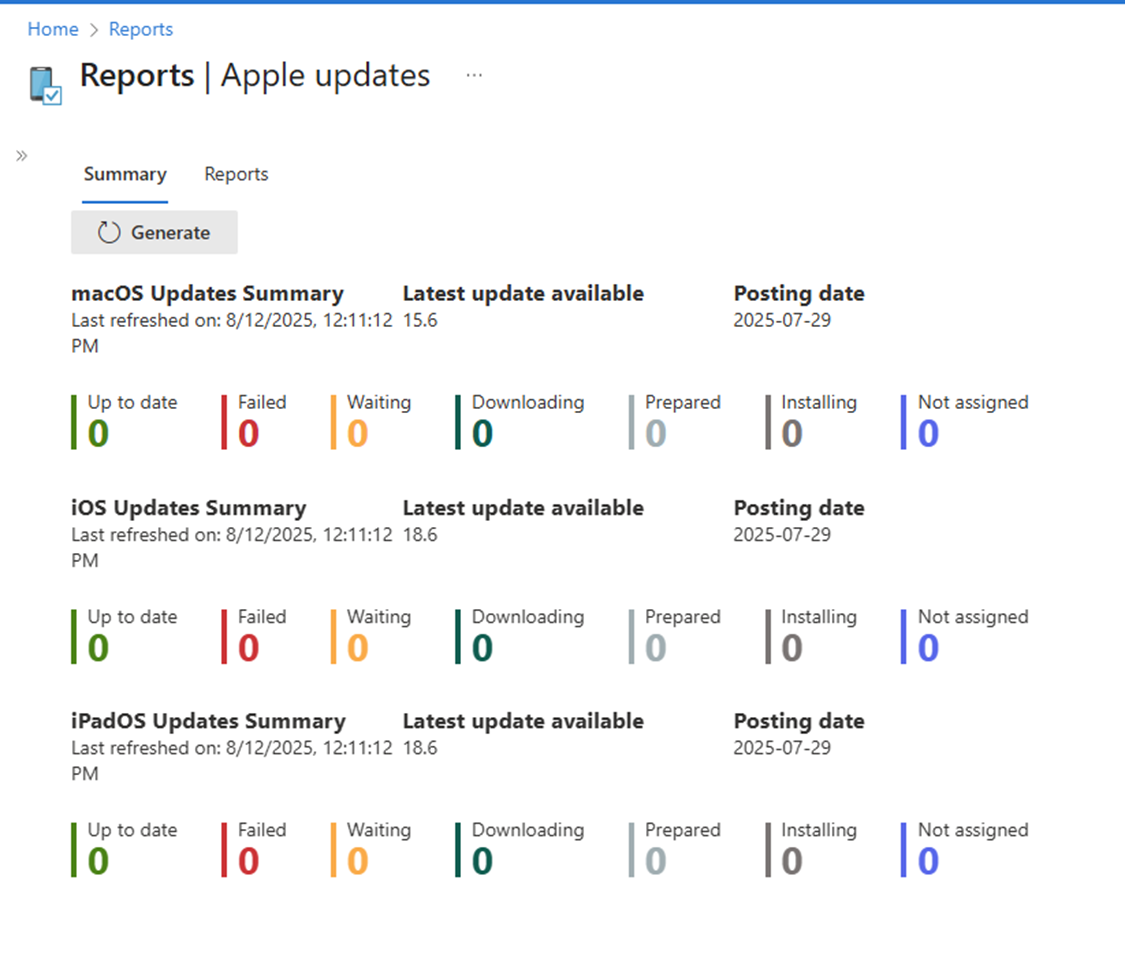
For one device, open it and look under Monitor for iOS software updates or macOS software updates. Devices > Monitor > Apple software update failures lists the ones that did not make it. On the device itself, check Settings > General > Software Update on an iPhone, or System Settings > General > Software Update on a Mac.
Apple update gotchas
- Succeeded on the policy only means the policy landed. Check the actual OS version on the device.
- A device already newer than the target shows an error because it looks like a downgrade. Retire old policies when you raise the target.
- If the target version does not exist for that model, the device keeps the policy and waits.
- If a user turned off automatic updates on their iPhone, a policy cannot turn them back on.
- Low battery, low storage, or a powered-off device at the deadline all delay the install.
Android system updates
For company-owned Android devices, meaning fully managed, dedicated, and corporate-owned work profile, updates live in a device restrictions profile. Go to Devices > Manage devices > Configuration > Create, pick Android Enterprise and Device restrictions, and open General. If those enrollment types are new to you, start with Android Enterprise management types.
- Device Default: Installs when the device is on Wi-Fi, charging, and idle.
- Automatic: Installs updates as soon as they are available.
- Postponed: Holds updates for 30 days, then prompts the user. Some manufacturers still push security updates anyway.
- Maintenance window: Installs only during a daily time window you pick, and keeps trying for 30 days. Low battery or storage makes it fail.

Freeze periods for system updates block updates completely for up to 90 days, which is handy for a store during the holidays. Dates use MM/DD, and each freeze has to be at least 60 days apart from the next. It needs Android 9 or newer. Not every manufacturer supports these controls, so test on your actual hardware.
Firmware over the air for Samsung and Zebra
Intune can also push manufacturer firmware updates to Samsung and Zebra devices. It is an Intune Plan 2 feature. Microsoft 365 E3 and E5 have included Plan 2 since July 1, 2026, and existing tenants get access by August 2026. Connect it under Tenant administration > Connectors and tokens > Firmware over-the-air update, then create deployments under Devices > Android > Manage updates > Android FOTA deployments.
Samsung needs a Knox E-FOTA license, a Knox admin account, and Managed Google Play. The Knox E-FOTA app also goes on the device, and the user accepts its terms once. Zebra LifeGuard works on fully managed and dedicated devices only. Zebra deployments do not retry after a failure, and you can never downgrade, because a downgrade wipes the device. I covered getting them enrolled in enrolling Zebra scanners into Intune.
A plan for Intune Apple and Android updates
Replace any legacy Apple update policies with DDM Software Update policies before Apple's 27 releases arrive. Give users a real deadline and a Details URL that explains it. For Android, pick a maintenance window on company devices and add freeze periods for your busy seasons. Then check the Apple updates report weekly, because Intune Apple and Android updates only work if someone looks at the failures.
What can we learn as a person
Android has a rule I love. You can freeze system updates for up to 90 days, like over the holidays at a store. But each freeze has to sit at least 60 days apart from the next one. You cannot stack them into a permanent freeze.
I stack them. Busy season, then a hard month, then a big project, and every time I tell myself the change can wait until things calm down. Things never calm down, so the freeze never lifts, and the updates I actually need pile up.
How long has your freeze been running? And what would happen if you let one update through before the next busy season starts?