

The ticket said "email is fine, we just need Autodiscover to stop popping a certificate warning." Two hours later I was in ADSI Edit staring at a full Exchange organization for a server that had not existed since 2019. The previous admin had done the thing that feels productive at 4:45 on a Friday. They shut the VM down, deleted it from the host, removed the computer object, and went home. Active Directory never got the memo.
This is a common mess. The mailboxes went to Exchange Online years ago, nobody has touched the on-prem box since, and then somebody tries to run a schema update, or install a new Exchange server, or clean up Entra Connect, and the ghost server shows up and blocks it. You can still remove Exchange on prem after the fact, with nothing left to work from but what Active Directory remembers about the server. The environment in this walkthrough is the one I keep running into: the dead server was Windows Server 2012 R2 running Exchange Server 2013 CU23, and it was the only Exchange server in the org.
What deleting a server actually leaves behind
Exchange keeps almost none of its configuration on the server itself. That is the whole design. The server is a set of binaries and a couple of databases, and everything that describes the organization lives in the configuration partition of Active Directory. Delete the VM and you have deleted the least important half.
Here is what is still sitting in your directory right now:
- The
CN=Microsoft Exchangecontainer underCN=Services,CN=Configuration, with your organization name under it. - The server object itself, at
CN=<ServerName>,CN=Servers,CN=Exchange Administrative Group (FYDIBOHF23SPDLT),CN=Administrative Groups,CN=<OrgName>,CN=Microsoft Exchange,CN=Services,CN=Configuration,DC=contoso,DC=com. - Exchange security groups in the Microsoft Exchange Security Groups OU: Organization Management, Exchange Trusted Subsystem, Discovery Management, and friends.
- Arbitration and system mailboxes. The
SystemMailbox{GUID}accounts,FederatedEmail,Migration, andDiscoverySearchMailbox. - Address lists, the offline address book, accepted domains, send connectors, and the Autodiscover service connection point that is still telling domain-joined Outlook clients to go talk to a machine that is not there.
- The
msExch*schema extensions. Those are permanent no matter what you do, so make peace with them now.
Every mail-enabled user in your domain also still carries Exchange attributes. Those live on the user object, not in the org container, and they are not the problem. Leave them alone.
Why you cannot remove Exchange on prem with ADSI Edit alone
I know. It is right there. You can right-click the org container and be done in fifteen seconds.
Microsoft does not support removing Exchange objects with ADSI Edit, and it is not a legal technicality. Setup writes objects in a specific order with specific cross-references. When you rip the container out by hand you tend to leave behind orphaned links in places you did not look, and the next Exchange install in that forest fails at the readiness check with an error that will not tell you why. If the environment is hybrid, you can also break recipient management in a way that is genuinely painful to unwind, because on-prem is still the source of authority for those attributes.
ADSI Edit is the last resort, not the first move. The supported way to remove Exchange on prem is to bring the server back from the dead, and then kill it properly.
Step 1: Inventory before you touch anything
You need three facts to rebuild: the exact server name, the exact Windows version, and the exact install path. Two of those are in AD.
Open ADSI Edit from a domain controller or a workstation with RSAT installed. Connect to the Configuration naming context, then walk down to:
CN=Configuration > CN=Services > CN=Microsoft Exchange > CN=<YourOrgName>
  > CN=Administrative Groups > CN=Exchange Administrative Group (FYDIBOHF23SPDLT)
  > CN=Servers
Right-click the server object, choose Properties, and write down these attributes:
cngives you the name the new server has to use. It has to match exactly.msExchInstallPathgives you the install location. If it is notC:\Program Files\Microsoft\Exchange Server\V15you will need the/TargetDirswitch later.serialNumberandmsExchCurrentServerRolestell you the build and which roles were installed.
You can get most of this from PowerShell on any domain-joined machine with the AD module, which is faster and gives you something to paste into your notes:
$cfg = (Get-ADRootDSE).configurationNamingContext

Get-ADObject -SearchBase $cfg -LDAPFilter "(objectClass=msExchExchangeServer)" `
    -Properties cn, serialNumber, msExchInstallPath, msExchCurrentServerRoles, whenCreated |
    Format-List cn, serialNumber, msExchInstallPath, msExchCurrentServerRoles, whenCreated
Run that before you assume there is only one. I have walked into environments where the "one old Exchange server" was actually three, and two of them were still powered on in a corner of the datacenter answering SMTP.
Then take a backup of the config container. Not a snapshot of a domain controller, because rolling a DC back causes its own category of misery. Take an LDIFDE export:
ldifde -f C:\Backup\exchange-config.ldf -p subtree `
  -d "CN=Microsoft Exchange,CN=Services,CN=Configuration,DC=contoso,DC=com"
That file will not restore itself automatically if things go wrong, but it is a complete record of what was there, and when you are on the phone with support at 9pm that record is worth a lot. Run a system state backup on a DC while you are at it. If your directory is built on a tiered admin model, do this work from the tier that owns the forest, not from your daily driver.
Step 2: Confirm you should actually remove it
Skip this step and a clean weekend turns into an outage. Before you remove Exchange on prem, find out what was leaning on it. Removing the Exchange organization removes the tooling that manages mail attributes on-prem. If Entra Connect is still syncing users up to Microsoft 365, and those users are managed on-prem, you need to know what happens after Exchange is gone.
Work through this list honestly:
- Are all mailboxes in Exchange Online? If any mailbox, archive, or public folder is still on-prem, uninstall will refuse.
- Is anything relaying SMTP through the old server? Printers, scanners, alarm panels, that one ancient line-of-business app. If the server is already gone this is moot, but check whether someone quietly pointed those at a different internal relay and whether it is still needed.
- Is directory sync still running? If yes, decide how Exchange attributes get managed afterward. Microsoft's current answer is cloud-based management of Exchange attributes, which flips the source of authority to Exchange Online. Read up on that before you commit, because it changes how you provision new mailboxes.
- Are there hybrid objects left? Organization relationships, intra-org connectors, a federation trust, HCW-created inbound and outbound connectors in Exchange Online. Those live in the tenant and survive the on-prem server just fine.
- Do you plan to install Exchange again later? If the answer is "maybe for recipient management," the Exchange Management Tools route is a different conversation, and uninstalling removes the AD containers those tools depend on.
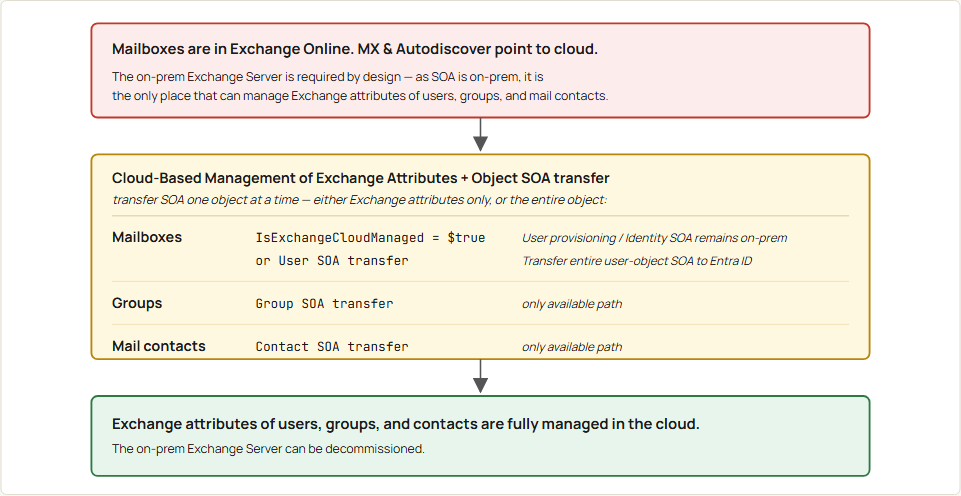
Step 3: Build the stand-in server
Exchange has a recovery mode that rebuilds a server entirely from what is in Active Directory. It was designed for hardware failure. It works just as well when the "failure" was a coworker with a delete key, and it is the only supported way to remove Exchange on prem once the original box is gone.
The rules are strict, and this is where most attempts fall over:
- The new server has to run the same version of Windows as the old one. Our dead server was Windows Server 2012 R2, so the rebuild is Windows Server 2012 R2. Not 2016. Not 2012. Recovery checks this and refuses.
- The new server has to have the same computer name. Not similar. Identical.
- The same drive letters that held mounted databases have to exist. If the old box had databases on E:, give the new VM an E: volume.
- The computer account in AD gets reset, not deleted. If the previous admin already deleted it, you will create a fresh one when you join the domain, and that works fine.
So: spin up a VM, install Windows Server 2012 R2 full desktop experience, name it to match, patch it, and join it to the same domain. If the computer object still exists, reset it first from Active Directory Users and Computers by right-clicking the object and choosing Reset Account.
This VM is disposable. It exists for one afternoon. Give it enough RAM to run Exchange setup without crying, around 8 GB, and about 80 GB of disk. It never has to handle a single message.
Step 4: Install the prerequisites
Exchange 2013 CU23 on Windows Server 2012 R2 wants a specific pile of components. Run this in an elevated PowerShell session on the new server:
Install-WindowsFeature AS-HTTP-Activation, Desktop-Experience, NET-Framework-45-Features, `
RPC-over-HTTP-proxy, RSAT-Clustering, RSAT-Clustering-CmdInterface, RSAT-Clustering-Mgmt, `
RSAT-Clustering-PowerShell, Web-Mgmt-Console, WAS-Process-Model, Web-Asp-Net45, Web-Basic-Auth, `
Web-Client-Auth, Web-Digest-Auth, Web-Dir-Browsing, Web-Dyn-Compression, Web-Http-Errors, `
Web-Http-Logging, Web-Http-Redirect, Web-Http-Tracing, Web-ISAPI-Ext, Web-ISAPI-Filter, `
Web-Lgcy-Mgmt-Console, Web-Metabase, Web-Mgmt-Console, Web-Mgmt-Service, Web-Net-Ext45, `
Web-Request-Monitor, Web-Server, Web-Stat-Compression, Web-Static-Content, Web-Windows-Auth, `
Web-WMI, Windows-Identity-Foundation, RSAT-ADDS
Reboot when it asks. Then install these, in this order:
- .NET Framework 4.7.2. CU23 requires it and will throw an error if you are on an older build. This is the single most common prerequisite failure I see.
- Windows Management Framework 4.0, which ships with Server 2012 R2 already, so you are usually just confirming it is there.
- Microsoft Unified Communications Managed API 4.0, Core Runtime 64-bit.
- Visual C++ Redistributable for Visual Studio 2012.
- Visual C++ Redistributable for Visual Studio 2013.
Now the media, where Exchange 2013 parts ways with the newer versions. Exchange 2016, 2019, and Subscription Edition ship their cumulative updates as ISO files that you mount. Exchange 2013 ships Exchange2013-x64-cu23.exe, a 1.6 GB self-extracting archive. It is not an ISO, it does not contain an ISO, and it will not mount anything.
You do not need a base Exchange 2013 ISO at all. Every Exchange cumulative update is a complete build of the product, not a patch on top of an earlier install. CU23 by itself is full setup media, so you can skip hunting for the original 2013 or SP1 media in VLSC. That hunt is where people usually lose an afternoon.
Step 5: Run the recovery
Log on to the new server with an account that is in both Domain Admins and Organization Management. If you are not sure who is actually sitting in that group, go count them first, because temporary membership for a job like this has a habit of becoming permanent. Since the Exchange org still exists in AD, that Organization Management group still exists too, and you can add yourself to it.
First extract the setup files. Double-click Exchange2013-x64-cu23.exe and it prompts you for a folder, or do it from the command line so you know exactly where things landed:
Exchange2013-x64-cu23.exe /extract:C:\CU23That is the standard Microsoft Self-Extractor switch. If it does not behave, run the file with /? to see what that particular package supports, or just double-click it and browse to a folder. Extraction takes a few minutes and produces a full setup tree with Setup.exe at the root of it. Give it somewhere with a few gigabytes free.
Then open an administrative command prompt and run setup from the folder you extracted to:
C:\CU23\Setup.exe /m:RecoverServer /IAcceptExchangeServerLicenseTermsIf msExchInstallPath was not the default, add the target directory so the rebuild matches:
C:\CU23\Setup.exe /m:RecoverServer /IAcceptExchangeServerLicenseTerms /TargetDir:"D:\Program Files\Exchange"Microsoft's own recovery article tells you to mount an ISO and run E:\Setup.exe. That article is written for Exchange 2016 and 2019. The 2013 version of the page skips the mounting step entirely and just says to navigate to the installation files. Same idea, different starting point. Check it before you go looking for a drive letter that will never appear.
A note on that license switch. Newer Exchange 2016 and 2019 builds replaced it with /IAcceptExchangeServerLicenseTerms_DiagnosticDataON or _DiagnosticDataOFF. Exchange 2013 CU23 predates that change, so the plain switch is correct here. If you copy a command off a 2019 article it will not run.
Setup reads the server object out of AD and reinstalls the roles it finds. This takes a while. Go get coffee.
If the Scripting Agent was ever enabled in this organization, recovery dies with a complaint about a missing ScriptingAgentConfig.xml. Since this is the only Exchange server, the fix is to rename %ExchangeInstallPath%Bin\CmdletExtensionAgents\ScriptingAgentConfig.xml.sample to ScriptingAgentConfig.xml and run setup again.
When it finishes, reboot, then open services.msc and confirm the Microsoft Exchange services are installed and running. Open the Exchange Management Shell and run Get-ExchangeServer. Seeing that dead server name come back with a live status is satisfying, and a little unsettling.
Step 6: Clean the organization before uninstalling
You now have a working Exchange server that knows about everything the old one knew about. Uninstall will refuse to run while certain objects still exist, so clear them first.
In the Exchange Management Shell, widen the scope to the whole forest and then check what is still homed here. All five of these should come back empty:
Set-ADServerSettings -ViewEntireForest:$true

Get-Mailbox
Get-Mailbox -Archive
Get-Mailbox -PublicFolder
Get-Mailbox -Arbitration
Get-Mailbox -AuditLog
In the after-the-fact scenario, the first three are almost always empty because everyone moved to the cloud years ago. The arbitration and audit log mailboxes are the ones that will still be there, because they were created by setup and never went anywhere. They also block uninstall, and they need the disable-and-remove treatment described in Microsoft's article on removing a mailbox database, which covers the -DisableLastArbitrationMailboxAllowed case for the final one.
Also clear the Autodiscover service connection point so domain-joined Outlook clients stop looking at Active Directory for an endpoint that is about to vanish:
Get-ClientAccessServer | Set-ClientAccessServer -AutoDiscoverServiceInternalUri $NullOn Exchange 2013 it is Set-ClientAccessServer. The Set-ClientAccessService version arrived in 2016. Small difference, and it will trip you up if you are pattern-matching from a newer guide.
If the organization was ever hybrid, remove the hybrid configuration object so the Hybrid Configuration Wizard cannot rebuild it later:
Remove-HybridConfigurationThen check for the offline address book generating mailbox, any send connectors that still reference this server, and any public folder deployment. An OAB pinned to a mailbox you are about to remove will stop the uninstall dead.
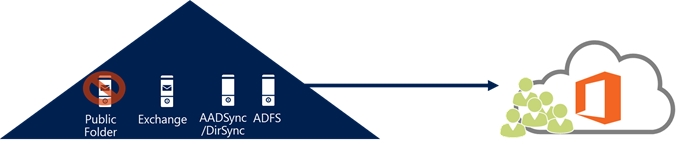
Step 7: Remove Exchange on prem for good
Once those queries all come back empty, you are clear to remove Exchange on prem properly. Run the uninstall from an administrative command prompt on the rebuilt server:
C:\CU23\Setup.exe /m:Uninstall /IAcceptExchangeServerLicenseTermsYou can also do it from Control Panel > Programs and Features, select Microsoft Exchange Server 2013, and click Uninstall. Same outcome. The command line gives you better logging in C:\ExchangeSetupLogs\ExchangeSetup.log, which is where you will be reading if it fails.
When setup finishes, this is what leaves and what stays.
Removed:
- The
CN=Microsoft Exchangeorganization container and your org subcontainer under it. - The Exchange security groups.
- The server object.
- The system and arbitration mailboxes.
- All receive connectors. That is permanent, so if anything was still relaying, you already dealt with it in step 2.
Left behind:
- The
msExch*schema extensions. These are schema, not configuration, and they are there for the life of the forest. This is normal and harmless. - Exchange attributes on individual user objects, such as
proxyAddresses,mail, and the extension attributes. Leave them. - The
CN=Microsoft Exchange Autodiscovercontainer and its Exchange Online service connection point child. This is a different container from the org container, and uninstall does not touch it. If you actually want it gone, that one is a manual ADSI Edit delete, and it is the only place in this whole process where ADSI Edit is the right tool.
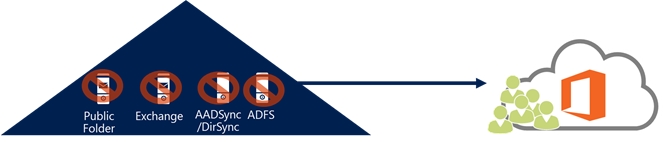
Step 8: Verify, then delete the stand-in
Go back to ADSI Edit and confirm that CN=Microsoft Exchange under CN=Services,CN=Configuration is gone. When that container disappears, you have actually removed Exchange on prem rather than hidden it. Then run the earlier LDAP query again:
$cfg = (Get-ADRootDSE).configurationNamingContext
Get-ADObject -SearchBase $cfg -LDAPFilter "(objectClass=msExchExchangeServer)"
Empty result means you are done. Check that the Microsoft Exchange Security Groups OU is empty or gone, and confirm the Exchange objects no longer appear in your Entra Connect sync scope if you are still syncing.
Then shut down the stand-in VM, unjoin or delete the computer object, and delete the VM. Its whole job was to give setup a place to stand while it removed itself. Do not leave it running "just in case," because in six months it becomes exactly the same problem you just spent a Saturday fixing.
Where this goes sideways
A few things I would watch for when you remove Exchange on prem this way.
- Wrong Windows version. Recovery mode compares the OS and stops. If you built 2019 because that is what your template makes, you get to build it again.
- Certificates. Recovery assigns a self-signed certificate to every service that needs TLS. On a server you are about to delete, who cares. On a server you actually intend to keep, reimport the real certificate before anyone connects.
- Missing databases. The database objects come back from AD, but the EDB files do not, because they were on the disk you deleted. That is fine for this workflow. You are removing them, not mounting them.
- More than one Exchange server in AD. If the query in step 1 returned several, do this one server at a time, and remove the last one last. The order matters more than you would like.
- Someone still needs on-prem recipient management. Stop and plan that before you uninstall. Once the containers are gone, the on-prem cmdlets are gone with them.
Remove Exchange on prem: the short version
Read the server object out of AD and back up the config container with LDIFDE. Build a throwaway VM with the same name and the same Windows version. Install the prereqs, extract the CU23 self-extractor, and run Setup /m:RecoverServer from it. Clear the arbitration mailboxes and the SCP. Run Setup /m:Uninstall, verify the org container is gone, and delete the VM. Budget a full day the first time. Budget half a day once you have done it before.
And if you are the one shutting down a server this month, take the forty minutes to remove Exchange on prem properly while the box still boots. The person who inherits your network in three years will never know they should thank you.
Where to get the media
Half the pain in trying to remove Exchange on prem is hunting for an installer that Microsoft quietly moved. Here is where things actually live right now. Everything below was checked before this went up, but download pages get reshuffled, so if a link has rotted by the time you read this, search the Download Center by KB number and you will usually land on it.
Windows Server ISOs
The Microsoft Evaluation Center still hands out full ISOs with a 180-day evaluation period. For a throwaway rebuild server that lives for one afternoon, that is more than enough runway. If you have volume licensing media, use that instead, and talk to whoever owns licensing before you put an evaluation build anywhere near production Active Directory. It is a short conversation and it saves a longer one later.
- Windows Server 2012 R2 evaluation. This is the one you need for an Exchange 2013 rebuild.
- Windows Server 2016 evaluation
- Windows Server 2019 evaluation
- Windows Server 2022 evaluation
- Windows Server 2025 evaluation
- Volume Licensing Service Center for properly licensed media and keys.
Remember the matching rule. Whatever the dead server was running, that is what you build. Windows Server 2012 R2 extended support ended in October 2023, so you are installing an out-of-support OS on purpose, for a few hours, on a box that never touches the internet. Keep it off the public network and delete it when you are done.
Exchange Server media
- Exchange Server 2013 CU23 (KB4489622). The last cumulative update for 2013 and the one this whole article is built around. You get
Exchange2013-x64-cu23.exe, a 1.6 GB self-extracting archive rather than an ISO. Extract it, then run Setup from the folder. - Exchange Server 2016 CU23 (KB5011155). The release page. The media itself comes from the Volume Licensing Service Center or the Microsoft 365 admin center rather than a public download link.
- Exchange Server 2019 CU15 (KB5042461)
- Exchange Server Subscription Edition RTM (KB5047155)
- Exchange Server 2010 SP3. Because sometimes the ghost is older than you hoped.
- Updates for Exchange Server. The current index of every CU and security update.
- Exchange Server build numbers and release dates. Take the
serialNumbervalue you pulled out of AD in step 1 and look it up here to confirm exactly which CU you are chasing.
Watch the file type, because it changes by version and it catches people out. Exchange 2013 cumulative updates are self-extracting .exe files. Exchange 2016, 2019, and Subscription Edition cumulative updates are .iso files that you mount. Exchange 2010 SP3 is an exe as well. In every case the cumulative update is a complete build of the product, so you never need to install an older version first and then patch your way up to it.
Exchange 2013 went out of support in April 2023. You are not installing it to run it. You are installing it so that setup has something to stand on while it deletes itself, and then the VM goes in the bin. If somebody in the room suggests keeping it around, that is how the next admin ends up reading this article.
You will also need the prerequisites, which are separate downloads:
- .NET Framework 4.7.2
- Unified Communications Managed API 4.0 Core Runtime
- Visual C++ Redistributable for Visual Studio 2012
- Visual C++ Redistributable for Visual Studio 2013
Docs worth having open
- Recover an Exchange Server (Exchange 2013). The source for the RecoverServer procedure and its rules.
- Exchange 2013 prerequisites. Where that giant Install-WindowsFeature line comes from.
- Decommission the last Exchange Server. The removed-versus-retained AD object breakdown lives here.
- How and when to decommission on-premises Exchange in a hybrid deployment
- Error when you try to remove a mailbox database. This is the one that walks you through the arbitration mailboxes that refuse to leave.
- Exchange Server supportability matrix. Useful when you are working out which OS and which CU pair up.
- Command line switches supported by Self-Extractor packages. Where
/extract:comes from, for the Exchange 2013 download.
What can we learn as a person
I have a habit of closing tabs instead of finishing what is in them. Browser tabs, but also the other kind. I stop replying to a group chat instead of saying I am stepping back. I let a subscription lapse instead of cancelling it. I stop showing up somewhere instead of telling anyone I am not coming. It feels clean in the moment. Nothing is on my screen anymore, so nothing is my problem anymore.
That is exactly what the last admin did with that server. They removed the visible part and left the record of it running in the background, quietly breaking things for someone else. I have written before about doom boxes and what we hand off so we stop carrying it. This is the other half of that. The uninstall is never the hard part. The hard part is going back to a thing you already emotionally closed and doing the boring, unrewarding work of ending it on purpose.
I am not sure I am good at this yet. I do know that the things I walked away from without saying anything are the ones that still come back at odd hours. What did you delete instead of decommission?