

I used to work in an environment where the help desk admin spent half their day resetting passwords twice. Once in Active Directory, and then again in Office 365. If they forgot the second reset, the user could not sign in to their email, and the phone would ring. It was a miserable, repetitive cycle that drove everyone crazy. We eventually installed Microsoft Entra Connect to sync the directories, and the help desk team almost cried tears of joy.
Ok, so here is the deal with Microsoft Entra Connect. It is the sync engine that bridges your on-premises Active Directory with Microsoft Entra ID. Today we will build a simple setup guide. We will walk through how to install it, configure permissions, enable writeback, and harden the server so bad actors cannot compromise your domain.
A simple setup guide for Microsoft Entra Connect
To start, download the latest version of the installer from the Microsoft Entra admin center. Before you double-click the file, make sure your server runs TLS 1.2. Microsoft enforces TLS 1.2 for all sync connections now, and the installation will fail if you do not enable this protocol on the server first.
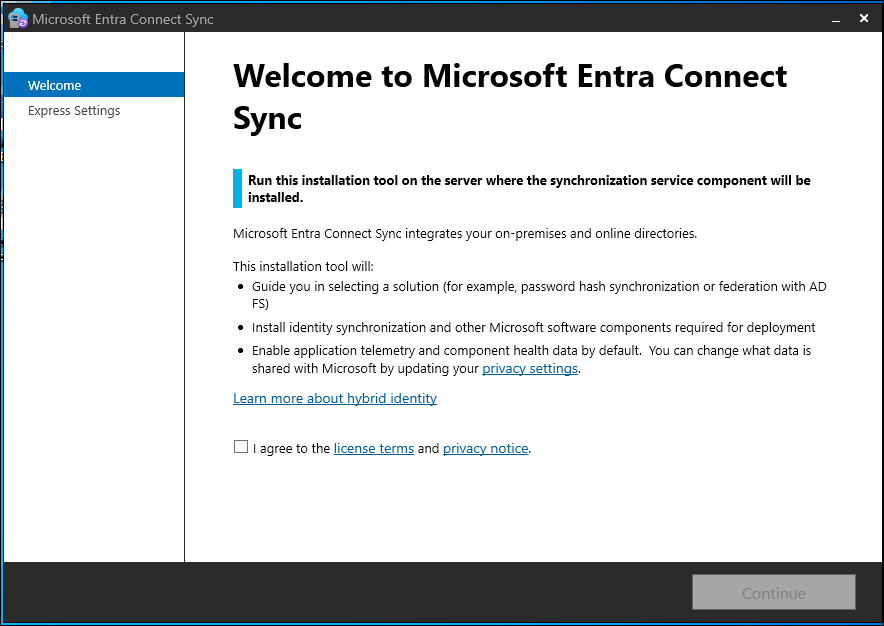
Once you verify your server meets the prerequisites, run the installer:
- Accept the license terms on the welcome screen.
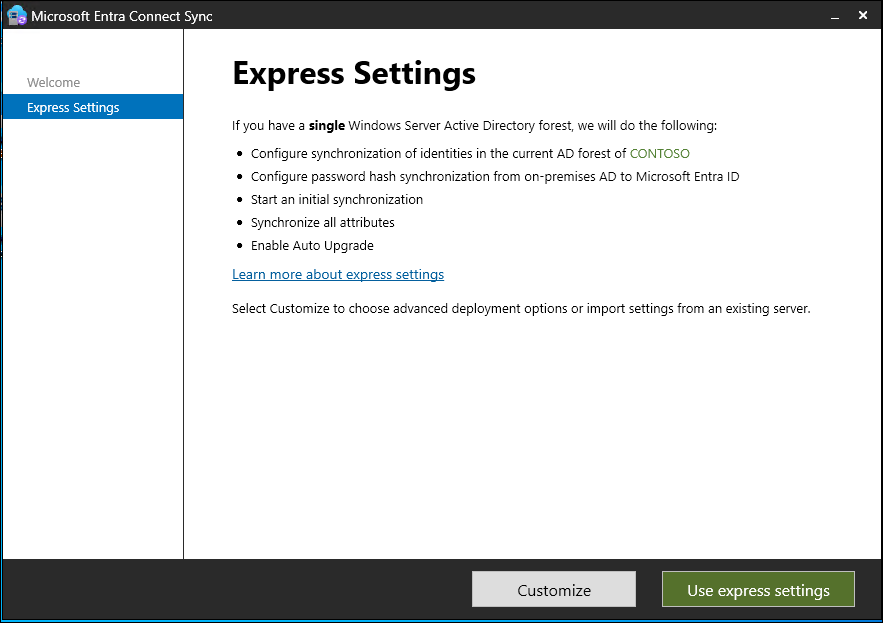
- Choose the Use express settings option. Express settings configure password hash synchronization by default, which works perfectly for a single Active Directory forest.
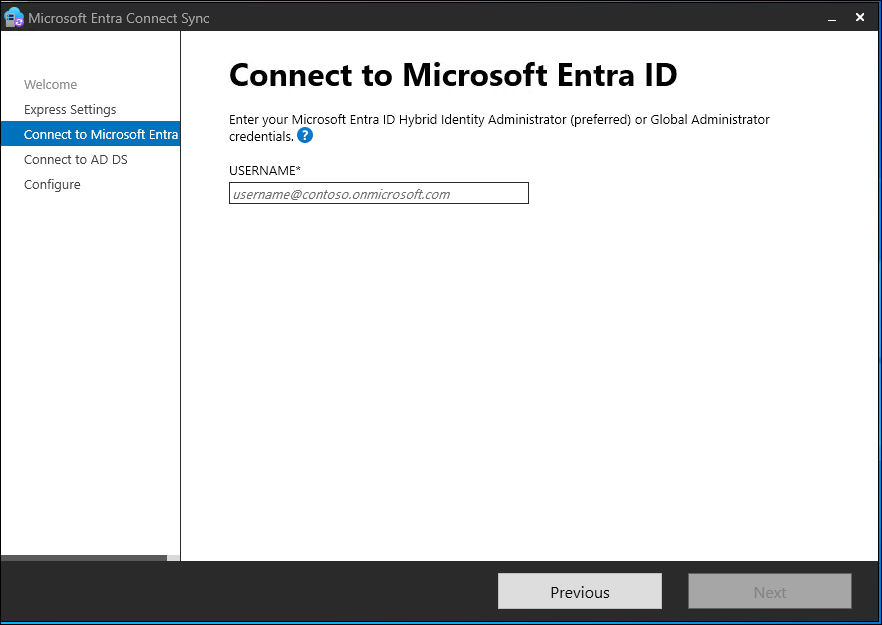
- Enter your Entra tenant credentials. You must use an account with the Hybrid Identity Administrator or Global Administrator role.
- Enter your on-premises Active Directory Enterprise Admin credentials. The installer needs this level of access to create the dedicated sync account in your domain.
- Review the configuration on the ready screen, check the box to start synchronization, and click Install.
Minimum permissions for the Entra Connect user
During the express installation, the wizard automatically creates a user account starting with MSOL_ in your on-premises Active Directory. Microsoft configures this account with the exact permissions needed to read your directory. If you want to use custom settings or pre-create this account, you must configure the permissions yourself.
The sync account needs these minimum permissions at the root of your domain directory:
- Replicating Directory Changes. This permission allows the sync service to read changes from your Active Directory domain.
- Replicating Directory Changes All. The service account needs this permission to sync password hashes from your domain controllers.
If you enable writeback features later, you must grant write permissions to this account. For example, password writeback requires the account to have Reset Password, Change Password, and Write permissions on the lockoutTime and pwdLastSet attributes for all user objects in your sync scope. You can read the official Microsoft Entra Connect permission guide on Microsoft Learn to see the full list of attribute requirements.
Hardening the Entra Connect server and user access
Microsoft Entra Connect holds the keys to your entire hybrid identity kingdom. If an attacker compromises this server, they can sync malicious changes to the cloud or extract password hashes from your on-premises domain. Hardening this server is not optional.
First, install Entra Connect on a dedicated member server. You must never install this software on a Domain Controller. Installing it on a member server reduces the attack surface and prevents easy privilege escalation if someone gains local admin access to the sync box.
Second, restrict local administrative access. Only allow trusted domain administrators to log in to the sync server. The installer creates a local group called ADSyncAdmins on the server. Make sure you only place authorized users in this group, as anyone in it can modify the synchronization rules and configurations.
Third, secure the synchronization user account. The MSOL_ account does not need domain administrator rights. Do not add this account to the Domain Admins or Enterprise Admins groups. Microsoft restricts access to the sync credentials by default, but you should also monitor the account logs for any unexpected sign-in attempts. You can learn more about securing these configurations in the Microsoft Entra Connect sync hardening guide on Microsoft Learn.
Enabling writeback features
A simple setup guide usually stops at one-way synchronization, where changes only flow from AD to the cloud. But you will want to enable writeback features to make the system truly useful. The most popular option is Password Writeback, which works with Self-Service Password Reset.
To enable Password Writeback:
- Launch the Microsoft Entra Connect wizard from your server desktop.
- Click Configure and select Customize synchronization options.
- Enter your Hybrid Identity Administrator credentials to authenticate.
- Proceed through the screens to the Optional Features page.
- Check the box for Password writeback and click Next to apply the change.
Once you turn on this setting in the wizard, go to the Microsoft Entra admin center. Navigate to Protection, click Password reset, and select On-premises integration. Make sure you enable the option to write back passwords to your on-premises directory. This setup allows users to reset their own passwords in Microsoft 365, and the service will update their Active Directory password in real time.
What can we learn as a person
Managing a network without synchronization is exhausting. You push changes to one database, then copy them manually to another, hoping the two systems stay in alignment. If you do not set up writeback, information only flows one way, and the cloud never talks back to your local server. Honestly, our personal lives run into the same problem when we isolate ourselves. We try to handle every project, stress, and anxiety in our own heads without letting anyone else in. Operating in a one-way sync means you carry the entire load alone, and eventually, the systems fall out of alignment.
But the thing is, we need writeback. We must escrow our keys. A few trusted relationships can act as our on-premises integration, allowing support to flow back into our lives when the pressure builds up in our heads. Trying to run everything yourself only leads to a crash. Who acts as your writeback connection? Which person do you allow to push support and feedback back into your life when things get heavy?