

A user adds their personal Gmail to the work Outlook app, and now company email and coupon spam share an inbox on a phone that leaves the building every night. Intune app configuration policies fix that kind of thing. They push settings into an app, like which accounts Outlook allows or which homepage Edge opens, without the user touching anything.
If the difference between managing a device and managing an app is fuzzy, start with whether Intune is MAM or MDM.
Managed devices vs managed apps
There are two kinds of app configuration policy, and picking the wrong one is the most common mistake.
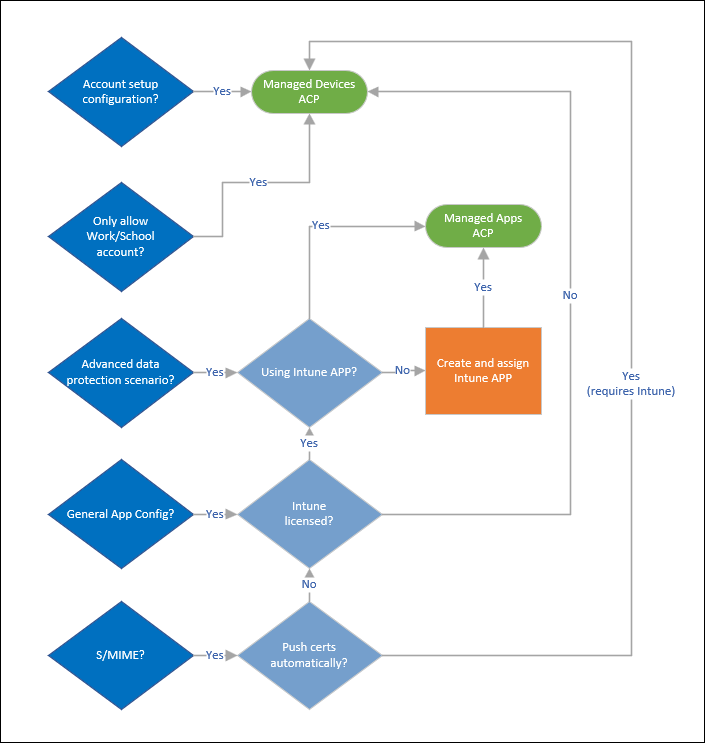
- Managed devices: For enrolled phones where Intune deployed the app. On iPhone, the app has to be installed through Intune. On Android, it has to come from Managed Google Play. Only this kind can lock Outlook to work accounts or set up the email account for the user.
- Managed apps: For apps built with Intune's app SDK, like Outlook, Edge, and Teams, whether the phone is enrolled or not. It pairs with app protection policies and handles general app settings.
Create one
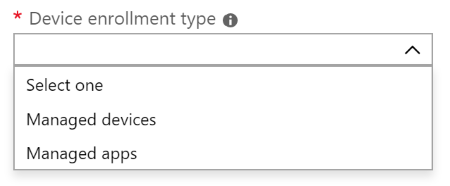
- Intune admin center > Apps > Configuration > Create, then pick Managed devices or Managed apps.
- Name it. For managed devices, pick the platform and the targeted app. For managed apps, find the app under Select public apps.
- On Settings, use the configuration designer, or paste XML on iPhone and JSON on Android.
- Assign it to groups, then click Review + create.
In the designer, each row is a configuration key, a value type, and a value. Keys are case sensitive. One wrong capital letter and the app ignores that line.
Tokens
Tokens fill in user details for you. {{userprincipalname}} becomes the user's sign-in name, and {{mail}} becomes their email address. On iPhone, managed devices policies also support device tokens like {{deviceid}} and {{serialnumber}}. Managed apps policies have a shorter list with no device tokens.
Example: Outlook only allows work accounts
This one needs a managed devices policy, and Outlook has to be installed through Intune.
- Create a managed devices policy for iOS/iPadOS and target Microsoft Outlook.
- In the configuration designer, set Configure email account settings to Yes and Authentication type to Modern authentication.
- Set Username attribute to User Principal Name and Email address attribute to Primary SMTP Address.
- Set Allow only work or school accounts to Require.
- Do the same for Android Enterprise.
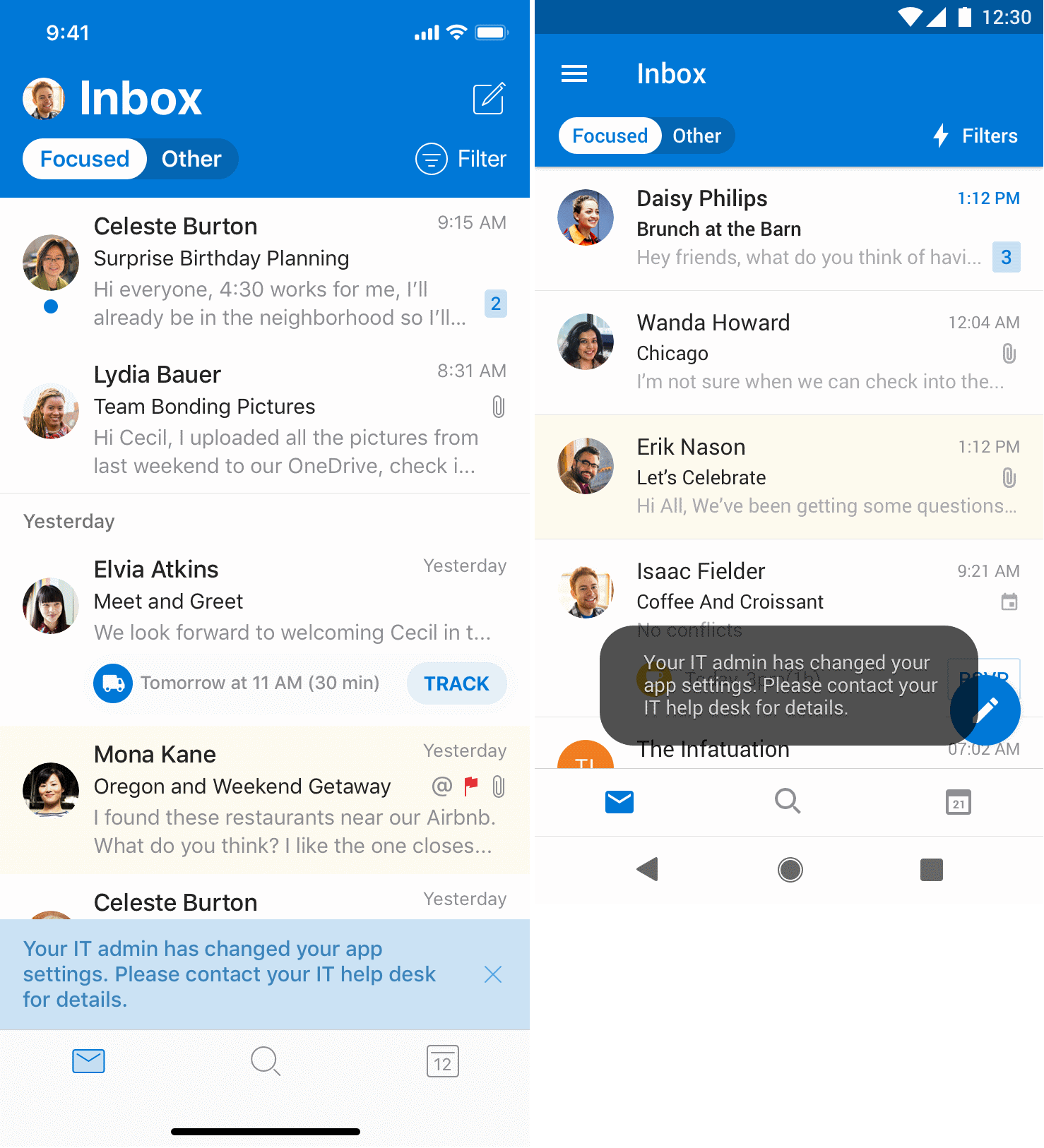
Under the hood, iPhone uses IntuneMAMAllowedAccountsOnly set to Enabled, with IntuneMAMUPN set to {{userprincipalname}}. Android uses com.microsoft.intune.mam.AllowedAccountUPNs. In the same designer you can turn on Focused Inbox, the external recipients MailTip, and blocking of external images.
Example: Edge homepage and bookmarks
Edge settings fit a managed apps policy. Pick both the iOS and Android Edge apps, then open Edge configuration settings. The keys behind the designer look like this:
- com.microsoft.intune.mam.managedbrowser.homepage: The homepage shortcut, like your intranet.
- com.microsoft.intune.mam.managedbrowser.bookmarks: Bookmarks written as Title|URL, with || between each one.
- com.microsoft.intune.mam.managedbrowser.AllowListURLs and BlockListURLs: Sites users can or cannot open, separated by pipes. If you set both, only the allow list counts.
With a managed apps policy, users have to sign in to Edge with their work account before the settings apply.
Check whether it applied
- Per device: Devices > All devices, open the device, and click App configuration.
- Per policy: Open it under Apps > Configuration and look at the status by device and by user.
- On the phone: Open Edge, type about:intunehelp, and tap View Intune App Status. It lists the policies each app received.
Managed apps check in every 30 minutes when an app protection policy is also assigned, and every 12 hours when it is not. Changes can take up to 8 hours to reach a signed-in user. Signing out of the app and back in usually speeds it up.
When it does not apply
- Wrong kind of policy: A managed devices policy does nothing if the user installed the app from the App Store or Play Store on their own.
- App not managed on iPhone: Intune can only configure apps it deployed. On unsupervised iPhones, the user gets asked to let Intune take over the app.
- Two policies, same key, different values: Intune has no tiebreaker. Use one policy per app per user.
- Typo in a key: Keys are case sensitive, so check every capital letter.
- Android line-of-business app updated: The old policy does not carry over to the new version. Create a new one.
- No Intune license, or no Company Portal on an Android phone.
- Status says succeeded but nothing changed: The app decides what to do with each setting. Check the vendor's documentation.
Getting Intune app configuration policies right
Before you build Intune app configuration policies, decide whether you need managed devices or managed apps. Lock Outlook to work accounts with a managed devices policy, push Edge and general Outlook settings with managed apps, and keep one policy per app. Check about:intunehelp when something looks off.
What can we learn as a person
One line in Microsoft's docs made me laugh. When two app configuration policies push different values for the same key, Intune has no conflict resolution. It just leaves you with a mess.
I get those all the time. Work pushes Evenings = On call. Home pushes Evenings = Family. Same key, different values, and I try to apply both. Nobody gets what they configured, and I end up in an error state, apologizing to everyone.
Which key in your life has two policies fighting over it? And who gets to decide which one actually applies?