

The ticket says Outlook will not open, or Teams says access denied, and somewhere in the screenshot is the word compliant. Users read that as the laptop is broken. Most of the time one setting failed a check, and basic troubleshooting for a noncompliant device comes down to finding that setting and fixing it.
What the user sees
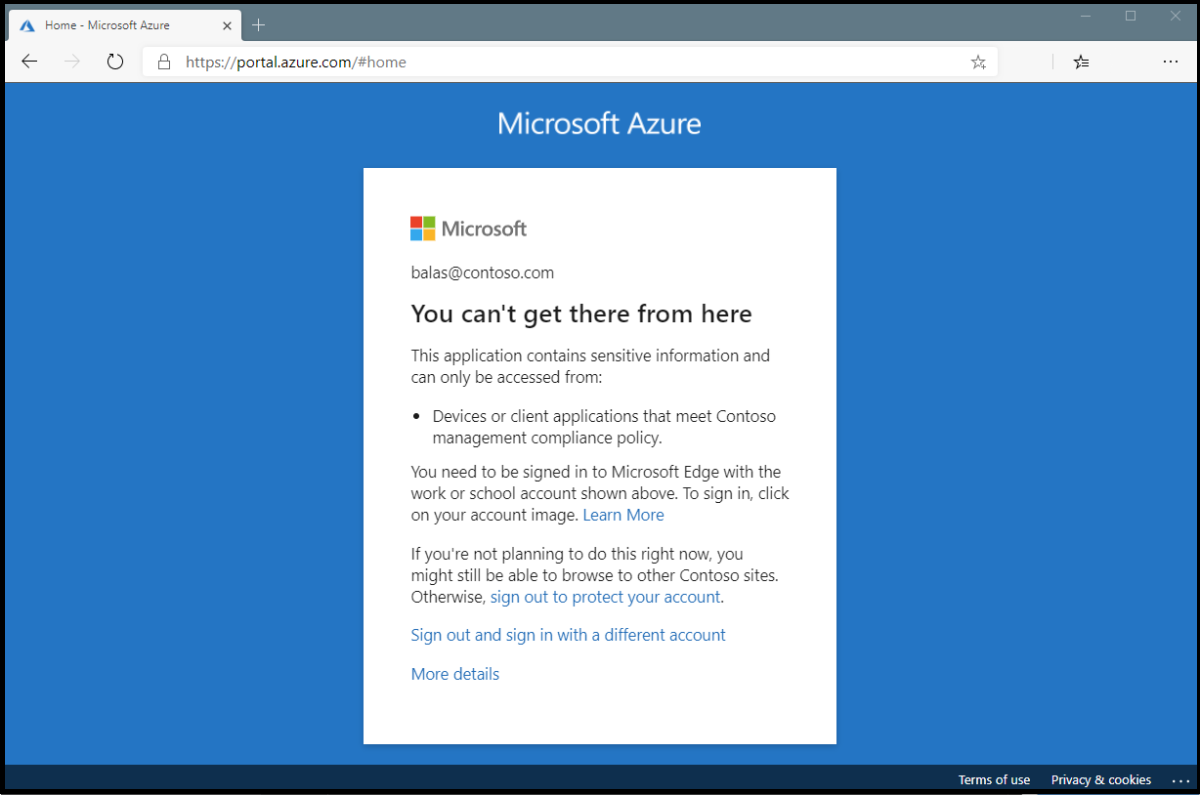
In a browser, the block usually says You can't get there from here, with a line about devices that meet the company's compliance policy. The error code behind it is 53000, which means the device is not compliant. Basic troubleshooting for a noncompliant device starts with a screenshot. Ask the user to click More details on that page and send one. It shows the device state and a correlation ID.
On an iPhone set up through Apple Business Manager, the message may say the admin requires the device to be managed. That usually means Company Portal is missing. Conditional Access needs Company Portal on the phone to check compliance.
Have the user check it
In basic troubleshooting for a noncompliant device, Company Portal can show the user exactly what is wrong. It also forces a fresh check-in at the same time.
- Windows: Open Company Portal, go to Devices, pick the PC, and click Check access. A Resolve link opens the setting that needs fixing.
- iPhone and iPad: Open Company Portal, go to Devices, pick the device, and tap Check status.
- Mac: Open Company Portal, go to Devices, pick the Mac, and click Check Status.
- Android: Open Company Portal, go to Devices, pick the phone, and tap Check device settings.
- Any device: The Company Portal website has Check status under Devices too.
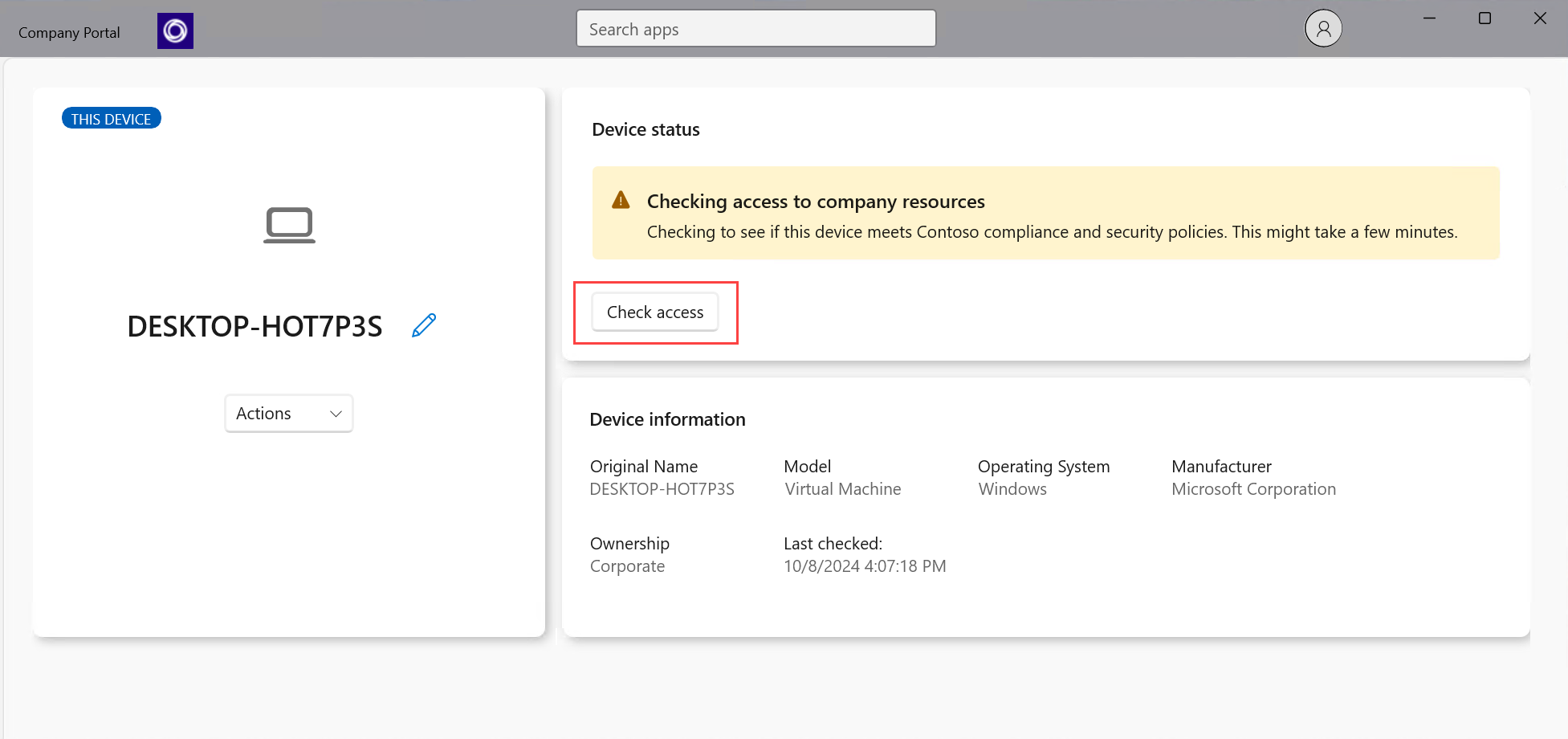
On Windows, the result is Can access company resources, Cannot access company resources, or Can access company resources, but action required. If Company Portal says No compliance policies have been assigned, look at the assignment in Intune. Depending on a tenant setting, a device with no policy can count as noncompliant.
Find the failing setting in Intune
- Go to Troubleshooting + support > Troubleshoot and click Select user. Intune license should show a green check.
- In the device list, check Managed, Intune compliant, Microsoft Entra compliant, and Last check in.
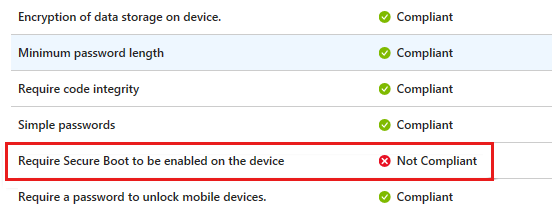
- Open the device under Devices > All devices and go to Device compliance. Click the policy to see each setting and which one says Not compliant.
For a wider view, go to Reports > Device compliance, open the Reports tab, and generate Noncompliant devices and settings. It lists the failing setting for every device. If Latest policy version is higher than Calculated policy version, that device has not been checked against the newest version yet.
The usual suspects
Windows
- BitLocker: Windows only measures it at boot. After encryption finishes, the PC needs a restart before it shows compliant.
- Firewall: It can report an error right after a restart or wake, and a manual sync usually clears it. A Group Policy that turns the firewall off keeps it noncompliant.
- Secure Boot: Needs UEFI and a TPM 2.0 chip. Run Confirm-SecureBootUEFI in an admin PowerShell window. True means it is on.
- Minimum OS version: The PC is too far behind on updates. Company Portal offers an upgrade link.
- Antivirus: Defender is off or its definitions are out of date.
- Machine risk score: Defender for Endpoint thinks the device is risky. Send that one to the security team.
Windows rechecks firewall, antivirus, BitLocker, Secure Boot, and OS version changes in near real time. Most fixes show up quickly, but a restart and a sync never hurt.
Phones
- Jailbroken or rooted: The policy blocks it, and there is no fix on our side.
- No screen lock: Have the user set one. Some Android devices also need Require PIN to start device.
- Out of date: Install the latest iOS update or Android security patch.
- USB debugging on Android: Turn it off in developer options.
- Play Integrity: If the policy checks strong integrity, older Android phones that cannot pass it show noncompliant.
- Work email on iPhone: A manually added email profile can cause noncompliance.
Statuses that confuse people
- Not evaluated: A new enrollment, a device with no policy, or a device with no user, like a kiosk.
- In grace period: Noncompliant but not blocked yet. The clock is running.
- Error on one setting: The device keeps its previous result for up to 7 days.
- Not compliant with no failing setting: Usually the built-in default policy. It flags devices with no policy, devices that have not checked in for 30 days, and users with no Intune license.
Devices check in about every 8 hours on their own. A Company Portal check forces one right away, and admins can click Sync on the device in Intune. The compliance chart can take up to 24 hours to catch up, so trust the device view over the chart.
Blocked even though it says compliant
- No Intune license: The Troubleshoot pane shows it.
- Brand new enrollment: Wait a few minutes and try again.
- Wrong browser account: Edge has to be signed in with the work account. Chrome needs the Microsoft Single Sign On extension.
- Duplicate devices: After a reimage, a user can have two records. Check Last check in so you are looking at the right one.
- Stuck on checking compliance: Update Company Portal, restart the device, and try another network.
The Entra sign-in log settles it. Go to Entra ID > Monitoring & health > Sign-in logs, find the failed sign-in, and open the Conditional Access tab to see which policy blocked it.
The basic troubleshooting checklist for a noncompliant device
- Get a screenshot, including More details.
- Have the user run Check access or Check status in Company Portal.
- Check the Intune license in the Troubleshoot pane.
- Open the device's compliance view and find the failing setting.
- Fix the setting, restart if it is BitLocker or Secure Boot, and sync.
- If it says compliant but still blocks, check duplicates and the browser sign-in.
- Read the Entra sign-in log for the Conditional Access result.
What can we learn as a person
What surprises users most is how small the cause usually is. One setting out of twenty fails, and the whole device loses access to email, Teams, and everything else.
I run my own compliance policy the same way. One missed deadline or one awkward conversation, and the whole device gets marked noncompliant. I never open the report to see which setting actually failed. Even when I fix it, I skip the restart, so the old result keeps showing for days.
When you mark yourself noncompliant, which setting actually failed? And have you given yourself the restart it needs to report the fix?