

Most people know the scary buttons on a device page: Wipe, Retire, and Fresh Start. I covered those in Intune wipe vs fresh start vs retire. The rest of the menu gets ignored, and that is a shame. Intune remote actions like Collect diagnostics, BitLocker key rotation, and device query close a lot of tickets without anyone touching the laptop.
Where remote actions live
Go to Intune admin center > Devices > All devices and pick a device. The actions sit across the top of the page, and the rest hide under the three dots. The newer device view groups them into menus like Remote actions, Secure, and Microsoft Defender, so the exact spot moves around a little.
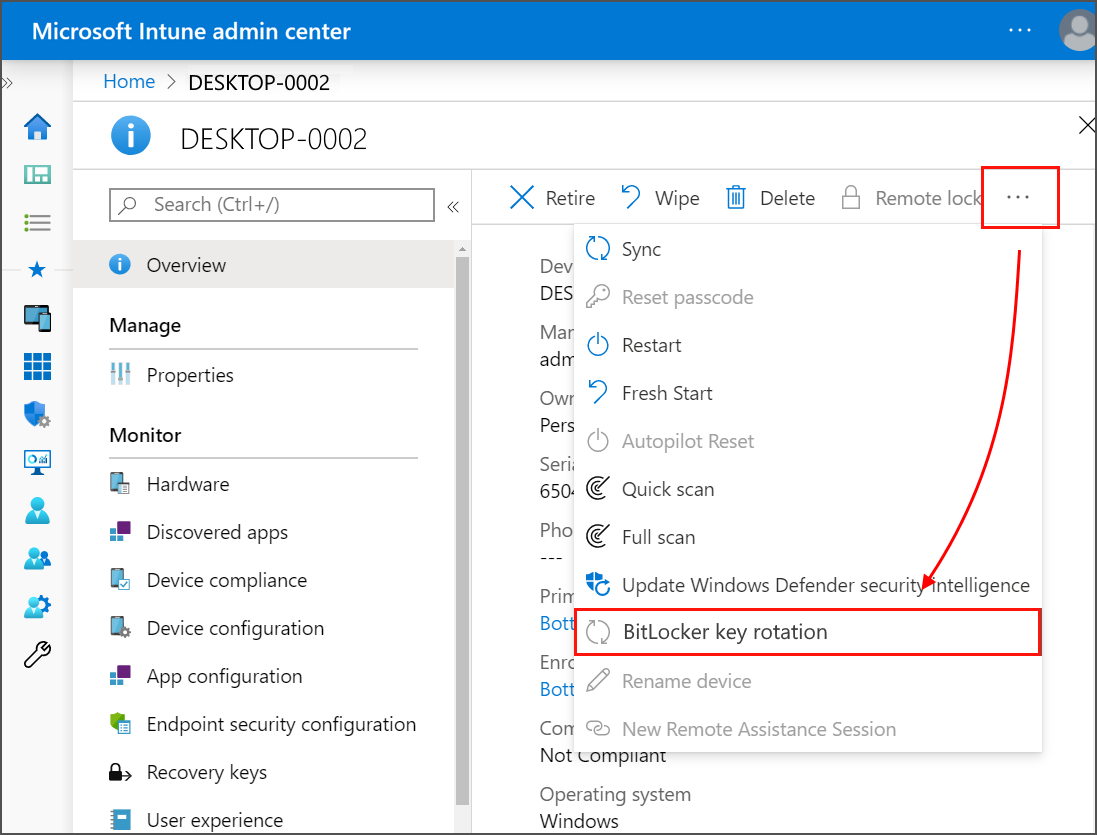
Windows devices get Sync, Restart, Collect diagnostics, BitLocker key rotation, Rotate local admin password, Quick Scan, Full Scan, Update Windows Defender security intelligence, Locate device, Pause Config Refresh, Run remediation, and New remote assistance session. They also get the destructive ones. Remote lock is not available for Windows, only for phones, tablets, and Macs.
The everyday ones
- Sync: Tells the device to check in with Intune right now. On Windows and iOS, the Device sync status tab shows how it went.
- Restart: Usually starts within 5 minutes, and the user may not get a warning. Tell them before you click it.
- Rename: This one is on the Properties tab under Edit, not in the action menu. It does not work on hybrid joined devices, and names cannot have spaces or be all numbers.
- Locate device: On Windows, this only works if a settings catalog policy allows apps to access location.
- Run remediation: Runs one of your remediation scripts on that device right now.
- Pause Config Refresh: On Windows 11, stops Intune from putting settings back for up to 24 hours. That gives you room to test a change. Pause it again for 0 minutes to resume.
Collect diagnostics
This is the one to learn first. Instead of asking a user to find log files, you click Collect diagnostics, confirm, and Intune pulls a zip of everything useful off the device. It works on company-owned Windows devices.
The zip includes dsregcmd /status, ipconfig /all, the certificate stores, MDM diagnostics, Defender support files, and event logs for Application, System, Setup, BitLocker, and Windows Hello for Business. It also grabs the Intune Management Extension logs and Windows Update logs. When it finishes, open the device's Device diagnostics page, click the three dots next to the entry, and choose Download.
Collections stay for 28 days, with up to 10 per device. The whole feature can be turned off under Tenant administration > Device diagnostics, so check there if the button is missing. If the device does not pick up the request within 24 hours, the collection fails. A firewall blocking the Microsoft blob storage addresses that end in lmsas.blob.core.windows.net causes upload failures too.
Rotate BitLocker keys
Once you read a BitLocker recovery key to a user over the phone, that key has been out in the world. BitLocker key rotation makes a new one so the old key stops working. I covered where to find BitLocker keys in an earlier post.
Rotation needs Windows 10 1909 or newer, or Windows 11, and three settings in your BitLocker policy. Turn on client-driven recovery password rotation for Entra joined devices, or Entra and hybrid joined devices. Set Save BitLocker recovery information to Microsoft Entra ID to Enabled. Set Store recovery information in Microsoft Entra ID before enabling BitLocker to Required. After the rotation, the new key shows up under the device's Recovery keys page.
Defender actions
- Quick scan: Checks memory, startup items, and running processes.
- Full scan: Checks every file and process. It takes a while and slows the device down.
- Update Windows Defender security intelligence: Pulls the latest Defender definitions down to the device.
For many devices at once, go to Endpoint security > Antivirus and use the Unhealthy endpoints or Active malware tabs. They let you run scans or restarts on up to 100 devices. Results show up in Reports > Microsoft Defender Antivirus.
Device query
Device query lets you ask a device a question and get the answer back in seconds. Is that file there? What does that registry key say? What errors hit the Application log today? You write the question in KQL, the same query language used across Microsoft's security tools, or let Copilot write it for you.
Pick the device and click Device query under Monitor. The device has to be company-owned Windows, Entra joined or hybrid joined, and set up in Endpoint analytics. It needs Intune Advanced Analytics, which is part of the Intune Suite. Since July 1, 2026, Microsoft 365 E3 and E5 include Advanced Analytics too, and existing tenants get access by August 2026. The Help Desk Operator role cannot run it, so give the helpdesk a custom role with the Managed devices Query permission.
FileInfo('c:\windows\system32\drivers\etc\hosts') | take 10
WindowsEvent(Application, 1d) | take 1
Querying many devices at once
Devices > Device query runs one question across many devices. It covers Windows, iOS, macOS, and company-owned Android. Windows devices need a properties catalog policy so they report the data ahead of time. You get 10 queries a minute and 1,000 a month, and you can export the results or add every device in them to a group.
Tpm | where Enabled != true
OsVersion | summarize DevicesCount = count() by OsVersion
Bulk actions and who did what
Go to Devices > All devices > Bulk device actions, pick the operating system and the action, add up to 100 devices, and click Review + create. On Windows, bulk works for Sync, Restart, Rename, Collect diagnostics, Autopilot reset, Retire, Wipe, and Delete. Collect diagnostics caps out at 25 devices. Each tenant can only wipe 500 devices a day and retire or delete 1,000.
To see whether an action finished, check the device actions report under Devices > Monitor. It shows the status and who started each action. To see who did something, go to Tenant administration > Audit logs and filter on the Device category. If nothing shows up in the audit log, the user probably did it themselves from the Company Portal. Wipe, retire, and delete can also require a second admin's approval through Multi Admin Approval.
When an action is stuck or greyed out
- Stuck on Pending: The device is offline. Actions wait for the next check-in.
- Greyed out: The platform does not support it, like Remote lock on Windows or Pause Config Refresh on Windows 10.
- Greyed out on one device but not another: Rename does not work on hybrid joined devices, and diagnostics and device query need a company-owned device.
- Missing for one admin: Their role lacks the permission. Help Desk Operator covers most actions, but not device query or Pause Config Refresh.
Make Intune remote actions part of every ticket
Make Collect diagnostics the first step on any Windows ticket you cannot solve in five minutes. Rotate BitLocker keys after every recovery, and keep a few device queries saved for the questions you ask every week. Those three Intune remote actions alone save a lot of walking to desks.
What can we learn as a person
Pause Config Refresh is a small action with a nice idea behind it. Normally Windows keeps putting your settings back. Change something, and a little later it snaps back to policy. Pause it, and for up to 24 hours you get room to try something without being corrected.
That button does not exist in my head. Every time I try something new, a little voice reapplies the old policy. You don't do that. That's not how you are. Back to baseline before the experiment ever gets a chance to work.
What would you try if you paused your own config refresh for one day? And whose policy is it that keeps snapping you back?