
The user says it is doing the thing again, and they cannot describe the thing. You need to see their screen. Quick Assist works, but anyone can use it, including the scammer who called them yesterday pretending to be IT. Intune Remote Help does the same job with both people signed in, verified, and logged.
Remote Help vs Quick Assist
With Remote Help, both the helper and the user sign in with work accounts from your company, and it only works inside your own tenant. Before the user lets anyone in, they see the helper's full name, job title, company, photo, and verified domain. The helper sees a warning if the user's device is not compliant. Roles decide who can only look and who can take control, and every session gets logged.
Quick Assist has none of that. It has no roles, the person sharing their screen never signs in, and they only see the helper's first name and last initial. Microsoft's own Quick Assist page recommends Remote Help for companies working within one tenant.
Some companies block Quick Assist by blocking remoteassistance.support.services.microsoft.com. Remote Help uses that same address, so that block breaks it too.
Licensing
Microsoft's Intune licensing page lists Remote Help as part of Intune Plan 2, which the Intune Suite includes. Microsoft also announced that Microsoft 365 E3 and E5 include Intune Plan 2, Remote Help and all, starting July 1, 2026. Existing tenants get access by August 2026. Check what your tenant actually has before you plan around it. Both the helper and the user need a license, and new licenses can take 30 minutes to 8 hours to kick in.
Turn it on
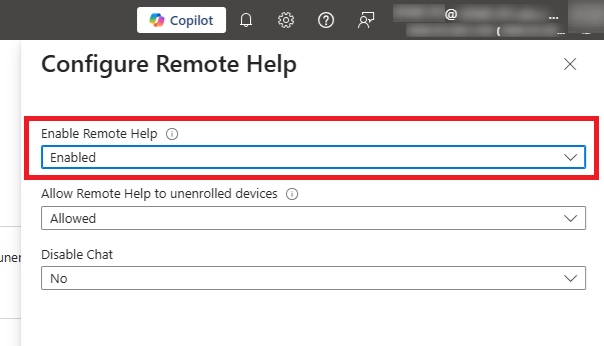
- Intune admin center > Tenant administration > Remote Help
- Open the Settings tab and click Configure.
- Set Enable Remote Help to Enabled.
- Decide on Allow Remote Help to unenrolled devices. Allowed lets you help people on devices Intune does not manage.
- Set Disable Chat to Yes if you do not want the chat window, then click Save.
Give the helpdesk permission
A helper needs three things in their Intune role: Remote tasks: Offer remote assistance, Remote Assistance Connector: Read, and at least one Remote Help app permission. Those are View screen, Take full control, and Elevation, plus newer unattended control options.
The built-in Help Desk Operator role has all of them except unattended control on Windows. Microsoft suggests least privilege, like view-only for tier 1 and full control for tier 2. Build those custom roles under Tenant administration > Roles > All roles > Create. If you help people on unenrolled devices, scope the role to a user group. The All devices scope does not include unenrolled devices.
Install the Remote Help app
Both computers need the Remote Help app. Download it from aka.ms/downloadremotehelp, rename the file to remotehelpinstaller.exe, and wrap it with IntuneWinAppUtil to make a Win32 app. Use these commands:
Install:   remotehelpinstaller.exe /quiet acceptTerms=1
Uninstall: remotehelpinstaller.exe /uninstall /quiet acceptTerms=1
Those switches care about uppercase and lowercase, so type acceptTerms exactly. The app updates itself by default. Add enableAutoUpdates=0 to the install command if you would rather control updates yourself.
For the detection rule, use a File rule on C:\Program Files\Remote Help, file RemoteHelp.exe, with a String (version) check of Greater than or equal to the version you packaged. Get that version number with:
(Get-Item "$env:ProgramFiles\Remote Help\RemoteHelp.exe").VersionInfoAssign it to device groups. Remote Help is also in the Enterprise App Catalog if you have it. Macs get their own download at aka.ms/downloadremotehelpmacos and need the Accessibility and Screen Recording permissions. Android support covers Samsung and Zebra devices in dedicated mode.
Start a session
- Intune admin center > Devices > All devices, and pick the device.
- Click New remote assistance session, choose Remote Help, and click Continue.
- Choose Initiate attended control.
- The user gets a notification and clicks Open Remote Help. On your side, click Open Remote Help and sign in.
- Ask for screen sharing or full control. The user sees who you are and picks Allow or Decline.
- Either of you clicks Leave to end the session.
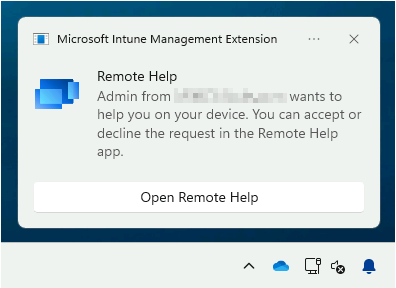
If the notification never shows up, use a security code instead. In the Remote Help app, under Give help, click Get a security code and read it to the user. They type it into their Remote Help app and click Submit. This is also how you help someone on an unenrolled device.
Admin prompts and unattended control
With the Elevation permission, you can answer admin prompts during the session. If the user ends a session where you used elevation, Windows signs them out, so let them know before they click Leave.
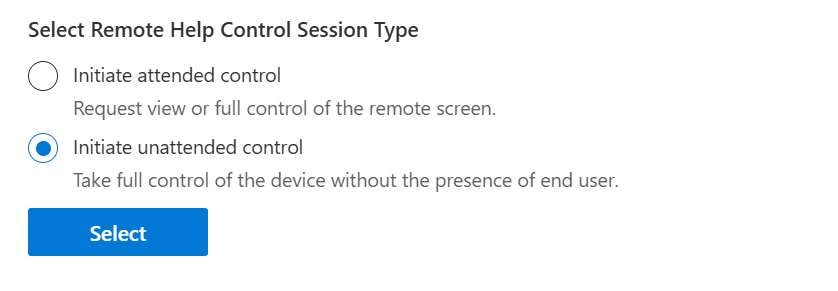
Windows now also supports unattended control, where you take over a device with nobody sitting at it. It needs a physical, company-owned 64-bit device with Remote Desktop turned on, plus a separate permission. When you start a session on a device that qualifies, Intune asks which kind you want.
See who helped whom
Go to Tenant administration > Remote Help. The Monitor tab shows active sessions and history. The Remote Help sessions tab lists the helper, the user, the device, the start and end times, and the session type. That data stays for 30 days. The reports do not show whether elevation was used during a session.
When Remote Help will not connect
- It says Remote Help is not enabled: Check the tenant setting, and remember new licenses can take hours to activate.
- The helper cannot start a session: Their role is missing a permission, or the device or user is outside the role's scope.
- The notification never arrives: Check for Do Not Disturb, policies that block notifications, and the Intune Management Extension service. That service is slow to start after a reboot, and newly enrolled devices can take an hour. Use the security code meanwhile.
- Intune thinks the app is installed when it is not, or the other way around: The version in your detection rule is wrong.
- WebView2 errors 1001, 1002, or 1003: Update Microsoft Edge or install WebView2.
- The user is in another company's tenant: Remote Help does not work across tenants.
Remote Help needs TCP 443 to addresses like *.support.services.microsoft.com and remotehelp.microsoft.com, and Microsoft says to exclude them from SSL inspection. On the device, install logs land in the %TEMP% folder, and session events are in Event Viewer under Applications and Services Logs > Microsoft > Windows > RemoteHelp.
Rolling out Intune Remote Help
Confirm your licenses, turn on Intune Remote Help in Tenant administration, and push the app to every device as a Win32 app. Give tier 1 a view-only role and tier 2 full control, run one test session end to end, and then retire Quick Assist from your helpdesk process.
What can we learn as a person
Remote Help has two levels. The helper can ask to view your screen, or ask for full control. A lot of sessions never need more than the view. Someone just has to see what you are seeing.
I am bad at the view level. When something is wrong, I either hand someone full control of the whole mess or let nobody see anything at all. There is no middle setting where I just let a friend look at the screen and say, yeah, that is weird, I see it too.
Who could you share your screen with, without handing over control? And what would it feel like to just let someone see it?