
The ticket says the app won't install. That is the whole ticket. No error message, sometimes no app name, just one sad sentence and a user who needs it working before their 2 o'clock. Most failed installs come down to a short list of boring causes. Basic troubleshooting clears most of them before anyone needs to escalate.
This is that list, in the order I would check it.
Get the exact error first
Basic troubleshooting starts with the words on the screen. "It failed" is not an error. "This app can't run on your PC" is an error, and it points to a completely different fix than "Another installation is already in progress." Ask the user for a screenshot. If they closed the window, have them run it again while you watch.
Then ask a few questions:
- What app, and what version?
- Where did the installer come from? The vendor's website, an email, a USB drive, the Company Portal?
- What exactly did the screen say? Was there a number, like 1603?
- Has it ever worked on this computer, or on anyone else's?
If the same installer works on the computer next to it, the problem lives on this machine. If it fails everywhere, the problem is the installer, and you can stop poking at the user's laptop.
Blocked files
Windows keeps track of where a file came from. When you download something from the internet or save it out of an email, Windows tags it as coming from another computer. Microsoft calls this the Mark of the Web. Most installers still run with that tag. Some throw a warning, and some quietly refuse to start.
The first thing you usually see is a blue box that says Windows protected your PC. That box comes from Microsoft Defender SmartScreen, and it shows up when Windows does not recognize the app yet. Clicking More info shows a Run anyway button. Only use it when you know the file came from the real vendor site or your company's own file share. If you are not sure where the file came from, stop there and ask.
How to unblock a file
- Right-click the installer file and pick Properties.
- Stay on the General tab and look at the bottom of the window.
- If you see "This file came from another computer and might be blocked to help protect this computer," check the Unblock box.
- Click Apply, then OK.
- Run the installer again.
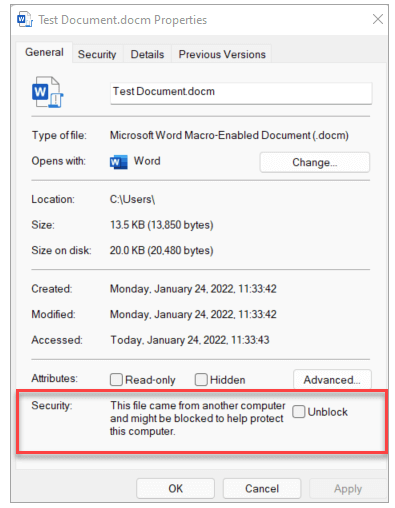
No Unblock box means the file is not tagged, and you can move on. If the installer came inside a zip file, unblock the zip before you extract it. Otherwise every file inside picks up the tag too. PowerShell can do it in one line:
Unblock-File -Path "C:\Users\jsmith\Downloads\setup.exe"When security software steps in
Sometimes Windows Security or your antivirus grabs the installer and quarantines it. The file just vanishes, or the install dies halfway through. Check Windows Security > Virus & threat protection > Protection history. If the installer shows up there, do not restore it yourself. Send it to whoever owns security, because sometimes the antivirus is right.
Newer Windows 11 computers may also have Smart App Control turned on. It stops apps that Microsoft does not recognize and that do not carry a trusted signature. You can see its status under Windows Security > App & browser control. Do not turn it off to get one app working. Escalate it.
The wrong version for the computer
Most apps get built for a specific kind of Windows. Grab the wrong one and the installer either refuses to start or says This app can't run on your PC. Two things to check here: the processor type and the Windows version.
32-bit, 64-bit, and ARM
Go to Settings > System > About and look at System type under Device specifications. You will see something like 64-bit operating system, x64-based processor. Here is what those words mean for installers:
- x64 is the normal 64-bit Windows that most business computers run. It runs x64 apps and older 32-bit apps.
- x86 means 32-bit. A 32-bit copy of Windows cannot run 64-bit apps at all. Windows 11 only comes in 64-bit, so you will only see this on older Windows 10 machines.
- ARM64 means an ARM processor, like the Snapdragon chips in some newer Surface and Copilot+ laptops. Windows 11 on ARM runs most normal apps through emulation, but drivers do not emulate. VPN clients, antivirus agents, and printer drivers often need their own ARM64 version.
When you download, match the file to the system type. Vendors usually put x64, x86, or ARM64 right in the file name or on the download page.
Windows version and S mode
Some apps need a minimum version of Windows. Press Windows key + R, type winver, and press Enter. The window that opens shows the version and build number. Compare that to the system requirements on the vendor's site.
Then there is S mode. A computer in S mode only runs apps from the Microsoft Store, so regular .exe and .msi installers will not run. Check Settings > System > Activation. If the edition name ends in S mode, that is your answer. Switching out of S mode is a one-way trip, so get approval before you do it.
No admin rights
Most installers want to write to C:\Program Files, and that takes admin rights. On a standard account, the installer pops up a User Account Control box asking for an admin username and password. If the user does not have one, the install stops right there.
Do not hand the user an admin password to get past this. Use whatever your company already uses to install apps for people. That might be the Company Portal, a remote session where you enter your own admin account, or a request to the team that packages apps. Some installers offer a "just for me" option that installs into the user's profile with no admin needed. Those can be fine, but check your company's policy first.
Error 1625 reads This installation is forbidden by system policy. That means a policy on the computer blocked it on purpose. Do not try to work around it. Escalate it.
Something else is already installing
Windows Installer can only run one install at a time. If something else is mid-install, the new one fails with error 1618, Another installation is already in progress. The something else is usually Windows Update, a silent install your company pushed, or an earlier attempt that hung.
Open Settings > Windows Update and look for anything installing or waiting on a restart. Give it a few minutes. If nothing changes, restart the computer and try again. A restart clears most stuck installs and finishes updates that were waiting on a reboot.
While we are on reboots, two codes look like failures and are not. 3010 means the install worked and needs a restart to finish. 1641 means the installer kicked off that restart itself. Both count as success. Restart the machine and test the app before you call it broken.
An old version is in the way
Error 1638 says another version of this product is already installed. That one is at least honest. Other times the old version is half removed, or a failed install left pieces behind, and the new install trips over them.
- Go to Settings > Apps > Installed apps.
- Search for the app name.
- Click the three dots next to it and pick Uninstall.
- Restart the computer.
- Run the new installer again.
If the old version refuses to uninstall, or it is not in the list but the installer still complains, escalate. Cleaning leftover registry entries by hand can break other apps, so leave that to whoever has a test machine.
Missing pieces and full disks
Some apps need other software in place first. The classic one is an error saying VCRUNTIME140.dll was not found, or MSVCP140.dll is missing. Those files come from the Microsoft Visual C++ Redistributable. Download it from Microsoft's own site, never from a random DLL download site, install it, and try the app again.
Older apps sometimes need .NET Framework 3.5. Go to Control Panel > Programs > Turn Windows features on or off, check .NET Framework 3.5, and click OK. Windows downloads the files for this from Windows Update. If that download fails, the computer probably is not allowed to reach Windows Update directly, and you should escalate.
And check disk space under Settings > System > Storage. An installer that runs out of room halfway through can fail with a generic error that never mentions space at all.
Where the real error hides
When the screen only says the install failed, the logs usually say why.
Event Viewer
- Press Windows key + R, type eventvwr.msc, and press Enter.
- Go to Windows Logs > Application.
- Click Filter Current Log on the right side.
- In Event sources, pick MsiInstaller and click OK.
Look at the entries from the time the install failed. MSI installs write a line with the product name and an error status number. That number goes in your ticket.
A detailed install log
If the installer is an .msi file, you can make it write a detailed log. Open Command Prompt as admin and run this, swapping in your own paths:
msiexec /i "C:\Temp\app.msi" /L*V "C:\Temp\install.log"The log will be long and ugly. Open it in Notepad and search for Return value 3. The lines just above it usually show what broke.
Here are the codes you will see the most:
| Code | What it means | What to try |
|---|---|---|
| 1603 | A fatal error happened during the install. This is the generic one. | Read the log. Admin rights, a pending restart, and an old version are common causes. |
| 1618 | Another install is already running. | Wait, then restart the computer. |
| 1619 | The installer package could not be opened. | Download it again, or copy it to the computer instead of running it from a network share. |
| 1625 | System policy blocked the install. | Escalate. |
| 1633 | The package does not support this platform. | Get the right x64, x86, or ARM64 version. |
| 1638 | Another version is already installed. | Uninstall the old version first. |
| 3010 | Success, but a restart is needed. | Restart and test. |
When Intune does the installing
In a lot of companies, users never run installers at all. Microsoft Intune pushes the app, or the user picks it from the Company Portal. Everything above still applies. You just look in different places.
On the computer
Open the Company Portal and check the app's status. If it failed or sits on pending, force a check-in. Go to Settings > Accounts > Access work or school, click the work account, click Info, and click Sync. Give it a few minutes.
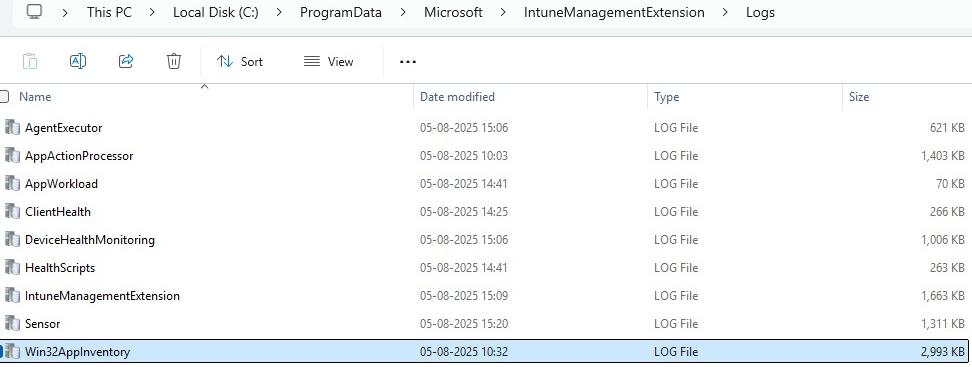
Win32 apps from Intune install through the Intune Management Extension. Its logs live in C:\ProgramData\Microsoft\IntuneManagementExtension\Logs. AppWorkload.log is the main one for apps. It covers app check-ins, installs, applicability, and detection. CMTrace makes these logs much easier to read, but Notepad works in a pinch.
If nothing seems to happen at all, open services.msc and restart the Microsoft Intune Management Extension service. That kicks off a fresh check for apps.
In the Intune admin center
If you have access to the Microsoft Intune admin center, you can see the same failure from the admin side:
- Intune admin center > Troubleshooting + support > Troubleshoot
- Click Select user, search for the user, and click Select.
- Pick the device from the Devices list.
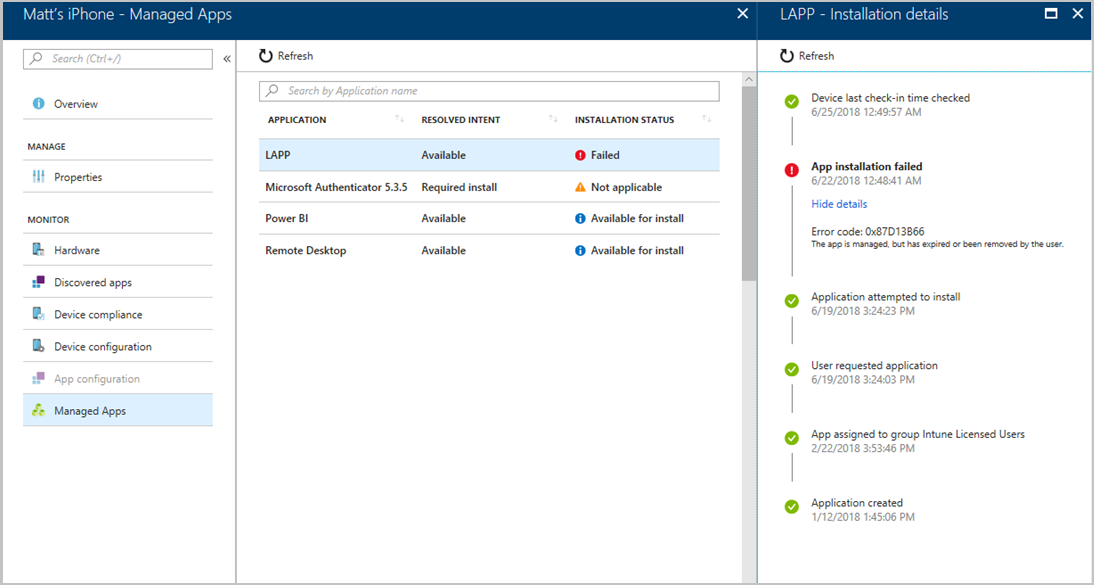
- Click Managed Apps.
- Click any app with a failed installation status to see the installation details and the error code.
To see one app across every device, go to Apps > All Apps, pick the app, and open Device install status under Monitor. For Win32 apps, the installation details pane also has a Collect logs option that pulls the logs off the device for you.
If a Win32 app installs as the user and the installer needs admin rights, it fails every time, because a standard user does not have those rights. That gets fixed in how the app is packaged, not on the laptop.
The basic troubleshooting checklist
None of this is fancy. Basic troubleshooting is mostly asking good questions and checking the boring stuff in the same order every time. Work it top to bottom:
- Get the exact error message and a screenshot.
- Find out where the installer came from, and whether it works on another computer.
- Check the file's Properties for an Unblock box, and check Protection history.
- Confirm the system type and Windows version match the app, and that the computer is not in S mode.
- Run the install with admin rights through your company's normal process.
- Restart the computer and try again.
- Remove any old version, restart, and reinstall.
- Check disk space and prerequisites like Visual C++ and .NET Framework 3.5.
- Pull the error code from Event Viewer or the install log.
- For Intune apps, check the Company Portal, sync, and read AppWorkload.log.
If you escalate, put the app name and version, the exact error and code, the system type, the Windows version, and what you already tried in the ticket.
What can we learn as a person
Error 1618 is the one I think about outside of work. Windows can only run one installer at a time. If something is still installing, the next thing waits or it fails. Double clicking harder does not help.
I do this to myself all the time. I start a new routine and a new project in the same week, while the last thing is still half installed, and then I wonder why nothing finishes. And when something does finish, I skip the restart. Error 3010 means the install worked and just needs a reboot before it takes. I keep forgetting that rest is part of finishing.
So what is still installing in you right now? And what are you trying to start on top of it before it is done?