

Autopilot used to mean one thing. Grab the hardware hash, upload it, build a profile, and watch the Enrollment Status Page crawl. Now there is a second Autopilot, and Microsoft calls it a re-architecture. Autopilot device preparation skips the hardware hash and the Enrollment Status Page, but it also skips a few things you might be counting on.
If you want the basics first, start with how Intune Autopilot works.
Classic Autopilot vs Autopilot device preparation
| Classic Autopilot | Device preparation | |
|---|---|---|
| Hardware hash upload | Required | Not required |
| Join type | Entra join or hybrid join | Entra join only |
| Modes | User-driven, pre-provisioned, self-deploying, existing devices | User-driven, plus automatic for Windows 365 |
| Setup screen | Enrollment Status Page | A simple progress screen |
| Apps during setup | Up to 100 | Up to 25 apps and 10 PowerShell scripts |
| Windows versions | Windows 10 and 11 | Windows 11 only |
Device preparation does not do pre-provisioning, self-deploying mode, Autopilot Reset, hybrid join, co-management, or Windows 10. It also cannot hold the user at setup until their user-based settings finish. Microsoft describes it as simpler and faster but less feature rich.
Which one should you use?
If your devices are cloud only and run Windows 11, device preparation is the easier road. If you need hybrid join, kiosks with self-deploying mode, or pre-provisioning, stay on classic. Both can live in the same tenant, but a single device only runs one of them. Your existing classic profiles do not need to move.
Watch out for devices that already have a hardware hash uploaded. A registered device runs the classic profile, not device preparation. To switch one over, deregister it from classic Autopilot first.
Set up Autopilot device preparation
Step 1: The device group
Device preparation drops each new device into a group during setup. Create a security group in Groups > New group with Membership type set to Assigned and Microsoft Entra roles can be assigned to the group set to No. Under Owners, add Intune Provisioning Client. In some tenants it shows up as Intune Autopilot ConfidentialClient. If it is missing entirely, create it with Microsoft Graph PowerShell:
Connect-MgGraph -Scopes "Application.ReadWrite.All"
New-MgServicePrincipal -AppId f1346770-5b25-470b-88bd-d5744ab7952c
Step 2: The device preparation policy
- Intune admin center > Devices > Device onboarding > Enrollment, on the Windows tab.
- Under Windows Autopilot device preparation, open Device preparation policies and click Create, then User Driven.
- On Device group, pick the group from Step 1.
- On Configuration settings, set the options below and pick the apps and scripts to install during setup.
- On Assignments, pick the group of users who will set up devices.
- Review + create.
- Join type: Microsoft Entra joined.
- User account type: Standard User or Administrator. Standard User keeps people from becoming local admins.
- Minutes allowed before showing installation error: Anywhere from 15 to 720.
- Custom error message, Allow users to skip setup after multiple attempts, and Show link to diagnostics: These control what the user sees when it fails.
Apps and scripts you pick here must also be assigned to the device group and set to install in the System context. Anything else assigned to that device group installs after the user reaches the desktop. If you have more than one policy, drag them into order. The lowest number wins.

If a user sees the classic Enrollment Status Page instead of this screen, the device is running classic Autopilot, not device preparation.
Classic pre-provisioning
Pre-provisioning, which used to be called White Glove, lets IT or a partner run the slow device part of setup ahead of time. The user's part on day one gets much shorter.

It needs a physical device with a TPM 2.0 chip, because virtual machines are not supported. It also needs Windows Pro, Enterprise, or Education, an Enrollment Status Page assigned to the device, and Allow pre-provisioned deployment set to Yes in the deployment profile. Use a network cable if you can. Wi-Fi forces extra region and keyboard screens.
The technician steps
- Power on the device and wait for the work or school sign-in screen.
- Press the Windows key five times.
- Choose Pre-provision with Windows Autopilot and click Next.
- Check the organization, profile, and assigned user, then click Provision.
- Wait while the device part of setup runs.
- On success, click Reseal and box it up. On failure, pick Retry or Reset, and press Ctrl+Shift+D to export logs first.
The technician phase installs everything aimed at the device, plus device-context apps aimed at the assigned user. The user phase installs the rest. Error 0x80180005 means someone tried to pre-provision with a profile that does not allow it.
Device name templates
Classic deployment profiles have an Apply device name template setting. Names can be 15 characters at most, use letters, numbers, and hyphens, and cannot be all numbers. %SERIAL% adds the serial number, and %RAND:x% adds x random digits, so HQ-%RAND:5% gives you something like HQ-48213. Templates only work with Entra join. Hybrid profiles only let you set a prefix.
Troubleshooting Autopilot
Start with the reports. Devices > Monitor > Windows Autopilot device preparation deployments shows each phase and each app for device preparation. Devices > Monitor > Windows Autopilot deployment status covers classic Autopilot.
On the device during setup, Ctrl+Shift+D opens the diagnostics page on Windows 11. For classic Autopilot, the Enrollment Status Page has to allow it first. Shift+F10 opens a command prompt, where this command bundles the Autopilot logs:
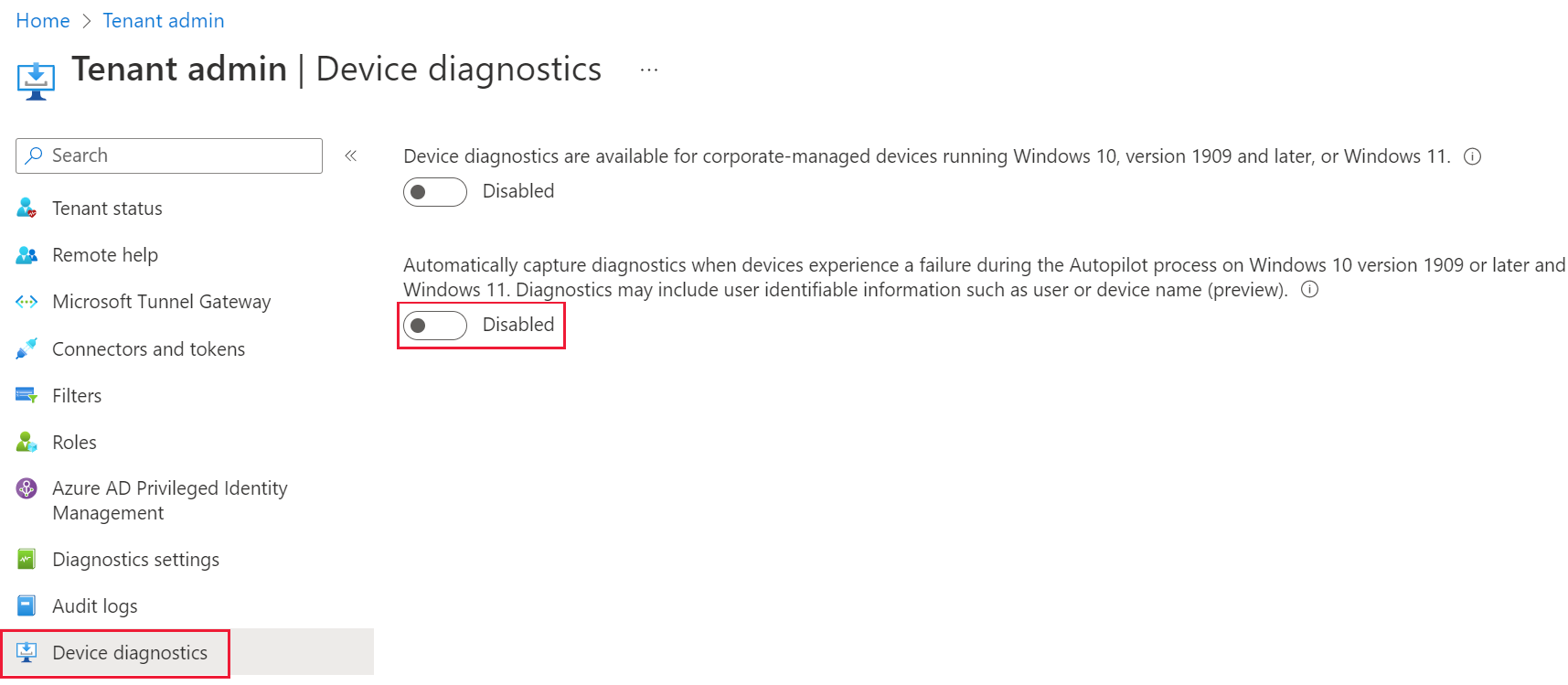
mdmdiagnosticstool.exe -area Autopilot -cab C:\Temp\autopilot.cabIntune can also grab logs on its own when Autopilot fails. That setting lives under Tenant administration > Device diagnostics, and the logs show up on the device page under Diagnostics.
Common problems
- The device preparation screen never shows up: The device has a hardware hash registered, the user is not in the policy's user group, the policy has no device group, or Windows is too old.
- Apps show Skipped: They are not assigned to the device group or are not set to install in the System context.
- The device group will not save or shows 0 groups: Intune Provisioning Client is not an owner of the group.
- Classic event 807 or 815 in the Autopilot event log: The device is not registered, or it has no profile assigned.
- Error 0x800705B4: A timeout, often a device without TPM 2.0 or a virtual machine.
- Error 0x80180014: A device that went through self-deploying or pre-provisioning is being reused. Unblock it from the Windows Autopilot devices list or delete its record.
The Autopilot event log is in Event Viewer under Applications and Services Logs > Microsoft > Windows > ModernDeployment-Diagnostics-Provider > Autopilot.
Picking your Autopilot path
Use Autopilot device preparation for new cloud-only Windows 11 devices and keep classic Autopilot for hybrid join, kiosks, and pre-provisioning. Build the device group with the right owner first, keep setup apps to the ones people need on day one, and check the deployment report after your first few devices.
What can we learn as a person
Pre-provisioning exists because nobody wants to watch apps install on their first morning. IT does the heavy part ahead of time, reseals the box, and the user's part is short.
I do not pre-provision anything. Every Monday starts from bare metal. No lunch packed and no idea what the first task is, and then I wonder why the first two hours feel like an Enrollment Status Page that never finishes.
What could you pre-provision for future you tonight? And what is one thing you could reseal and hand to tomorrow already done?