

A setting changes on a laptop, and nobody on the helpdesk can say whether SCCM or Intune did it. Intune co-management lets Configuration Manager and Intune manage the same Windows PCs at the same time. Each job, called a workload, belongs to exactly one of them.
What co-management is
You decide which workloads move to Intune, and Configuration Manager keeps everything else. Turning it on changes nothing for users. There is no reboot, no new agent, and no notification. Configuration Manager stays in charge of every workload until you move one.
There are two ways in. Existing Configuration Manager clients get hybrid joined and enrolled into Intune. New devices join Entra ID, enroll in Intune, and then Intune installs the Configuration Manager client.
What you need
- Entra ID P1 or P2 and Intune licenses, for the users and for the admin setting it up.
- A supported Configuration Manager current branch version.
- Devices that are Entra hybrid joined or Entra joined. Entra registered devices do not count.
- Windows automatic enrollment, with users in the MDM user scope under Entra ID > Mobility (MDM and MAM) > Microsoft Intune.
- A cloud management gateway, but only for devices that live on the internet or come in through Autopilot.
- Full Administrator in Configuration Manager, plus a Global Administrator to sign in during setup.
Turn it on
- In the Configuration Manager console, go to Administration > Overview > Cloud Services > Cloud Attach.
- Click Configure Cloud Attach on the ribbon.
- Sign in, then choose Use default settings or Customize settings.
- Set Automatic enrollment in Intune to Pilot, All, or None. Pilot uses a collection you pick.
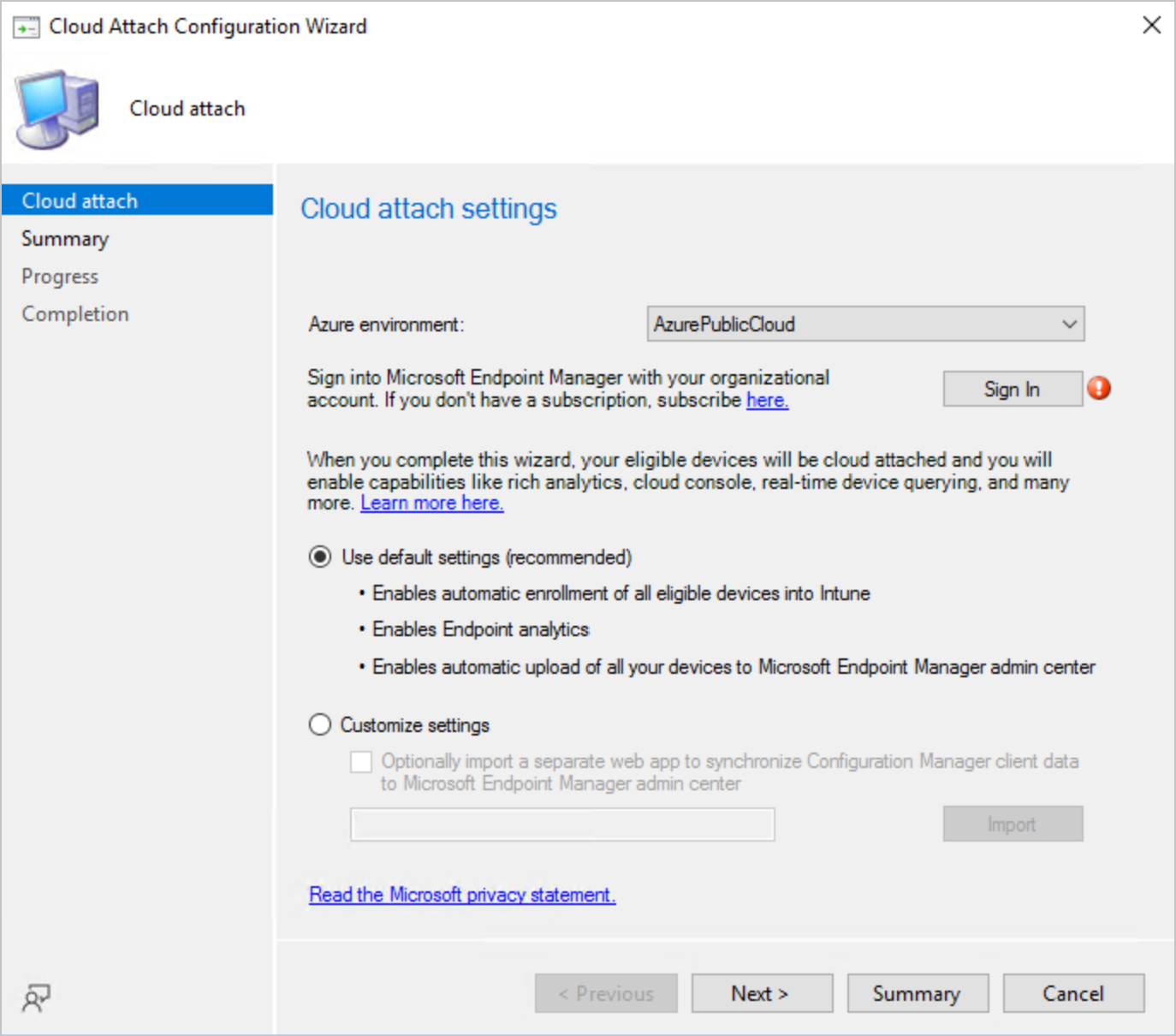
Older guides call this the Configure co-management wizard. Microsoft renamed it Cloud Attach in version 2111. The default settings enroll every eligible device, keep all workloads on Configuration Manager, and upload devices to Intune. Enrollment is spread out on purpose, so a big environment can take a few days.
The workloads
To move workloads, open the co-management object, CoMgmtSettingsProd, click Properties, and go to the Workloads tab. Each workload has a slider with three spots: Configuration Manager, Pilot Intune, and Intune. Pilot Intune only moves the devices in the pilot collection set on the Staging tab.
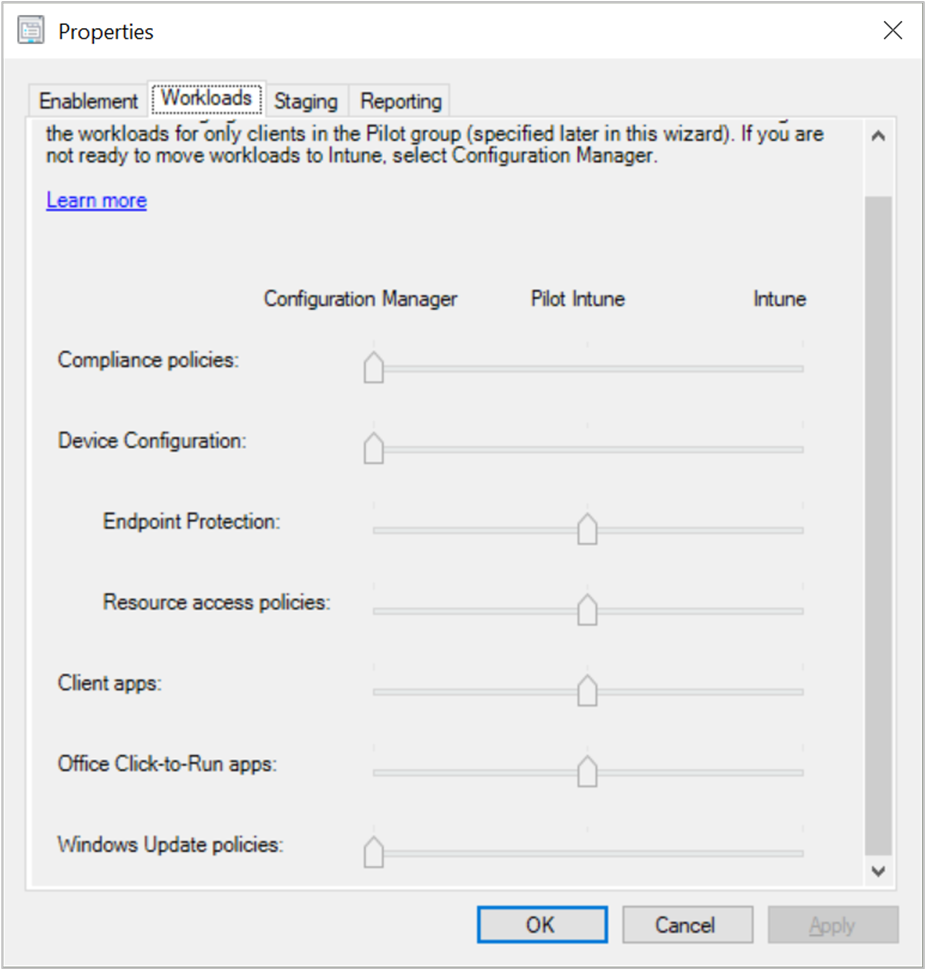
- Compliance policies: Intune decides compliance. Most companies move this one first.
- Windows Update policies: Update rings come from Intune. Turn off software updates in the Configuration Manager client settings yourself afterward. Windows Autopatch needs this one on Intune.
- Device configuration: Intune profiles apply. Moving this slider also moves Endpoint Protection and the old Resource access workload.
- Endpoint Protection: Defender, firewall, and BitLocker policies come from Intune. You can move this one on its own, before Device configuration. Old settings stay until Intune overwrites them.
- Office Click-to-Run apps: Microsoft 365 Apps come from Intune.
- Client apps: Intune apps show up in Company Portal, and Configuration Manager apps stay in Software Center. New Microsoft Store apps need this one on Intune.
After compliance, Microsoft says the most common moves are Office Click-to-Run apps, Client apps, and Windows Update policies. You can slide a workload back. Anything Windows or Office already updated stays updated, though.
On Pilot Intune, Intune deploys Endpoint Protection and Device configuration policies but does not remove them when you unassign them. Plan your pilot like those settings will stick around.
Autopilot devices
New Autopilot PCs can get the Configuration Manager client from Intune. In Intune, go to Devices > Enrollment, open the Windows tab, and find Co-management Settings. Create a profile, set Automatically install Configuration Manager agent to Yes, and paste the command line from the Enablement tab of the co-management properties.
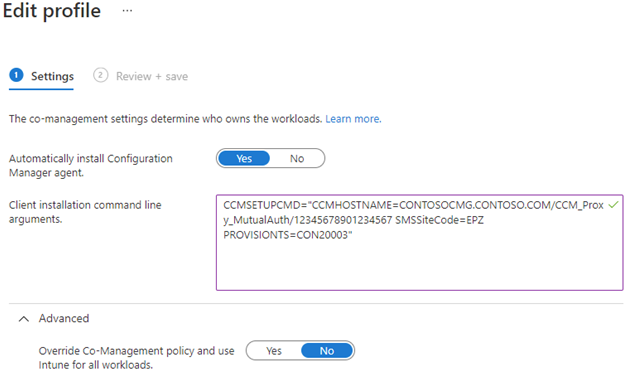
It only works for Entra joined, user-driven Autopilot. Hybrid join, pre-provisioning, and Autopilot device preparation are out. These devices also need a cloud management gateway to reach Configuration Manager. If the Enrollment Status Page times out with 0x800705b4, the client install ran past the 60-minute default.
Tenant attach
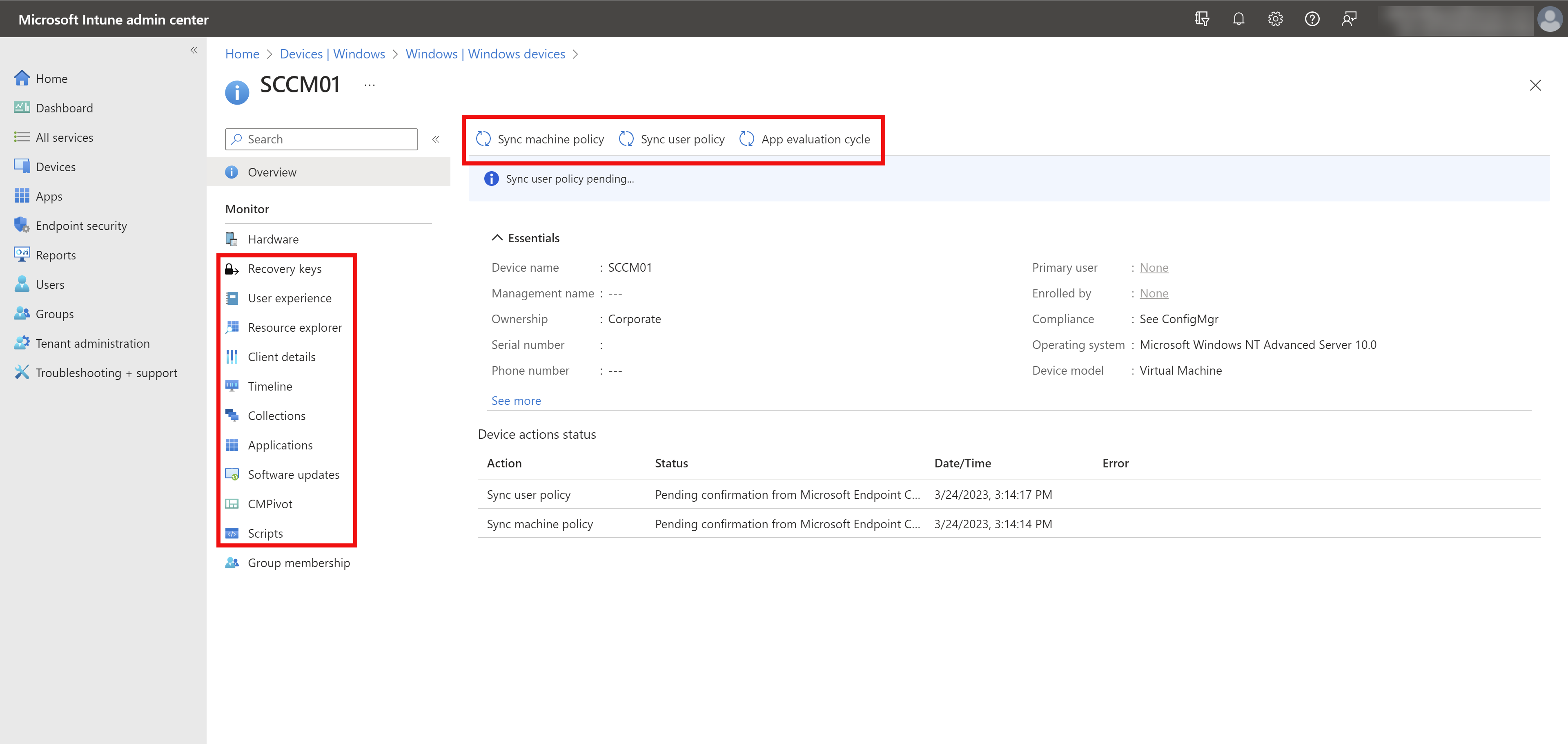
Tenant attach uploads Configuration Manager devices into the Intune admin center without full co-management. It is the Upload to Microsoft Endpoint Manager admin center checkbox on the Configure upload tab. From Intune, you can then sync machine policy, run scripts, use CMPivot, see a timeline, install apps, and read BitLocker keys. Showing a BitLocker key that way rotates it afterward.
Who manages this device
- In Intune, the Managed by column shows Co-managed for both, ConfigMgr for tenant attach only, and Intune for Intune only.
- In Configuration Manager, Monitoring > Cloud Attach shows enrollment status, workload changes, and enrollment errors.
- On the PC, CoManagementHandler.log in %WinDir%\CCM\Logs shows the enrollment and which workloads are on.
- Running dsregcmd /status should show AzureAdJoined : YES.
Common enrollment errors
- 0x8018002A: Per-user MFA set to Enforced blocked the enrollment, or the user canceled.
- 0x80180026: A Disable MDM Enrollment policy, or the old Intune PC agent, is in the way.
- 0x8000FFFF: Automatic enrollment is not set up.
- 0x80180018: A license problem.
- 0x8018002B: Entra settings have not landed yet. It usually clears on its own.
- No errors and no enrollment: Check MDM user scope and automatic enrollment.
- Duplicate Entra device objects, one registered and one hybrid joined: Clean them up first.
Moving forward with Intune co-management
Turn it on with the Cloud Attach wizard, then pilot one workload at a time, starting with compliance. Keep the pilot collection small. When nobody knows who owns a setting, check Managed by in Intune and CoManagementHandler.log on the PC.
What can we learn as a person
What I like about co-management is that nothing has to move all at once. Each workload gets its own slider. You pilot one, watch it, and move the next one when you are ready.
That is not how I change things. A new year comes, and I slide everything to the new system on the same Monday. New diet, new sleep schedule, new budget, new me. By Thursday half of it has failed, and I roll every slider back to the old way.
What is one workload in your life you could move to Pilot this week? And what would you need to see before sliding it all the way over?