

A new laptop boots up, the user signs in, and before they ever see a desktop Windows asks them to set up a PIN. Some of them think it is a scam. The rest type 1234 and get told no. That prompt is Windows Hello for Business, and Intune decides when it shows up and what the rules are.
What Windows Hello for Business is
Windows Hello lets people sign in with a PIN, their face, or a fingerprint instead of a password. Windows Hello for Business is the work version. It covers Entra ID and Active Directory accounts and adds the controls a company needs. The consumer version covers personal Microsoft accounts. Neither one works with local accounts.
People always ask why a short PIN is safer than a long password. The PIN only works on that one device. It never leaves the device and never gets stored on a server, so a stolen PIN is useless without the actual laptop. The TPM chip inside the laptop also locks things down after too many wrong guesses. Fingerprint and face data stay on the device too.
Every user needs a PIN, even if they only plan to use their face. The PIN is the fallback, and you cannot turn it off. Windows also rejects simple patterns like 1111, 1234, or 1357.
It is already on
Windows Hello for Business is turned on by default for Entra joined devices. That is why users get the PIN prompt even when nobody in IT configured anything.
The tenant-wide setting lives in Intune admin center > Devices > Device onboarding > Enrollment. Stay on the Windows tab and click Windows Hello for Business. Configure Windows Hello for Business has three options:
- Enabled: Turns it on and shows the PIN and biometric settings.
- Disabled: Users cannot set up Windows Hello for Business during enrollment.
- Not configured: Intune leaves whatever is already on the device alone.
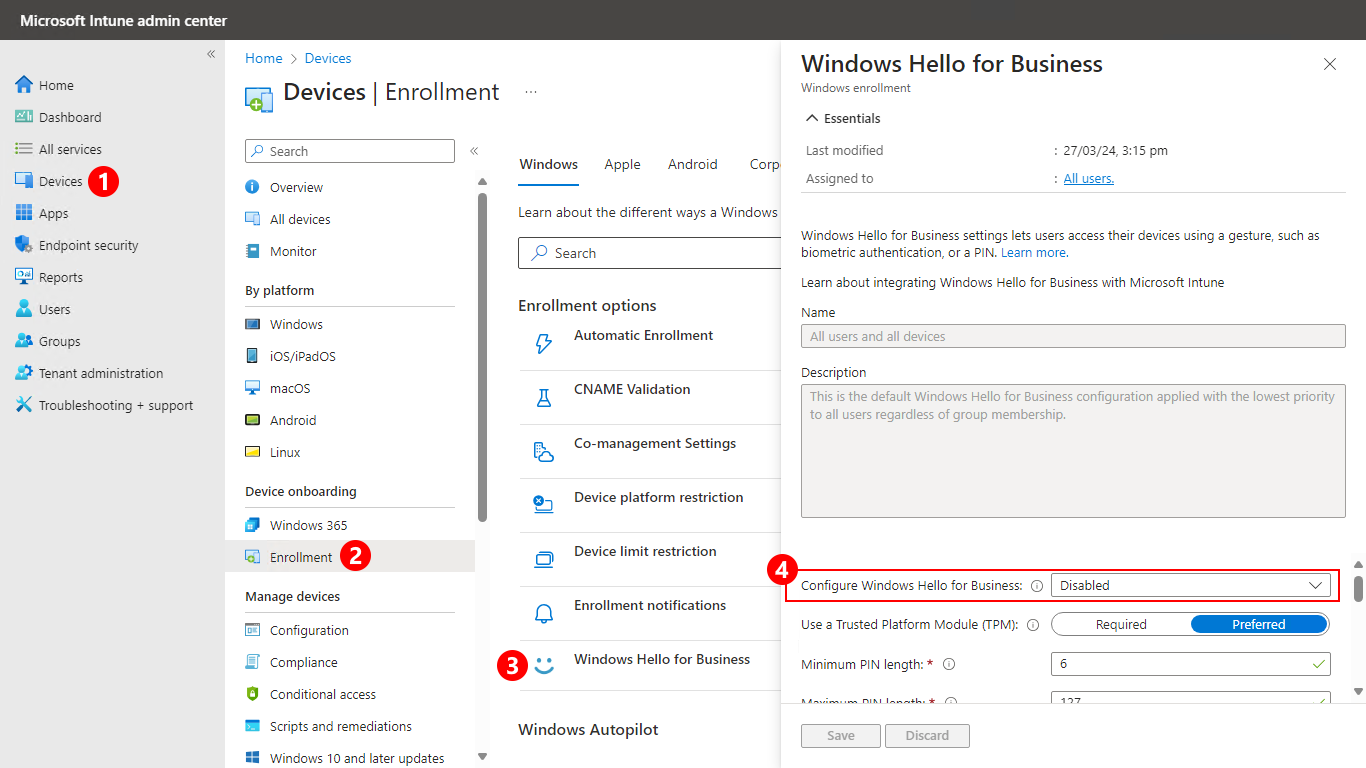
This setting only applies when a device enrolls, so changing it later does nothing to devices you already have. It also hits every device that enrolls, no matter what group the user is in. Microsoft's own guidance is to leave this one Disabled and turn Windows Hello for Business on with a policy aimed at a group.
Turn it on with a policy
- Intune admin center > Endpoint security > Account protection
- Click Create Policy.
- Set Platform to Windows and Profile to Account protection, then click Create.
- Name it, set the Windows Hello for Business settings, and assign it to a group.
You can also build it in the settings catalog under the Windows Hello For Business category. Either way, these are the settings to look at:
- Use Windows Hello For Business: Set to true to turn it on.
- Require Security Device: Set to true to require a TPM chip.
- Minimum PIN length: 6 by default, anywhere from 4 to 127.
- Lowercase letters, uppercase letters, and special characters in the PIN: Each one can be allowed, required, or not allowed.
- Allow biometric authentication and Use enhanced anti-spoofing, when available: These control face and fingerprint.
- Enable Pin Recovery: Lets users reset a forgotten PIN without losing their keys.
A policy updates devices on the normal check-in schedule, which the tenant-wide setting never does. If you want the policy in place before a new user reaches the desktop, use the Enrollment Status Page. I walked through it in how Intune Autopilot works.
When settings collide
If a regular device passcode policy and a Windows Hello for Business policy both set PIN rules, the Windows Hello for Business policy wins. Mixing Group Policy and Intune for these settings is worse. When both exist, Group Policy wins and Windows ignores the Intune settings. The usual setting that makes Intune beat Group Policy does not apply here.
Hybrid joined devices and cloud Kerberos trust
You will see words like key trust, certificate trust, and cloud Kerberos trust. These only matter when people use Windows Hello for Business to reach on-premises Active Directory resources, like file shares. Cloud-only setups can skip this section.
For hybrid setups, Microsoft recommends cloud Kerberos trust. It is the only hybrid option that needs no certificates. Key trust and certificate trust both need a PKI, and certificate trust also needs AD FS. In the settings catalog, turn on Use Cloud Trust For On Prem Auth. The first time someone signs in with their PIN on a hybrid joined device, the device needs to reach a domain controller.
What the user sees
Setup starts right after the user profile loads and before the desktop shows up. Windows offers face or fingerprint first, which the user can skip. Then it shows the screen below, asks for multifactor authentication, and has them create the PIN.
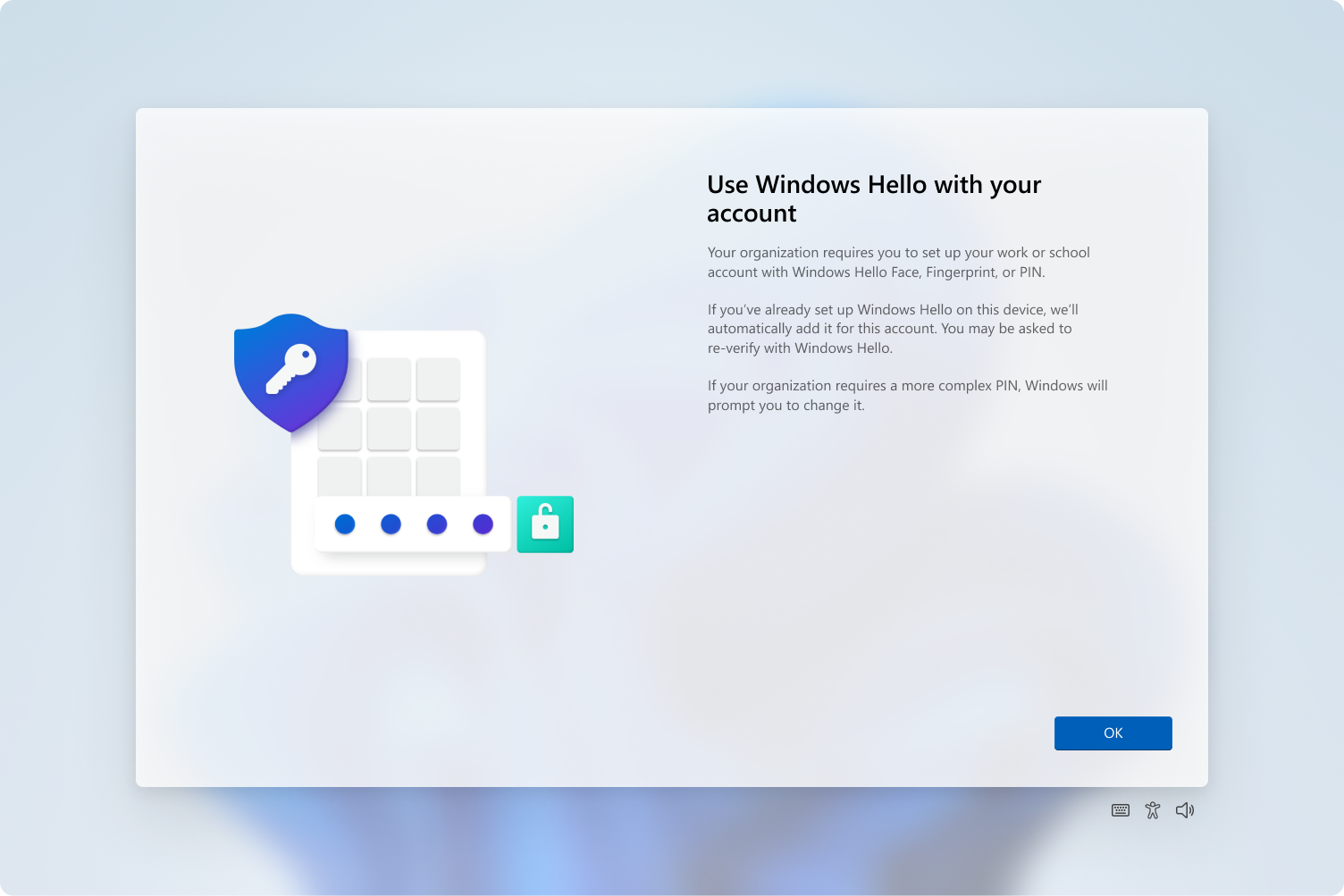
The multifactor step is required. If the user never registered for MFA, Windows walks them through that first, so give new hires a heads-up.
Resetting a forgotten PIN
Users can do it from the lock screen by clicking Sign-in options, choosing the PIN option, and clicking I forgot my PIN. If they are already signed in, it is Settings > Accounts > Sign-in options > PIN (Windows Hello) > I forgot my PIN.
By default this is a destructive reset. Windows deletes the old PIN and keys and makes new ones. It works without any setup, but on a hybrid joined device it needs to reach a domain controller. A gentler reset that keeps the keys needs the Microsoft PIN Reset Service and the Enable Pin Recovery setting.
Troubleshooting Windows Hello for Business
Is it set up at all?
Run dsregcmd /status as the user and look under User State. NgcSet : YES means the user has a Windows Hello for Business key. If it says NO, look for the Ngc Prerequisite Check section. It lists IsDeviceJoined, PolicyEnabled, DeviceEligible, and SessionIsNotRemote, and the last line tells you whether Windows will try to set it up.
The prompt never shows up
Open Event Viewer and go to Applications and Services Logs > Microsoft > Windows > User Device Registration > Admin. Event 358 means setup will launch. Event 362 means it will not, and the event lists every check with a Yes or No so you can see which one failed. Setup never launches over Remote Desktop, so test while sitting at the actual machine.
Something went wrong
When setup fails, the user gets this screen with an error code. Have them send you a photo of it before they click anything.
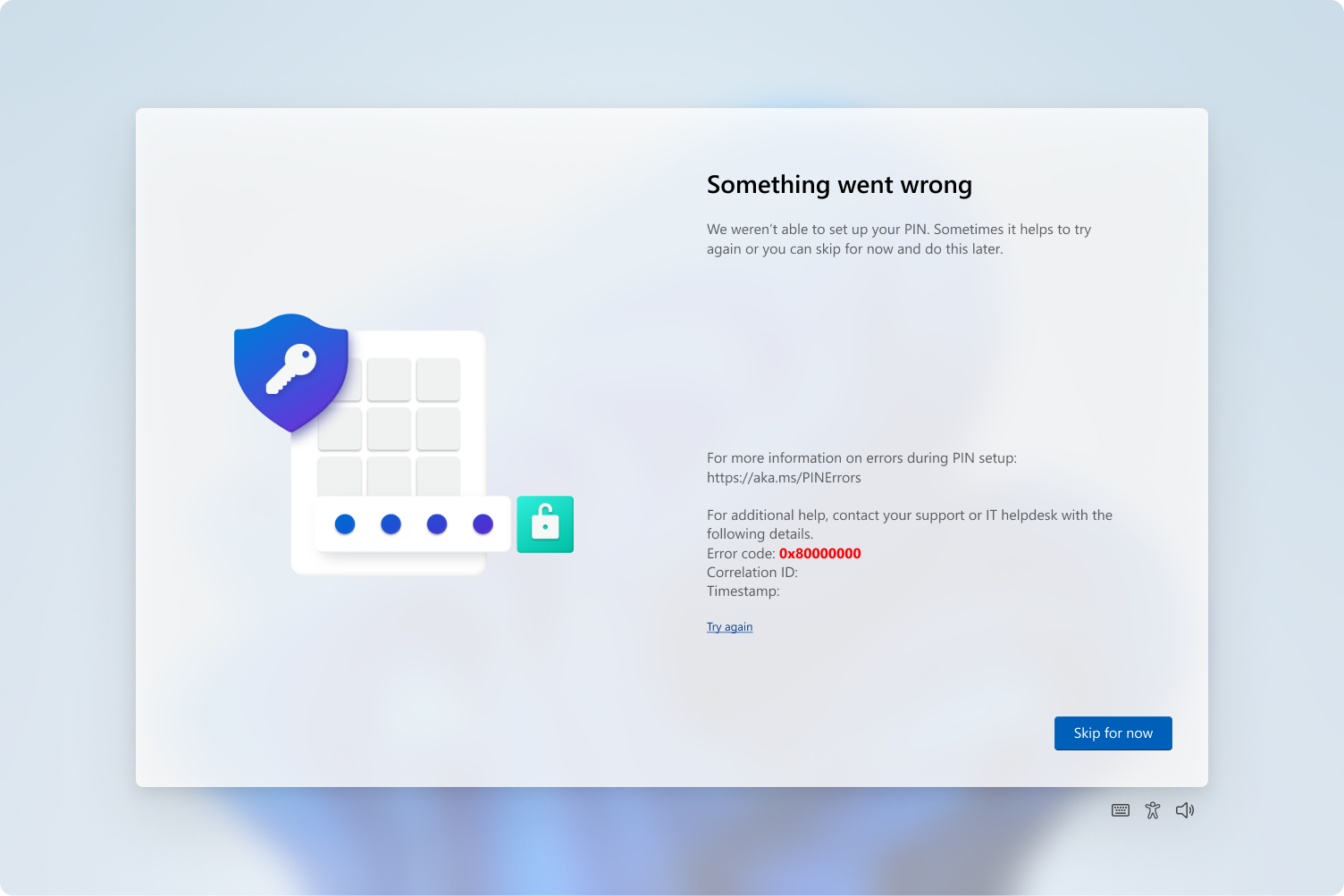
- 0x80090029: The TPM is not set up on this device.
- 0x80090035: The policy requires a TPM and the device does not have one.
- 0x801C03ED: Multifactor authentication was required but did not happen.
- 0x801C000E: The user hit the device registration limit.
For anything else, try again, sign out and back in, and restart before you dig deeper.
Face or fingerprint not working
Enhanced sign-in security blocks external cameras and fingerprint readers, so a USB webcam may not be allowed. Enhanced anti-spoofing turns off face sign-in on cameras that do not support it. After too many failed tries, Windows disables the biometric until the user signs in another way. A restart does not bring it back.
The practical version
Set the tenant-wide Windows Hello for Business setting on purpose instead of living with the default, then turn it on with an Account protection policy in Intune for the groups that should have it. Use cloud Kerberos trust for hybrid devices. When a user has trouble, dsregcmd /status and the User Device Registration log will tell you why.
What can we learn as a person
You cannot turn off the PIN in Windows Hello for Business. Face and fingerprint are nice, but when the camera fogs up or the fingerprint reader decides it has never met you, Windows falls back to the PIN.
I have fancy options for bad days. A long walk, or a plan to journal that I follow about twice a year. They work great when everything else is working. When they fail, I find out I never set up a PIN. There is no simple, boring fallback I can reach for when I am too tired for the good stuff.
So what is your PIN? When the face and fingerprint version of you stops working, what is the plain thing you fall back on?