

I once inherited a network with exactly one piece of documentation. A sticky note on a monitor that said the wifi password and nothing else. No IP scheme, no server list, no idea which of the four firewalls was actually live. I spent my first two weeks doing archaeology instead of work. That is the fear that made me systematic about this, so here is how to document a new environment in OneNote without it turning into another sticky note you lose.
Why OneNote for this
OneNote is free, it is already in your Microsoft 365 tenant, and it nests the way an environment actually nests. A notebook holds sections, sections hold pages, and pages hold your notes. That maps cleanly onto an environment that has categories, systems, and details. It also syncs through OneDrive or SharePoint, so the notebook is not trapped on your laptop where it dies with your laptop.
The search is the part you will love at 2am during an outage. Full text search across every page, including text inside pasted screenshots. You will find the one config note you wrote eight months ago by typing half a word.
Put the notebook somewhere the team can reach
Before you type a single note, decide where the notebook lives. Not your personal OneDrive. If you get hit by a bus, or just quit, the documentation should not leave with you. Put it on a SharePoint site the team owns.
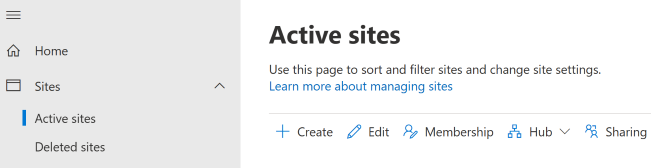
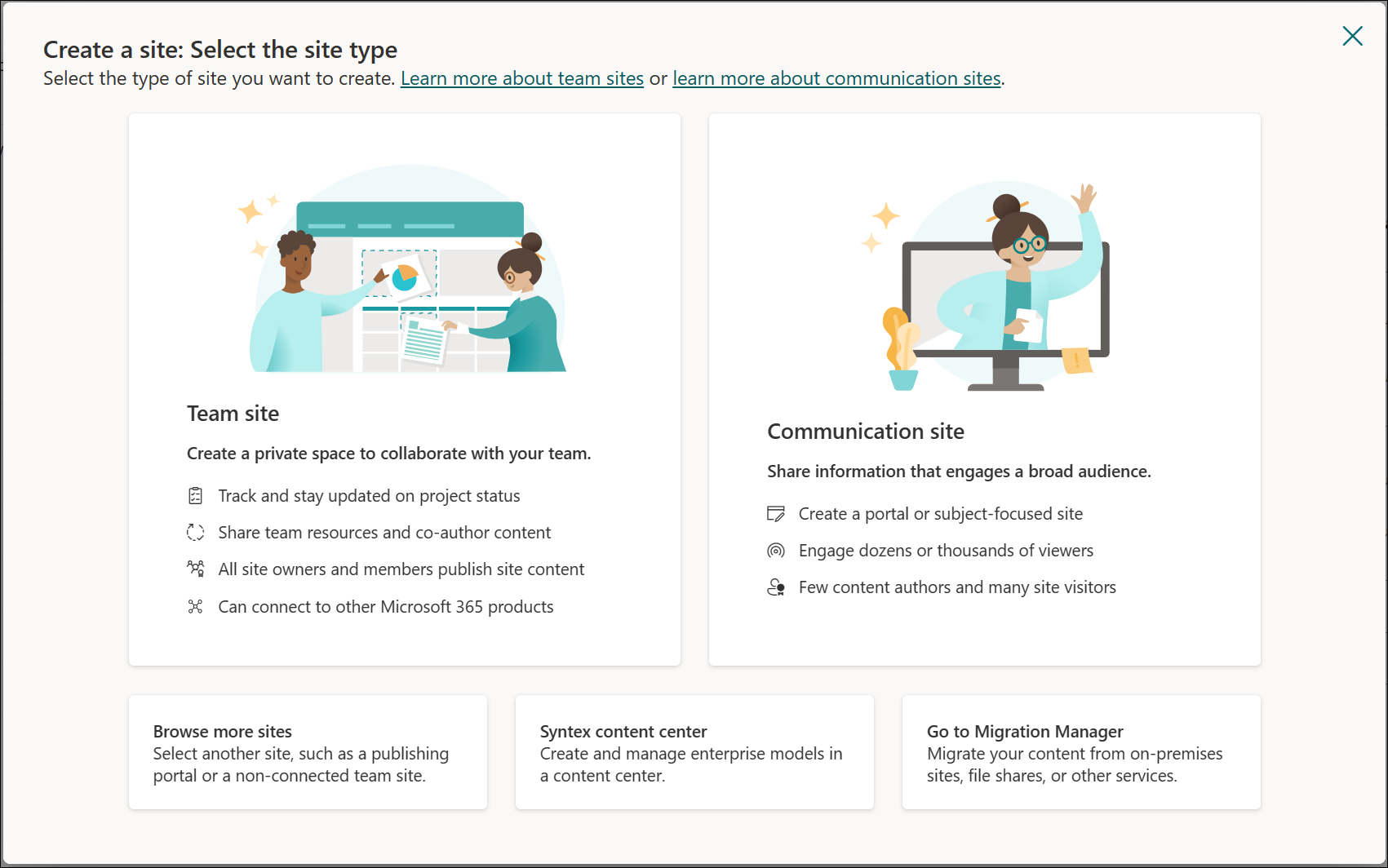
Make the site first. Go to the SharePoint admin center, open Active sites, select Create, and pick Team site. Name it something obvious like IT Documentation. Then in OneNote, choose Add notebook, and when it asks where to save, point it at that SharePoint site instead of your personal account. Now the whole team opens the same notebook, and permissions are controlled by the site, not by you emailing a file around.
The sections you need to document a new environment
Sections are your categories. If you stare at a blank notebook you will freeze, so steal this starting set. Make each one a section, and add or drop as the environment tells you to.
- Overview. Company contacts, site addresses, ISP and circuit info, main points of contact, and who to call when it is on fire.
- Network. IP scheme, VLANs, subnets, DNS, DHCP scopes, firewall makes and models, VPN setup.
- Identity. Domain name, domain controllers, Entra tenant, sync setup, admin accounts and how they are structured.
- Servers. One page per server or VM. Role, OS, IP, host, what breaks if it goes down.
- Endpoints. Intune or your MDM, imaging process, standard build, patching.
- Applications. Line of business apps, where they run, vendor support lines, how they are licensed.
- Backup and recovery. What is backed up, where it goes, retention, and the last time you actually tested a restore.
- Vendors and licensing. Contracts, renewal dates, account numbers, support portals.
- Runbooks. Step by step for the recurring tasks. Onboarding, offboarding, the printer thing everyone forgets.
- Change log. Dated entries for anything you change. Future you will want this.
Inside each section, one page per thing. One page per server, one page per app. That keeps pages short and makes them linkable, which matters in a minute.
Linking to the password manager, not storing the passwords
This is the rule people break first and regret most. Do not put passwords in OneNote. OneNote is not a secrets vault. It has no real audit trail, and every sync copies those notes to more devices. A password manager exists for exactly this job, so let it do the job.
Instead, link out. Most password managers can produce a link or reference that points at a specific entry. In 1Password it is a private link on the item. Bitwarden, Keeper, and others have their own version of a deep link or item URL. Copy that link, then in OneNote highlight the text like domain admin credentials, and paste the link on it with Ctrl+K. Anyone with rights to the vault clicks through and lands on the real entry. Anyone without rights hits a wall, which is the point.
So the server page says what the account is and links to where the secret lives. The secret itself never touches the notebook. You get the convenience of one click without turning your documentation into the biggest security hole in the building.
Linking pages to each other
The thing that turns notes into documentation is cross links. Your app page should link to the server page it runs on. Your runbook should link to the identity page it references. In the desktop app, right-click any page tab and choose Copy Link to Page, then paste it wherever it belongs.
Do this and the notebook stops being a pile of pages and becomes a map. You click from the broken thing to the thing it depends on without searching. During an incident that is the difference between five minutes and fifty.
Where SharePoint carries more than the notebook
OneNote is great for notes, and clumsy for files. That is where the SharePoint site earns its keep beyond just hosting the notebook. Use a document library on the same site for the artifacts that do not belong pasted into a page.
- Network diagrams and Visio files.
- Exported configs, firewall rules, switch backups.
- License PDFs and signed contracts.
- Vendor quotes and warranty docs.
SharePoint keeps version history on every file, so when someone overwrites the good diagram with a bad one, you roll it back. Then link from the OneNote page to the library file, and your notes and your files point at each other instead of drifting apart.
Wrapping up
Start the site, save the notebook to it, build the sections from the list above, and make one page per system. Link credentials out to the password manager and never paste a secret. Cross link the pages so the notebook reads like a map, and hang the heavy files in a SharePoint library with version history. Done this way, how to document a new environment stops being a dreaded project and becomes a habit. It is not a weekend project. It is fifteen minutes every time you touch something, and in six months you have the documentation you wish you had inherited.
What can we learn as a person
The reason that undocumented network scared me so much is that I could not ask it anything. There was nobody to ask and nothing written down, so every answer had to be dug up the hard way. Documentation is really just a way of answering questions someone has not asked yet.
I am bad at asking questions in real life. I will spend an hour circling a problem alone rather than send a two line message to someone who already knows the answer. Part of it is pride, part of it is not wanting to bother anyone, and part of it is a quiet fear that needing to ask means I should have already known. So I dig through my own head like it is an undocumented server, when there is a person right there who is the documentation.
The best environments I have worked in were not the ones with the smartest people. They were the ones where asking a question was normal and cheap, where nobody made you feel small for not knowing. I want to be that for other people, and I am still learning to let other people be that for me. So what is the question you have been sitting on for a week, and who could you ask if you let yourself?