
The lobby check-in PC has Solitaire open again. The warehouse PC that should only run the inventory app has six tabs of fantasy football. Windows kiosk mode locks a PC down to one app or a short list of apps. Shared PC mode handles the machines a dozen different people sign in to every week.
I covered Zebra kiosk mode for scanners before. This one is the Windows side.
Pick the right kind
- Single-app kiosk: One app or Edge, full screen, running above the lock screen. Good for a sign-in tablet, a digital sign, or a lobby browser.
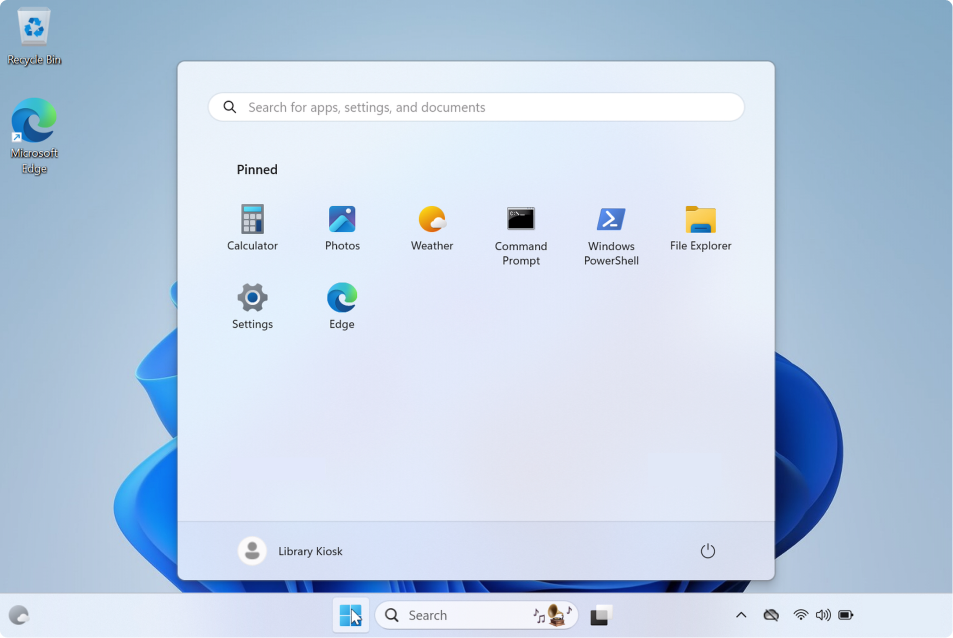
- Multi-app kiosk: Windows 11 calls it a restricted user experience. Users get a normal desktop with a short Start menu and taskbar, and everything else is blocked.
- Shared PC: A normal PC with many users, where Windows cleans up old accounts so the disk does not fill up.
Windows kiosk mode needs Windows Pro, Enterprise, Education, or IoT Enterprise. It only works at the console, not over Remote Desktop. Members of the local Administrators group never get the kiosk, which is handy for you and confusing if you test with an admin account.
Single-app kiosk in Intune
- Intune admin center > Devices > Manage devices > Configuration > Create > New policy.
- Set Platform to Windows 10 and later, Profile type to Templates, and pick Kiosk.
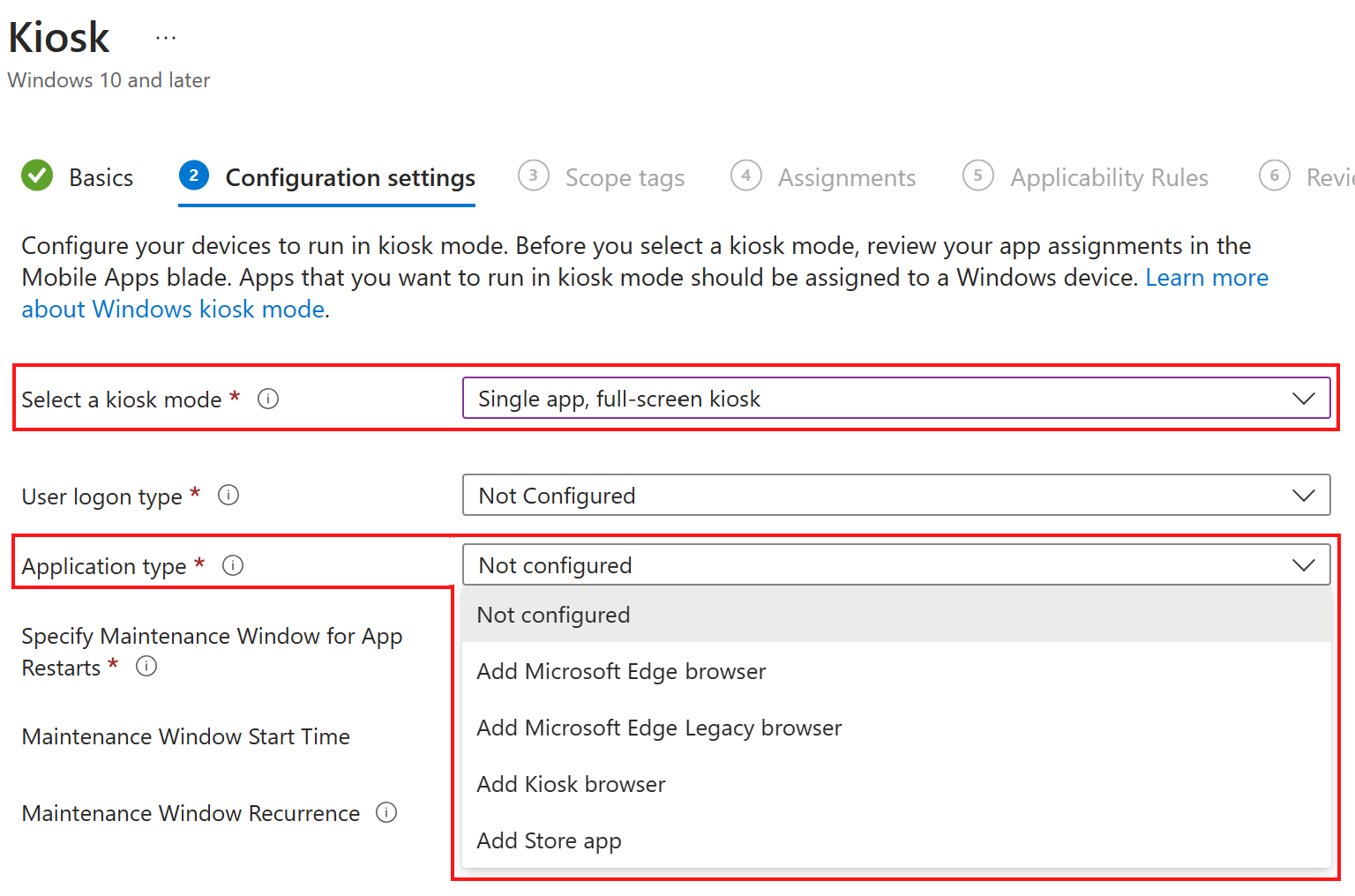
- Set Select a kiosk mode to Single app, full-screen kiosk.
- Set User logon type. Auto logon creates a local account that signs in by itself. You can also pick a local user account or an Entra user or group.
- Set Application type to Add Microsoft Edge browser or Add Store app.
- For Edge, enter the Edge Kiosk URL and pick a Microsoft Edge kiosk mode type: Digital/Interactive Signage or Public Browsing. Both run InPrivate.
- Set Refresh browser after idle time, so the next person does not see the last person's page.
- Assign it to a device group.
Intune supports one kiosk profile per device. Edge kiosk mode needs Edge 87 or later. Edge's own settings, like its homepage or extensions, still come from a separate settings catalog policy.
Multi-app kiosk
The Kiosk template's Multi app kiosk option is documented for Windows 10, which reached end of support on October 14, 2025. For Windows 11, Microsoft points you to Assigned Access with an XML file. You deliver it with a custom profile, using the OMA-URI ./Vendor/MSFT/AssignedAccess/Configuration, and paste the XML in.
The XML lists the allowed apps, the Start pins, the taskbar layout, and who gets the experience. Entra users go in as AzureAD\ followed by their UPN, and Entra groups go in by object ID. Nested groups do not work. Microsoft's Assigned Access docs have ready-made examples, including an Edge kiosk, so copy one instead of starting from a blank file.
Shared PC mode
For a PC that lots of people sign in to, like a library or a training room, use the Shared multi-user device template. On Windows 11 you can also use the Shared PC category in the settings catalog. Assign it to device groups.
- Shared PC mode: Enabled.
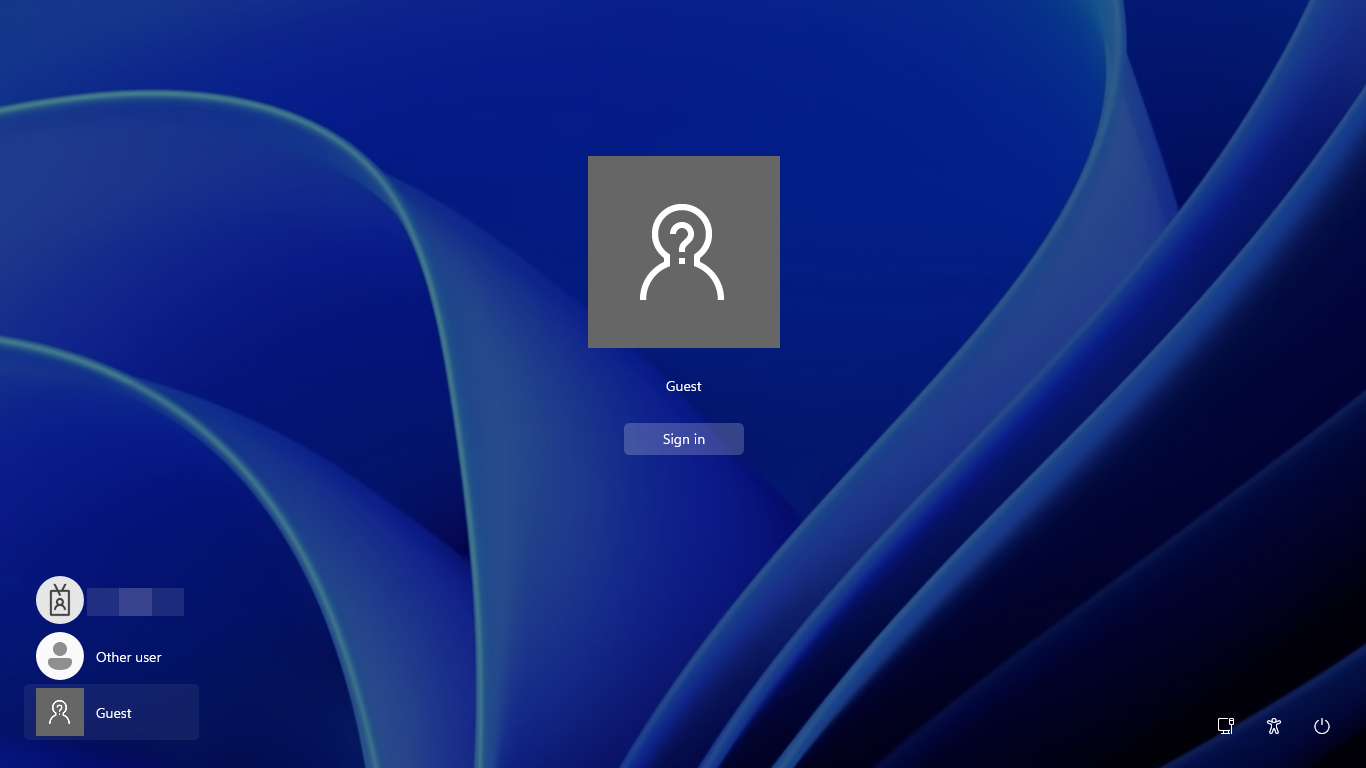
- Guest account: Guest, Domain, or both. Guest adds a sign-in option that needs no account.
- Account Deletion: At storage space threshold, At storage space threshold and inactive threshold, or Immediately after log-out.
- Start delete threshold(%) and Stop delete threshold(%): When Windows starts and stops cleaning up old profiles.
- Inactive account threshold: How many days an unused account sticks around.
- Maintenance start time (in minutes from midnight): 120 means 2 AM.
Let shared PCs sleep instead of shutting down, so maintenance can run overnight.
Getting out and troubleshooting
Press Ctrl+Alt+Del to get out of a kiosk. It comes back on its own after about 30 seconds, so sign in with an admin account quickly.
- Nothing changed after a new policy: Kiosk changes apply at the next sign-in. Sign out and back in.
- Testing with an admin account: Local admins never get the kiosk.
- Autologon stopped working: Exchange ActiveSync password rules, or a password that expired, can break it.
- Multi-app kiosk signs the user straight back out: Conditional Access that needs MFA or terms of use blocks the sign-in. Exclude kiosk accounts from those policies.
- Apps missing from Start: The app is not installed for that user, the shortcut does not exist, or an update changed the app's ID. Get-StartApps lists the current IDs.
- Self-deploying Autopilot for kiosks: It needs TPM 2.0. Virtual machines fail with 0x800705B4.
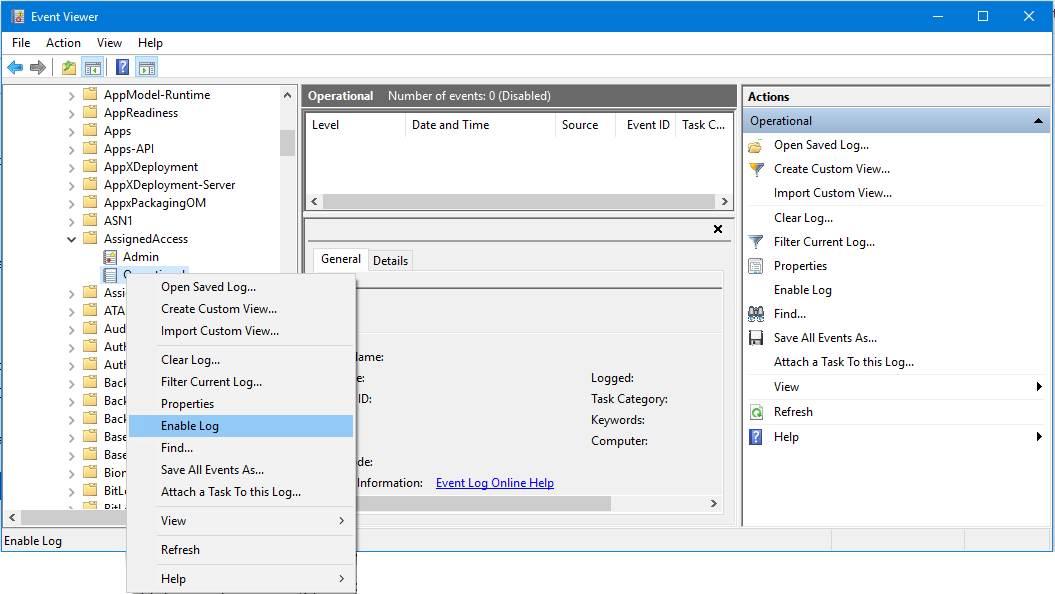
The Assigned Access log is off by default. In Event Viewer, go to Applications and Services Logs > Microsoft > Windows > AssignedAccess, right-click Operational, and choose Enable Log. Reproduce the problem, then read it. Shared PCs keep their own log at C:\Windows\SharedPCSetup.log.
Setting up Windows kiosk mode that sticks
Pick single-app for signs and lobby browsers, multi-app for restricted desks, and Shared PC for rooms full of rotating users. Test Windows kiosk mode with a standard account, keep kiosk accounts out of MFA rules, and turn on the Assigned Access log before you need it.
What can we learn as a person
My favorite kiosk setting is Refresh browser after idle time. When nobody touches the screen for a few minutes, the browser resets. The next person gets a clean start instead of whatever the last person left open.
I do not have that setting. A rough call at four o'clock is still on my screen at dinner. My family walks up and gets the last person's page, the tone and the short answers, none of which was meant for them.
What is still open on your screen from the last person? And how long would your idle timer need to be before the next one gets a clean start?