

Someone opened their Entra mobility blade and saw a setting called WIP user scope sitting next to MDM user scope. They asked me what it did. Fair question. The honest answer is a little sad. It's not much anymore. So what is WIP, why is that scope still staring at you, and should you touch it? Lets sort it out.
What is WIP?
WIP stands for Windows Information Protection. It's a lightweight, built-in Windows feature that separates corporate data from personal data on the same device. The goal was simple. Let people use one laptop for work and life without leaking company files into personal apps. No switching profiles or environments all day.
Under the hood, WIP tags and encrypts enterprise data and watches how apps move it around. It can also wipe just the company data off a personal device. The personal photos and apps stay untouched. That selective wipe was the party trick everyone liked.
The name it used to have
Before it was WIP, Microsoft called it Enterprise Data Protection, or EDP. You'll still trip over the old name in the plumbing. The configuration service provider that drives it is literally named EnterpriseDataProtection, and app resource files reference EDPAUTOPROTECTION. Same feature, older label.
The scope setting has its own naming history too. That blade in Entra used to be called Mobility (MDM and WIP). Microsoft later renamed it to Mobility (MDM and MAM), so depending on when your tenant was born, you might see either.
So what is the WIP user scope, specifically?
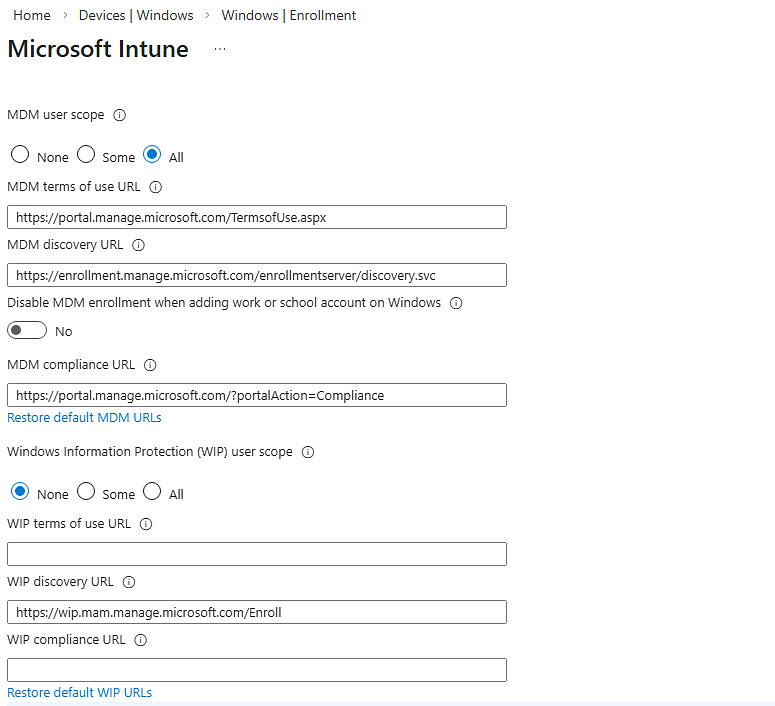
The WIP user scope decides which users get WIP autoenrollment applied to their Windows devices. It lives right next to MDM user scope in the same blade, and it takes the same three values.
- None, nobody gets WIP autoenrollment.
- Some, only members of the Entra groups you pick.
- All, every licensed user.
To find it: Microsoft Entra admin center > Mobility (MDM and MAM) > Microsoft Intune. WIP user scope sits in the same pane as MDM user scope. The idea was a split. MDM user scope enrolled the whole device. The WIP scope let you manage just the Windows apps and their data, no full enrollment needed.
Key features worth knowing
- Data separation without profile switching. Corporate and personal data live side by side, tagged behind the scenes.
- Encryption and selective wipe. Company data gets encrypted, and you can pull just the company data off a personal device on unenroll.
- Enlightened versus unenlightened apps. Enlightened apps know the difference between work and personal data. Unenlightened apps get treated as all-or-nothing.
- Two enrollment states. With enrollment means MDM manages the whole device. Without enrollment, called MAM, managed only the apps. The without-enrollment path is now deprecated, so you cant create new unenrolled WIP policies.
The four protection modes
This is the part that actually decides how WIP feels to your users. A WIP policy runs in one of four modes, from strict to off.
| Mode | What it does |
|---|---|
| Block | Stops risky data sharing outright. The user cant complete the action. |
| Allow Overrides | Warns the user, but lets them override and share anyway. The override gets logged to your audit trail. |
| Silent | Logs quietly in the background. Only hard violations, like unauthorized network access, get stopped. |
| Off | No protection and no auditing. Windows even tries to decrypt previously tagged files. |
Microsoft's own advice was to start in Silent or Allow Overrides, confirm your protected app list is right, and only then tighten to Block. Jump straight to Block on day one and you'll spend the week fielding tickets from people whose normal work suddenly got denied.
Phones, laptops, and where WIP actually applied
WIP was always Windows only. It never ran on an iPhone or an Android device. If someone says they put WIP on their team's iPhones, they're confused. They mean App Protection Policies, the separate MAM feature for iOS and Android. Here's the honest matrix.
| Device | WIP? | What you actually use |
|---|---|---|
| Windows 10 / 11 laptop or desktop, MDM enrolled | Yes, through Windows 11 23H2 | WIP with enrollment |
| Windows 10 / 11 personal, unenrolled | Deprecated | Was WIP without enrollment, no new policies |
| Windows 10 Mobile phone | Historically yes | Platform is end of life, so effectively none |
| iPhone or Android phone | No, never | App Protection Policies (MAM) |
| Windows 11, version 24H2 and later | Removed | Purview DLP |
The part you cant skip: WIP is deprecated
Microsoft announced the sunset of WIP in July 2022. It still works on supported Windows versions, but it gets no new features. Microsoft removed it entirely starting in Windows 11 version 24H2. The without-enrollment flavor is already gone for new policies.
For anything new, Microsoft points you at Microsoft Purview Information Protection and Purview Data Loss Prevention, including Endpoint DLP. That's the modern path, and it's where the same data-separation job now lives. If you want the deeper story on what Purview can and cant see, I wrote about that in does Intune monitor your activity.
Putting it together
WIP is Windows Information Protection, formerly Enterprise Data Protection, and the WIP user scope in Entra just controlled which Windows users it autoenrolled. It ran in four modes from Block to Off, and it only ever touched Windows. For phones you were always using App Protection Policies instead. It's deprecated now, gone in Windows 11 24H2, and Purview DLP is the replacement. If you still see the scope in your tenant, leave it at None unless you have a specific legacy reason. Put your energy into the MAM and DLP tools that are still alive.
What can we learn as a person
The four protection modes stuck with me, because they're really a scale of how rigid you're willing to be. Block never bends. It stops everything it doesn't like, and users route around it or revolt. Off bends so completely it holds nothing up. The modes that actually worked in the real world were the ones in the middle, the ones that gave a little.
Skyscrapers do this on purpose. A tall building is engineered to sway in the wind, sometimes a few feet at the top. If it stood perfectly rigid, the force of the sky pushing on it would crack it and bring it down. The sway is not weakness. The sway is the whole reason it stays standing.
I've been Block mode with people I love. Firm on every rule, no override, and it didnt make me strong, it just made me brittle and made them route around me. But I've also been Off, so flexible about everything that I stopped holding anything up, myself included. The trick I'm still learning is the sway. Enough give to survive the pressure, enough spine to not fall over. So where in your life are you running in Block mode when the wind is asking you to sway a little?