

A box of 40 new iPads landed on my desk the same morning a user emailed asking to get her personal iPhone on work email. Two devices, two completely different jobs. You do not enroll a pallet of company iPads the same way you onboard one person's phone, and picking the wrong path means wiping and starting over. So here are the iOS/iPadOS enrollment methods in Intune, which ones are built for bulk, which are single shot, and who each one is actually for.
Before anything: the Apple push certificate
Nothing Apple enrolls without an Apple MDM Push certificate. It's the handshake between your tenant and Apple's push service, and every single method below depends on it.
Set it up under Intune admin center > Devices > Enrollment > Apple > Apple MDM Push certificate. Two gotchas that bite people. Use a dedicated service Apple ID, not a real person's account, because whoever owns it is now load-bearing forever. And it expires every year. If that certificate lapses, every iOS and iPadOS device you manage silently falls out of management at once, and there's no quick undo.
Quick answer on WIP, MDM, and MAM
People ask whether these methods set up WIP, MDM, or both. Short version: WIP doesn't exist on Apple. Windows Information Protection is a Windows only feature, so no iOS enrollment method touches it. On Apple you have two lanes instead. MDM means the device is enrolled and managed. MAM means App Protection Policies protect the work data inside apps without enrolling the device at all. Every method here lands in the MDM lane, except plain App Protection Policies, which is the MAM lane for personal phones you never enroll.
Single-shot methods, mostly for personal devices
These are one device at a time, driven by the user, and they lean toward bring your own device.
Device enrollment with the Company Portal
The classic path. The user installs the Intune Company Portal from the App Store, signs in, and follows the prompts to install a management profile.
- User installs Company Portal and signs in with their work account.
- Company Portal walks them through downloading the management profile.
- They open Settings, and here's the gotcha, they must manually tap to install the profile under General > VPN & Device Management. iOS will not auto-install it.
- The device checks in and policies apply.
This gives the device user affinity, so it ties to a person and gets their apps and email. It's not supervised, so you get the smaller set of controls Apple allows on user-owned devices.
Web-based device enrollment
The newer BYOD path. The user starts enrollment in Safari instead of leaning entirely on the Company Portal app up front. You turn it on under Devices > Enrollment > Enrollment types by creating an enrollment type profile and assigning it to a group. Same result as Company Portal enrollment, user affinity and MDM, just a slightly smoother start. They still need Company Portal afterward to get to company apps.
Account-driven user enrollment
This is the privacy-first BYOD option, and it replaced the old profile-based user enrollment. It uses a Managed Apple ID alongside the person's personal Apple ID, and it only manages the work side. You cant wipe the whole phone or see personal apps, which is exactly what nervous employees want to hear.
It needs a few things lined up first. Apple Business Manager, federation between Managed Apple IDs and Microsoft Entra, and iOS 15 or later. Configure it under Devices > Enrollment > Enrollment types. Use this when people balk at full device enrollment on a phone they paid for.
Bulk methods, built for corporate devices
These are how you handle a pallet of company hardware without touching each screen by hand.
Automated Device Enrollment, the big one
Automated Device Enrollment, or ADE, used to be called DEP. This is the zero-touch method. A device enrolls the moment it's turned on and connects to Wi-Fi during Setup Assistant, before a user ever gets it. It supervises the device, which unlocks the full set of restrictions, and it scales to thousands.
- In Apple Business Manager, connect your organization to Intune and assign your devices to the Intune MDM server.
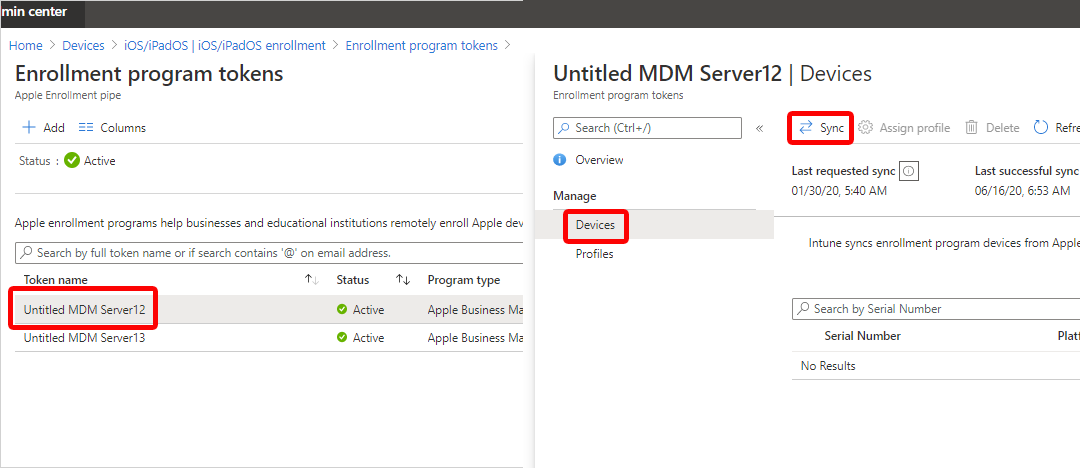
- In Intune, go to Devices > Enrollment > Enrollment program tokens and upload your ABM token.
- Sync, so Intune pulls in the device serial numbers Apple assigned to you.
- Create an enrollment profile that defines the Setup Assistant experience and whether the device gets user affinity.
- Assign the profile to your devices. Next time they wipe and boot, they enroll on their own.
The gotcha is upstream. A device can only use ADE if it lives in Apple Business Manager, which means you bought it through Apple or an authorized reseller, or you added it manually with Apple Configurator. The token also expires yearly, so put a reminder on it just like the push certificate.
Apple Configurator
When devices arent in Apple Business Manager, Apple Configurator is the fallback. It runs on a Mac and you plug the iOS devices in over USB. It comes in two flavors, and the difference matters.
- Setup Assistant with modern authentication. Supervises the device, gives it user affinity, and the user signs in. Good for corporate devices going to a specific person.
- Direct enrollment. No user affinity, no Company Portal, and the device isnt wiped. Built for shared corporate devices that nobody personally owns, like a pool of loaner iPads.
The honest gotcha is that Configurator means a Mac, cables, and hands on every device. Fine for a drawer of iPads. Miserable for a thousand.
iOS/iPadOS enrollment methods matrix: who each is for
| Method | Bulk or single | Owner | Supervised | User affinity | Managed as |
|---|---|---|---|---|---|
| Company Portal enrollment | Single | Personal or corporate | No | Yes | MDM |
| Web-based enrollment | Single | Personal or corporate | No | Yes | MDM |
| Account-driven user enrollment | Single | Personal (BYOD) | No | Yes, Managed Apple ID | MDM, work data only |
| Automated Device Enrollment | Bulk | Corporate | Yes | Optional | MDM |
| Configurator, Setup Assistant | Bulk, hands-on | Corporate | Yes | Yes | MDM |
| Configurator, direct enrollment | Bulk, hands-on | Corporate, shared | No | No | MDM |
| App Protection Policies | n/a | Personal | n/a | n/a | MAM, no enrollment |
Blocking what you don't want
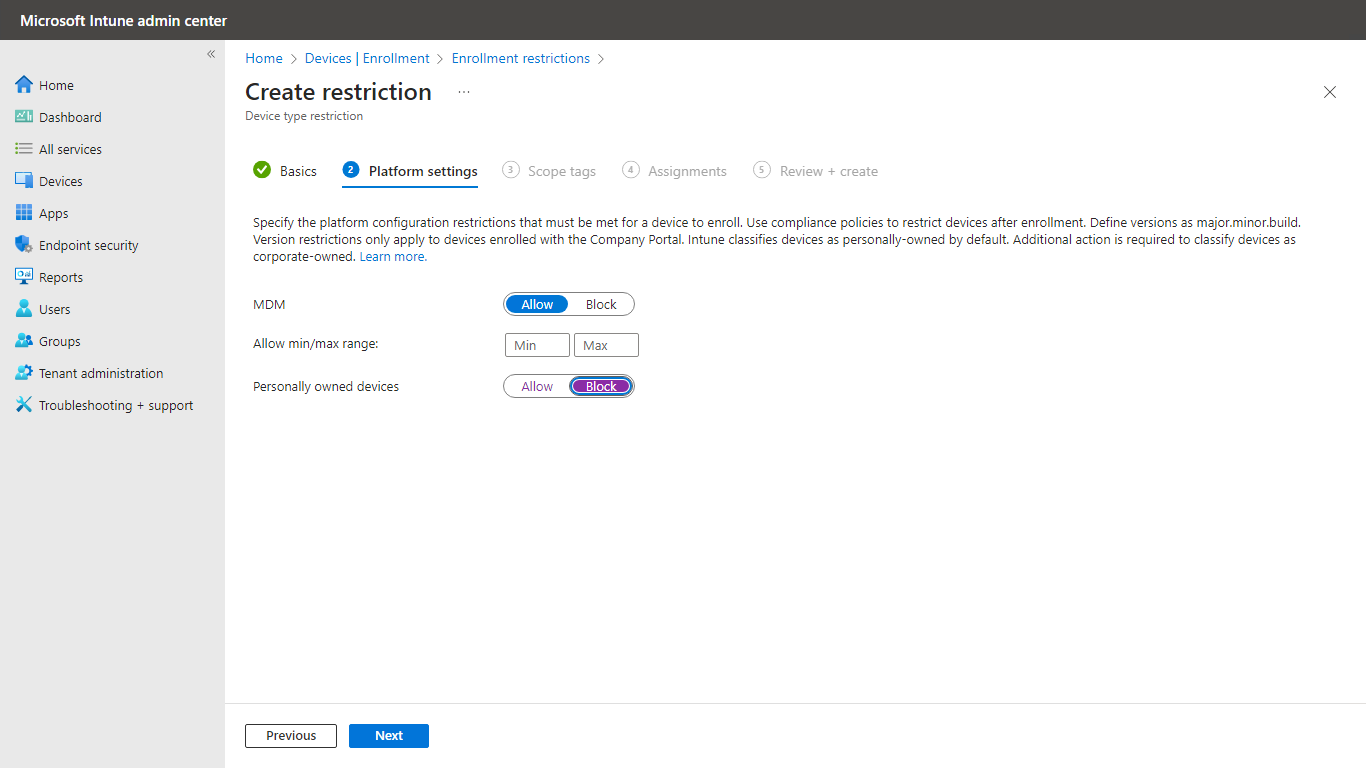
Enrollment methods decide how devices come in. Enrollment restrictions decide which ones you let in at all. Under Devices > Enrollment, device platform restrictions can block personal iOS devices while allowing corporate ones, and device limit restrictions cap how many devices one person can enroll. Set these before you open the gates, not after.
Putting it together
That covers the iOS/iPadOS enrollment methods worth knowing. Pick the method by who owns the device and how many you have. Corporate hardware at scale goes through Automated Device Enrollment, full stop. Corporate devices that never made it into Apple Business Manager fall back to Apple Configurator. A personal phone that just needs email is Company Portal or web-based enrollment, or account-driven user enrollment when the person wants their privacy protected. And if you only care about the work data and not the device, skip enrollment and use App Protection Policies. Whatever you choose, set your enrollment restrictions first and never let that Apple push certificate expire.
What can we learn as a person
The push certificate is the part that stuck with me. One quiet certificate sits under all of it. You set it once, you forget it, and it just works for a year while you handle louder problems. Then it lapses, and every device you thought you had a handle on silently stops listening to you, all at once, and you didnt even feel it happen.
I have certificates like that in my own life. The quiet standing thing that holds everything else up. Sleep. A weekly call with someone who matters. The half hour that keeps me sane. None of it screams for attention, so it's the first thing I let expire when the box of iPads lands on the desk. And then one day everything I was managing just quietly disconnects, and I finally look down and realize the cert lapsed months ago.
So what's the quiet certificate holding up your whole setup right now, the one you keep meaning to renew? And when does it expire?