
Got a ticket that just said "my Android phone wont enroll" with zero other detail. My first question back was "enroll as what." Not being difficult here. Intune actually has five different ways to enroll an Android device. Each one behaves completely differently depending on who owns the phone. So this post is the real answer to how to enroll Android devices in Intune. Its broken down by method, not one generic walkthrough that only fits half the readers.
How to enroll Android devices in Intune: the short version
- Personal phone with work stuff on it, user enrolls it themselves, thats a work profile
- Company owned phone, one person, work only, admin sets most of it up, thats fully managed
- Company owned phone that also allows personal use, thats corporate owned work profile
- Shared kiosk device nobody personally owns, thats dedicated
- A stack of shared devices to push through fast, thats where a device enrollment manager account comes in
BYOD: enroll a personal Android device with a work profile
Most enrollment tickets come from this scenario. Someone's using their own personal Android phone and needs email, Teams, whatever else. Intune creates a separate work profile on the device. Its a genuinely separate container with its own icon badge, so personal apps and work apps never mix. IT can see and manage the work side. IT cannot see personal texts, photos, or apps on the other side, and thats not a courtesy, its architecturally separate.
Heres how the end user actually enrolls the device:
- Install the Intune Company Portal app from Google Play, or follow the redirect from Outlook or Teams if your org requires enrollment before app access
- Open Company Portal and sign in with work credentials
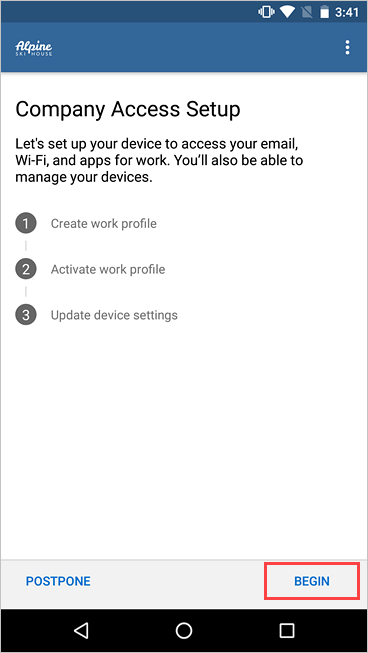
- On the Company Access Setup screen, tap Begin
- Review the privacy screen showing what the org can and cant see, then tap Continue
- Accept Google's terms for creating a work profile
- Wait a few minutes while Intune builds the work profile
- Sign in again when prompted, this step activates the work profile
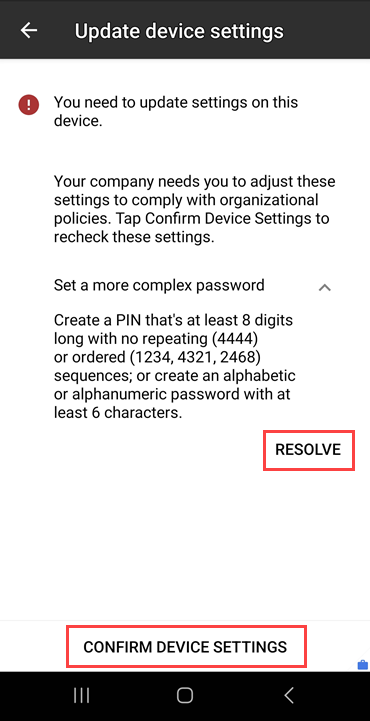
- Resolve any device settings Company Portal flags, then tap Confirm Device Settings
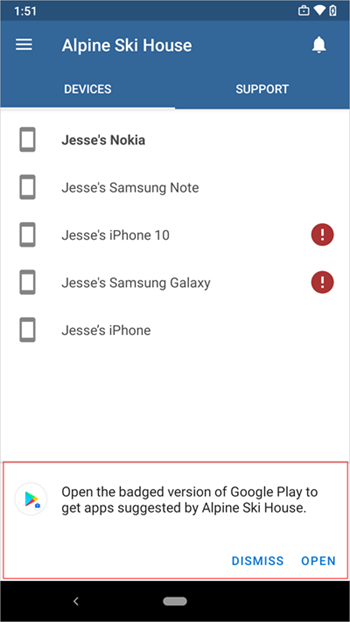
Company Portal prompts the user to check out suggested work apps from a badged version of Google Play once enrollment finishes. They can also grab apps later from the Get Apps menu instead.
Worth knowing, this method is genuinely user driven. Admins only restrict it indirectly, usually through Conditional Access requiring enrollment before someone opens Outlook or Teams. Every button press during setup belongs to the end user.
Corporate owned Android devices: three more ways to enroll
These three enrollment types all cover company owned devices, and IT sets each one up before it reaches the user. How much the user does at that point depends entirely on which method you picked.
Fully managed
One person uses the device, work only, no personal use allowed. IT controls the entire device, including blocking uninstalls and factory resets.
Corporate owned with a work profile
The company owns the device, but personal use is still fine. This method separates work and personal data the same way BYOD does, except IT still owns and manages the hardware itself.
Dedicated devices
No user ties to the device at all. Think kiosks, digital signage, ticket printers, inventory scanners, anything shared or standing in a lobby somewhere.
Setting up the enrollment profile
Admins handle the groundwork before any device ships out:
- Set MDM authority to Intune, a one time tenant setup
- Connect your Intune tenant to your Managed Google Play account
- Create an enrollment profile under Devices > Enrollment > Android, and pick the device type
- Intune generates a token for that profile, both as a text string and a QR code
- Pass the enrollment method along to whoever is setting the device up
How the user actually finishes enrollment
Whoever holds the device, an end user or IT staging it first, completes enrollment through one of these:
- QR code, tap the first OOBE screen repeatedly to launch a QR reader, then scan the code. Microsoft recommends this as the default for most scenarios.
- Token entry, on the Google sign in screen, type
afw#setupinstead of a Gmail address, install the Android Device Policy app, then enter the token string by hand. This works well when QR or NFC arent available. - NFC, tap the device against a pre programmed NFC tag.
- Google Zero Touch, the closest thing Android has to Windows Autopilot. Provisioning starts the moment the device powers on, no manual code entry at all, but it requires buying devices through an authorized zero touch reseller ahead of time.
- Samsung Knox Mobile Enrollment, Samsung's own bulk enrollment path through the Knox Admin Portal.
One gotcha to flag for anyone setting up fully managed or corporate work profile devices. Dont restart the device mid enrollment. Restarting during that window can leave the device looking enrolled in the admin center while it silently misses every policy you assigned.
Kiosks and shared devices: bring in a device enrollment manager
A device enrollment manager account earns its keep on dedicated devices, or really any batch of shared Android hardware. Standard user or admin accounts hit a device cap fast, and things get messy administratively well before you reach real scale. A DEM account skips that problem entirely. Its a dedicated, non personal account whose only job is enrolling devices. It can handle up to 1,000 without touching normal per user limits.
Say you're rolling out 40 dedicated ticket printers or lobby kiosks. You wouldnt enroll each one under a random employee's identity, and you definitely wouldnt use your own personal admin account either. Instead, create something like kiosk-enroll@yourtenant.com, assign it the device enrollment manager role, and hand its credentials to whoever's enrolling the batch. Every device ties back to that one account instead of a real person. That makes cleanup and auditing dramatically easier down the line.
Putting it together
A personal phone gets a work profile through Company Portal, with the user doing everything themselves. A company owned phone used for work only gets fully managed. An admin builds the enrollment profile, and the user just scans a code or types a token. Personal use alongside company ownership calls for corporate owned work profile instead. Nobody owning the device at all means dedicated. A pile of those devices means handing the job to a device enrollment manager account instead of anyone's personal identity.
What can we learn as a person
What sticks with me about the work profile is that the separation isnt something you bolt on after the fact. Intune builds it in from the start. Its a genuinely separate container from day one instead of everything mixing together and getting sorted out later. I think a lot of us handle our own boundaries the opposite way. We let everything blend first, work stress into home life, one relationship's problems into another. Then we try to untangle it after it's already a mess. The work profile only works because the separation happens up front, before anything gets a chance to bleed into the other side.
Where in your life are you letting things share one profile that honestly need their own separate container? What would it look like to build that separation in at the start instead of sorting it out after everything's already tangled together?