

A laptop dies on a Tuesday, and the user's first question is whether the stuff on their desktop is gone. If it only lived on that desktop, yes. OneDrive Known Folder Move quietly moves Desktop, Documents, and Pictures into OneDrive, so the next dead laptop is a hardware problem instead of a data problem.
Windows settings backup brings back a user's settings on a new PC, and Microsoft's own FAQ for it says user files are OneDrive's job.
What Known Folder Move does
The known folders are Desktop, Documents, and Pictures, plus Screenshots and Camera Roll inside Pictures. Known Folder Move points those folders at OneDrive. Users keep working in the same places they always have. The files get backed up and show up on any device they sign in to. The OneDrive app now calls this folder backup, so users may know it by that name. Music and Videos are not covered by the admin policies.
Set it up in Intune
- Grab your tenant ID from the Microsoft Entra admin center, under Overview, in the Tenant ID box.
- Intune admin center > Devices > Manage devices > Configuration > Create > New Policy.
- Set Platform to Windows 10 and later and Profile type to Settings catalog.
- Click Add settings, pick the OneDrive category, and add the settings below.
- Assign the policy and click Create.

The settings
- Silently move Windows known folders to OneDrive: Enabled. Set Desktop, Documents, and Pictures to True, paste the tenant ID, and decide whether users get a notification afterward. Two settings have almost the same name, so pick the one with five sub-settings.
- Prompt users to move Windows known folders to OneDrive: Add the tenant ID. Microsoft recommends pairing it with the silent setting, so users get a prompt if the silent move fails.
- Prevent users from redirecting their Windows known folders to their PC: Enabled, so users cannot turn it back off.
- Silently sign in users to the OneDrive sync app with their Windows credentials: Enabled. Without a sign-in, nothing moves.
- Use OneDrive Files On-Demand: Enabled, so files show up without filling the disk.
Use the device versions of these settings, not the ones marked User. Assign to user groups and the settings follow the user to any enrolled PC. Assign to device groups and they apply to anyone who signs in to that PC.
Roll it out in waves
For PCs already in use, Microsoft says to keep the silent move to 1,000 devices a day and 4,000 a week. The prompt version can go to 5,000 a day. Users with huge folders can choke the internet line, so temporarily set Limit the sync app upload rate to a percentage of throughput. New PCs can get the silent policy from day one.
What the user sees
With the silent policy, not much. The folders move, the OneDrive icon is a blue cloud, and a notification may say it is done. With the prompt policy, OneDrive asks them to back up their folders.
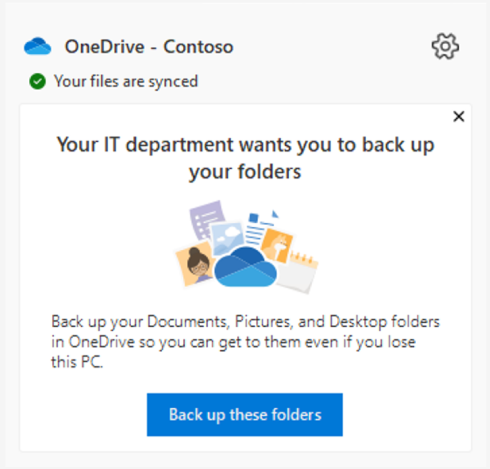

To check on a PC, click the OneDrive cloud, open Settings, go to the Sync and backup tab, and click Manage backup. Each folder shows whether it is backed up.
Silent sign-in has rules
- The PC has to be Entra joined or hybrid joined.
- Microsoft's docs say silent sign-in will not work for users who require multifactor authentication. If it keeps failing, look at your Conditional Access rules.
- If you federate sign-ins, it has to be AD FS.
- If it worked, OneDrive shows a blue cloud. If it failed, the user gets the Set up OneDrive screen instead.
Why folders do not move
- Old folder redirection: Known Folder Move does not work if Group Policy folder redirection points the folders somewhere else, like a network share. Copy the share into OneDrive with Migration Manager first, without ticking Preserve file share permissions. Then turn off the redirection policy and turn on the move.
- Already redirected to another company's OneDrive: Turn that off first, or the user gets an empty desktop.
- 0x80070005, An unknown error occurred: The Group Policy Prohibit User from manually redirecting Profile Folders is on. Set it to Not Configured.
- Path too long: The full path has to stay under 260 characters.
- Bad names: Names that start with a space or contain characters like \ : / * ? < > " | cannot sync. Files over 250 GB cannot sync either.
- Folder contains a reparse point: A junction or symlink is sitting in the folder.
- File is open and cannot be moved: Close it and try again. Outlook data files are a classic. They do get moved, but Outlook may complain afterward because it still looks in the old spot.
- Pictures will not back up: Screenshots and Camera Roll need to be selected for syncing too.
- Important folders aren't in the default locations: One known folder sits inside another.
Check from the admin side
The OneDrive sync health reports show this across the whole company. In the Microsoft 365 Apps admin center, go to Health > OneDrive Sync and click Setup to get a Tenant Association Key. Add Enable sync health reporting for OneDrive and Sync Admin Reports to your Intune profile, with the key pasted in. Reports take up to three days to show up. The Devices tab then lists which known folders moved on each PC, and the Issues tab lists errors by how many devices they hit.
On a single PC, the policy lands in the registry at HKLM\SOFTWARE\Policies\Microsoft\OneDrive. KFMSilentOptIn holds your tenant ID, and SilentAccountConfig and FilesOnDemandEnabled should be 1.
Rolling out OneDrive Known Folder Move
Turn on silent sign-in and Files On-Demand, then add the silent move for Desktop, Documents, and Pictures, with the prompt as a backup. Block users from turning it off. Clean up old folder redirection before you start, roll out in waves, and watch the sync health report.
What can we learn as a person
Users barely notice OneDrive Known Folder Move, and that is the best part. The desktop stays the desktop. Their files just stop living in only one place.
For a long time, everything I learned about my own bad weeks lived on one local drive, my head. What helped, what made it worse, which warning signs showed up first. When that drive crashed, the lessons went with it. A journal changed that. Same thoughts, same folders, but now there is a copy I can open when the hardware is having a rough day.
What lives only on your local drive right now? And where could you back it up so it survives the next crash?