

The new laptop has said Setting up your device for work for two hours. The user is on the phone, the progress has not moved, and their manager wants to know if the laptop is broken. Basic troubleshooting for an Autopilot ESP problem comes down to finding which app or policy the page is waiting on, and why.
If Autopilot itself is new to you, start with how Intune Autopilot works. This post picks up where that one stops, with basic troubleshooting for the Autopilot ESP.
What the Enrollment Status Page is
The Enrollment Status Page, or ESP, is that Setting up your device for work screen. It holds the user there until apps and policies finish, so nobody gets a half-built PC. It has three phases:
- Device preparation: Joining the organization's network and registering for mobile management. Self-deploying and pre-provisioned devices also secure the hardware with the TPM here.
- Device setup: Security policies, certificates, network connections, and apps assigned to the device.
- Account setup: The same four things for the user, after they sign in.
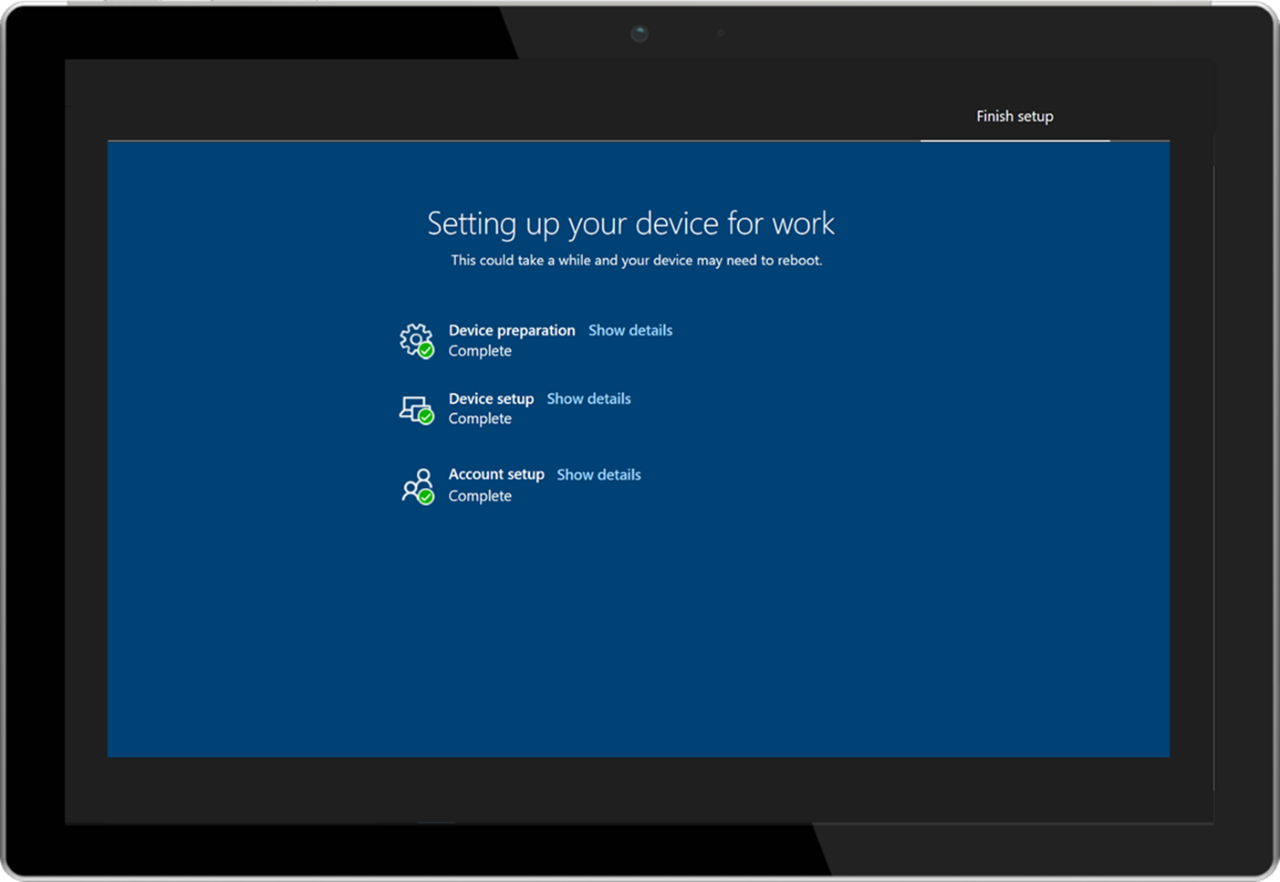
Most basic troubleshooting for an Autopilot ESP hang starts with knowing which phase stopped. The first two phases are the device part. Account setup is the user part.
The settings that decide how it behaves
ESP profiles live in the Intune admin center under Devices > Device onboarding > Enrollment, on the Windows tab, under Enrollment Status Page.
- Show app and profile configuration progress: Turn this on. The default profile hides progress, and a spinner tells you nothing.
- Show an error when installation takes longer than specified number of minutes: The default is 60.
- Turn on log collection and diagnostics page for end users: Gives the user a Collect logs button, plus a diagnostics page on Windows 11.
- Block device use until all apps and profiles are installed: The user waits for everything.
- Block device use until these required apps are installed if they are assigned to the user/device: All, or Selected with up to 100 apps. This only filters what the ESP waits for. It does not assign anything.
- Allow users to reset device if installation error occurs, and Allow users to use device if installation error occurs: What the user can do on the error screen.
- Install Windows quality updates (might restart the device): Adds 20 to 40 minutes after the ESP. It is on by default in new profiles.
Profiles have priorities. Intune applies the device-targeted profile first, then the user one, then Default. Target ESP profiles at device groups, because blocking apps in a user-targeted profile get ignored during the device phase.
Read the screen
Click Show details on the stuck phase. Each line says what it is waiting on, like Apps (2 of 5 installed). A line that says Error is your culprit.

- Stuck on Identifying: The user usually has no Intune license.
- 0x800705b4 in Device preparation: A timeout. In self-deploying mode, it usually means no TPM 2.0, like on a virtual machine.
- 0x801c03ea: TPM attestation failed.
- 0x80180014: The device was used for self-deploying or pre-provisioning before. Unblock it in the Windows Autopilot devices list.
- 0x80070774: A hybrid join problem.
- 0xc1036501: The device has more than one MDM configuration.
Get the logs
- On the error screen, click Collect logs and save them to a USB drive.
- On Windows 11, press Ctrl+Shift+D to open the Windows Autopilot diagnostics page. It shows network, Autopilot settings, and enrollment status, with an Export logs button.
- Press Shift+F10 for a command prompt during setup, then run the command below.
mdmdiagnosticstool.exe -area Autopilot -cab C:\Users\Public\Documents\autopilot.cab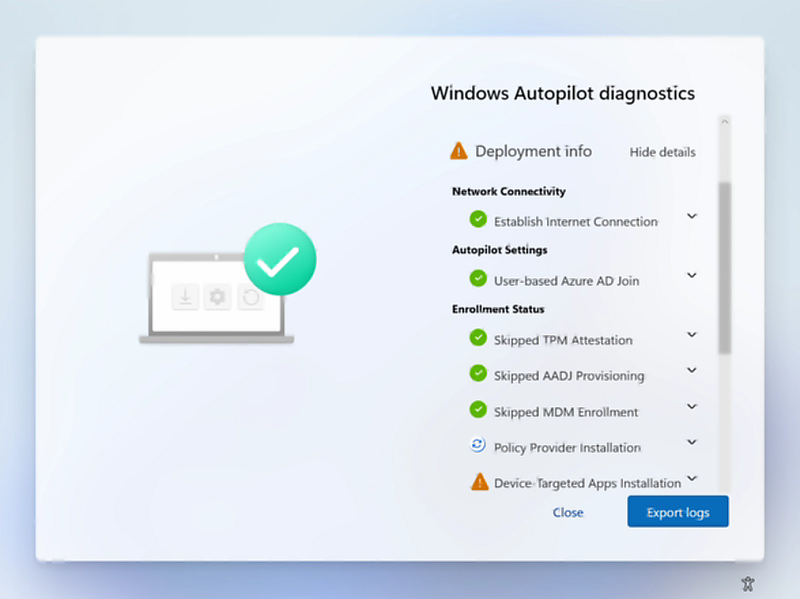
Copy that file to your own PC. Microsoft's Get-AutopilotDiagnostics script reads it and lists what the ESP was tracking:
Install-Script -Name Get-AutopilotDiagnostics -Force
Get-AutopilotDiagnostics -CABFile C:\Temp\autopilot.cab
Find the stuck app
The registry tracks everything the ESP waits on, under HKLM\SOFTWARE\Microsoft\Windows\Autopilot\EnrollmentStatusTracking. Under Device\Setup\Apps\Tracking\Sidecar, each Win32 app has an InstallationState. A 1 means not installed, 2 is in progress, 3 is done, and 4 is an error. A 4 stops the ESP. Take that app's ID to AppWorkload.log in C:\ProgramData\Microsoft\IntuneManagementExtension\Logs.

From the admin side, Devices > Monitor > Windows Autopilot deployments covers the last 30 days. The failed app's Device install status shows its error code. Collect diagnostics on the device pulls logs remotely, and Autopilot failures upload a set of logs on their own.
The usual causes
- Mixing Win32 and line-of-business MSI apps: Both use the Windows installer and collide with Another installation is in progress. Package everything as Win32.
- Microsoft 365 Apps with the built-in app type: Microsoft recommends packaging it as Win32 for the ESP.
- Too many apps for the time limit: Raise the timeout or block on fewer apps. Only block on what the user needs on day one.
- An app that restarts the PC on its own: Let Intune handle restarts. They work in Device setup but not in Account setup.
- User-context scripts: They may not run during the ESP.
- Hybrid join: Adds about 40 minutes on top of the timeout.
- Security policies like AppLocker, App Control, or password rules: These can force restarts or break automatic sign-in during setup.
- The clock is off: Run w32tm /resync /force from Shift+F10.
- Conditional Access requiring a compliant device during setup: Target compliance policies at devices, not just users.
Get the user working
If Allow users to use device if installation error occurs is on, the user can continue and pick up the missing apps later. If Allow users to reset device is on, a reset starts Autopilot over. For a single broken app, fixing the app and resetting is usually faster than waiting. For new rollouts, Autopilot device preparation skips the ESP entirely and handles mixed app types.
The basic troubleshooting checklist for Autopilot ESP
- Note the phase, the line in Error, and any error code.
- If it says Identifying, check the user's Intune license.
- Collect logs from the error screen or with mdmdiagnosticstool.
- Find the app with InstallationState 4 and read AppWorkload.log.
- Check the Windows Autopilot deployments report and the app's install status.
- Look for mixed MSI and Win32 apps, restarts inside apps, and a timeout that is too short.
- Fix the cause, then reset and run Autopilot again.
What can we learn as a person
My favorite ESP advice from Microsoft is to only block on the apps people need on day one. Everything else can install after the user is already working.
I set my own ESP to block on everything. I could not start a new hobby until I had the right gear, could not apply for the job until the resume was perfect, could not rest until the inbox was empty. Sixty minutes went by, then a year, and the screen still said Setting up your device for work.
What are you blocking on that could install after you start? And what would happen if you let yourself use the device with a few apps still pending?