

The call starts with a blue screen asking for a recovery key, and a user who has never heard the word BitLocker. They think the laptop is broken, or hacked. Basic troubleshooting for a BitLocker recovery screen is two jobs: Get the user back in, then figure out why it asked so it does not happen again tomorrow.
I covered where to find BitLocker keys before. This post is the whole phone call for basic troubleshooting of BitLocker recovery, from the blue screen to closing the ticket.
What the screen is telling you
BitLocker encrypts the drive and uses the TPM chip to unlock it at startup. If something about the boot process changed, the TPM refuses to unlock the drive. Windows asks for the 48-digit recovery key instead. The screen also shows a Recovery key ID, which tells you which key to look up.
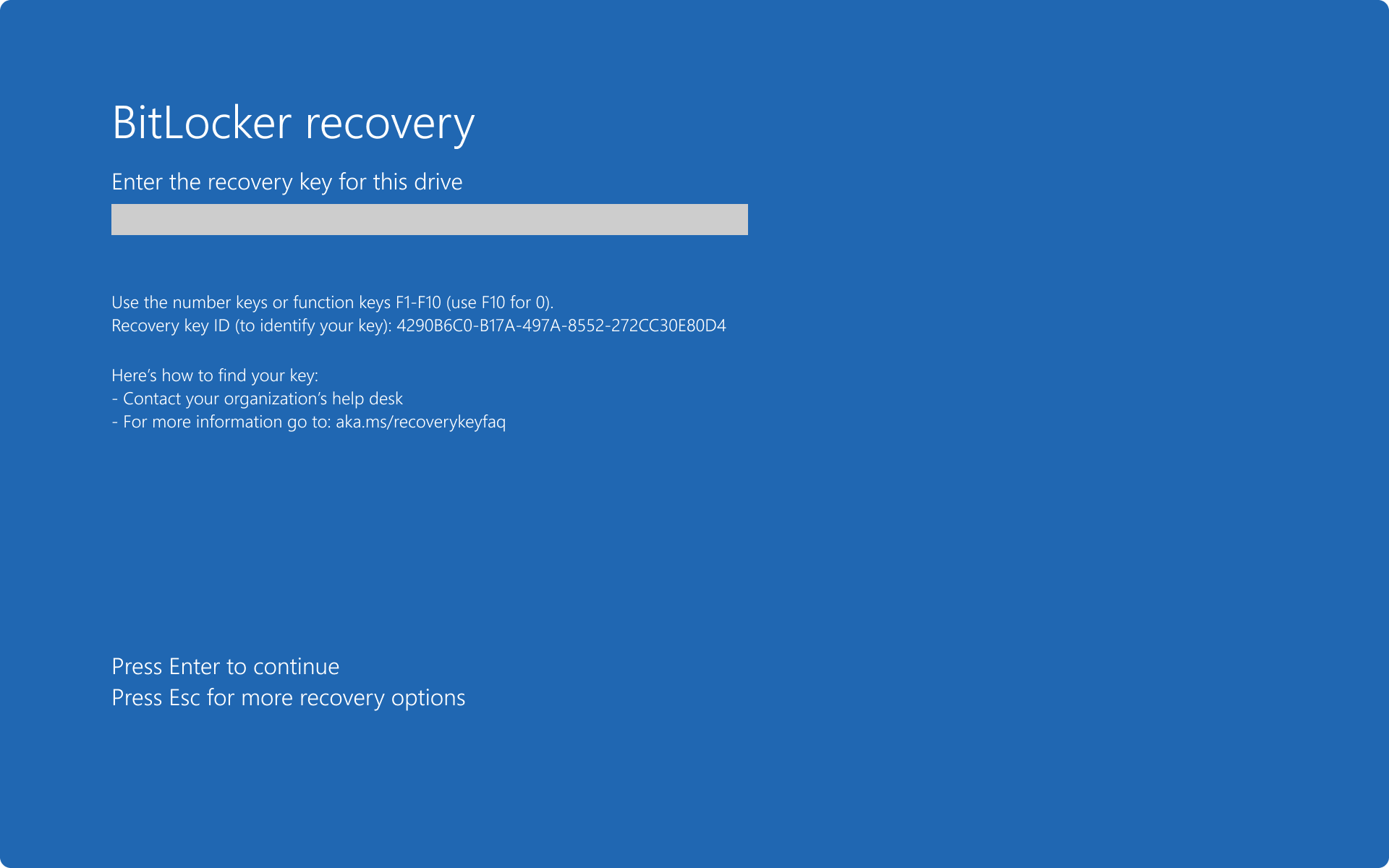
Basic troubleshooting for BitLocker recovery starts with that ID. Have the user read you the first 8 characters. That is enough to match the right key. On PCs joined to Entra ID, the screen may also point the user to aka.ms/aadrecoverykey.
The Alt key trick
On Windows 11 24H2 and newer, pressing Alt on the recovery screen opens Additional recovery information. It shows an error code that names the cause. E_FVE_SECURE_BOOT_DISABLED, for example, means Secure Boot got turned off. Other codes point to a missing TPM, a changed boot configuration, or too many wrong PINs. Put the code in the ticket.

Get the user back in
Let the user do it
If your company allows it, users can get their own key from a phone or another computer. On the Company Portal website, they go to Devices, pick the PC, click Get recovery key, then Show recovery key. They can also use myaccount.microsoft.com, under Devices, then View BitLocker Keys. The key hides again after 5 minutes.
Look it up yourself
- Intune admin center > Devices > All devices, and open the PC.
- Under Monitor, click Recovery keys.
- Match the key ID to the one on the user's screen and click Show recovery key.
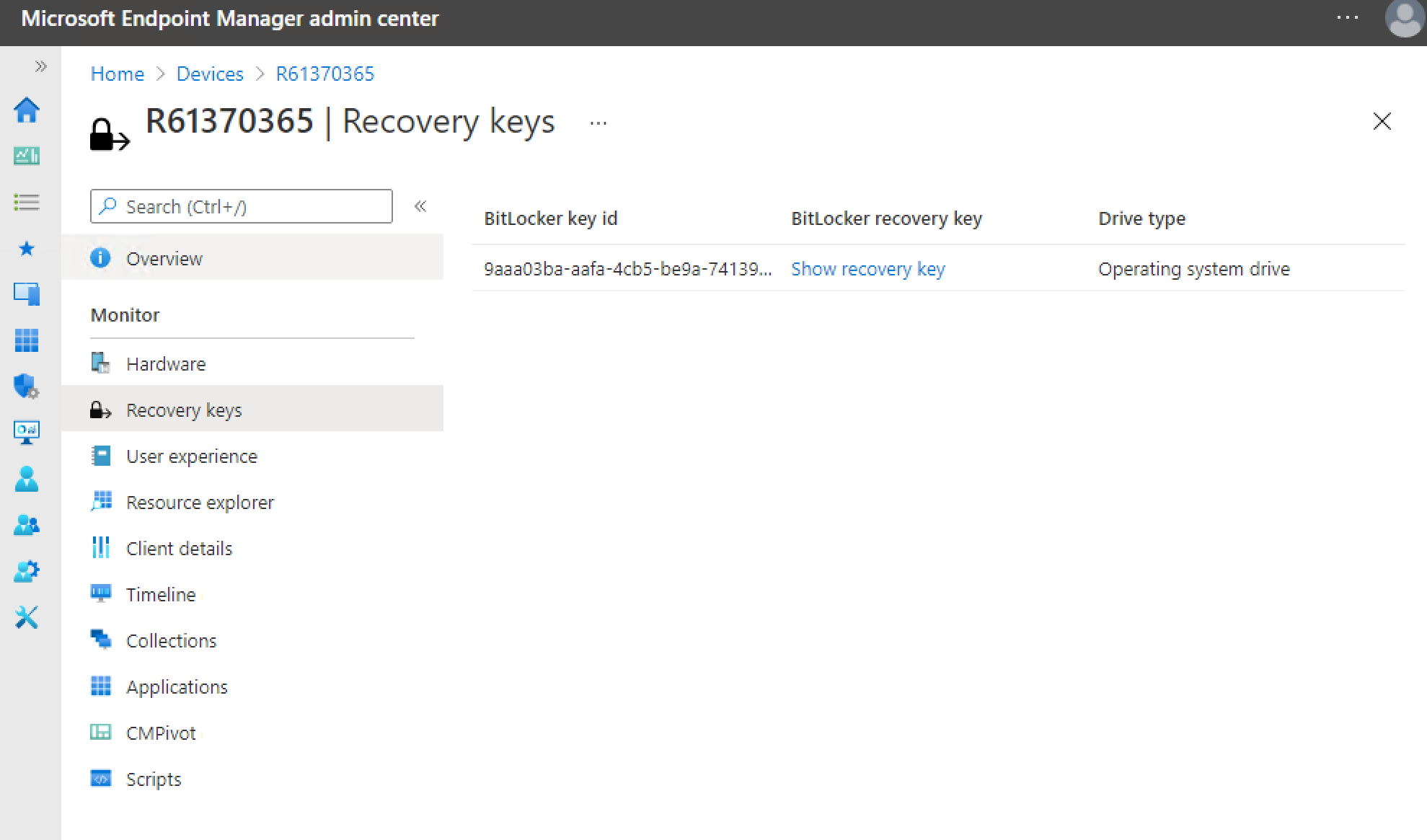
The Entra admin center shows the same key under Entra ID > Devices > All devices, on the device page. Helpdesk Administrator, Cloud Device Administrator, and Intune Administrator can all read keys, and every view gets logged. Hybrid joined PCs may only have the key in Active Directory. Look on the BitLocker Recovery tab of the computer object, or right-click the domain and use Find BitLocker Recovery Password with those first 8 characters.
Reading the key out loud
The key is 48 digits in eight groups of six. Read it one group at a time and have the user type as you go. Number keys work, and so do F1 through F10, with F10 as zero. Dashes are optional. A typo in one group gets caught right there, so nobody has to start over.
Why it happened
- BIOS or firmware update: The most common cause. Updates change the boot measurements the TPM checks.
- BIOS settings changed: Someone turned off Secure Boot, cleared the TPM, or turned it off.
- Boot order changed: USB, DVD, or network boot moved ahead of the hard drive. Docking and undocking can trigger it on some setups.
- Hardware swap: A new motherboard means a new TPM, so the old seal will never match.
- Too many wrong PINs or sign-in attempts, if your policy sets a limit.
- Windows updates: A known issue in the April 2026 update KB5083769 made some PCs with custom BitLocker group policy ask for the key once. KB5089549 fixed it.
Ask the user what happened right before. Did a manufacturer update pop up? Did someone change a BIOS setting or boot from a USB stick? The answer goes in the ticket.
Stop it from coming back
If the same PC asks for the key on every restart, the TPM never re-sealed after the change. Sign in, open PowerShell as admin, and suspend and resume BitLocker. Microsoft's docs say this re-seals the key to the current boot setup. Restart once to make sure the prompt is gone.
Suspend-BitLocker -MountPoint "C:" -RebootCount 0
Resume-BitLocker -MountPoint "C:"
Before a planned BIOS update, run Suspend-BitLocker with -RebootCount 2, so it stays paused through the update's extra restarts.
Rotate the key
A key that someone read out over the phone is no longer a secret. Rotate it. In Intune, open the device and choose BitLocker key rotation. On the current device page it sits under Secure, and older layouts put it in the three dots menu. Help Desk Operator can do it. Rotation only works if the BitLocker policy turns on client-driven recovery password rotation and saves keys to Entra ID.
No key found
If Intune says No BitLocker key found for this device, check Entra ID and Active Directory too. If the key is nowhere, nobody can get that data back. Microsoft Support cannot recover or recreate it, and the only option left is a reset that erases the PC. Deleting a device in Entra ID also deletes its keys. Never clean up a device record while someone is stuck at this screen.
The basic troubleshooting checklist for BitLocker recovery
- Get the first 8 characters of the Recovery key ID, plus the Alt screen error code on 24H2 or newer.
- Point the user to Company Portal or My Account if self-service is allowed.
- Otherwise, find the key in Intune, Entra ID, or Active Directory, and read it in groups of six.
- Ask what changed: a BIOS update, BIOS settings, boot order, or hardware.
- If it keeps asking, suspend and resume BitLocker.
- Rotate the key afterward.
- Write the cause in the ticket.
What can we learn as a person
The recovery screen looks like a disaster, but the TPM is doing exactly what it was built for. Something about the boot changed, and it cannot tell whether that change is safe. So it locks everything and waits for someone with the key.
My brain does the same thing. A new manager, a new routine, a change in plans I did not see coming, and everything locks up. Nothing is wrong. The measurements just do not match what I sealed against. And if I never re-seal to the new normal, I hit the same blue screen every morning.
What change in your life is your TPM still flagging? And who do you call when you need someone to read you the key?