

A laptop left in a cab is an embarrassing day. An unencrypted laptop left in a cab is a breach notification. An Intune BitLocker policy encrypts every Windows drive without asking the user anything, stores the recovery key where the helpdesk can find it, and tells you which machines are not encrypted yet.
I covered where to find BitLocker keys before. This post is about building the policy so those keys exist in the first place.
Create the BitLocker policy
- Intune admin center > Endpoint security > Disk encryption
- Click Create Policy, set Platform to Windows and Profile to BitLocker, then click Create.
- Name it, set the settings below, and assign it to a device group.
Most BitLocker settings only apply the first time a drive gets encrypted. If a drive is already encrypted a different way, changing the policy later does not redo it. Deliver your Intune BitLocker policy early, ideally during Autopilot setup.
Silent encryption
Silent encryption means BitLocker turns on with no prompts and no user involvement. Users never see a wizard and never get asked whether they want it. To make that happen, these settings have to line up:
- Require Device Encryption: Enabled.
- Allow Warning For Other Disk Encryption: Disabled. This hides the prompt about other encryption software.
- Allow Standard User Encryption: Enabled. It only shows up after you disable the previous setting, and it lets encryption run when the signed-in user is not an admin.
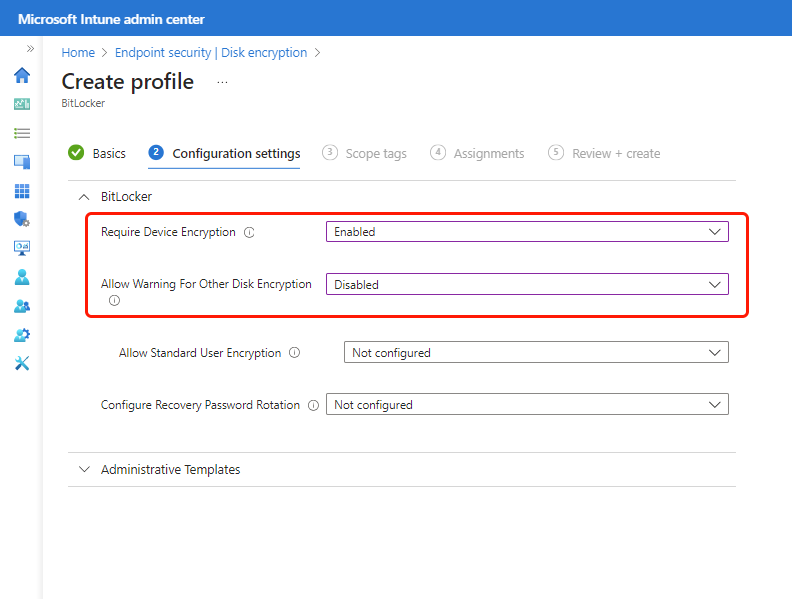
The operating system drive settings also have to stay out of the way. Set Require additional authentication at startup to Enabled. Then set Configure TPM startup to Allow TPM or Require TPM, and set the startup PIN, the startup key, and the startup key and PIN options to Do not allow. If any of those require a PIN, the user has to type something, and silent encryption fails.
What the device needs
- Windows 10 1809 or newer, or Windows 11, on Pro, Enterprise, or Education.
- Entra joined or hybrid joined.
- A TPM chip, UEFI firmware rather than legacy BIOS, and Secure Boot turned on.
- The Windows Recovery Environment turned on.
For the encryption method, Microsoft recommends XTS-AES. If you leave the setting alone, BitLocker uses XTS-AES 128, and 256 works well on newer hardware. If you set the method at all, set it for operating system, fixed, and removable drives together, or the policy fails. Intune's own default for fixed and removable drives is AES-CBC, so pick XTS-AES there on purpose. USB drives that also plug into non-Windows machines should stay on AES-CBC.
Recovery keys
Under Choose how BitLocker-protected operating system drives can be recovered, turn on saving recovery information and turn on Do not enable BitLocker until recovery information is stored. The setting names mention AD DS, but on Entra joined devices they control the backup to Entra ID. Hybrid joined devices back up to both.
Also set Configure Recovery Password Rotation so a key changes after someone uses it. Rotation only works when the store-before-enabling setting is on.
Who can see the key
Admins find it under Devices > All devices, then the device, then Monitor > Recovery keys > Show Recovery Key. Every view gets logged. Helpdesk Administrator, Cloud Device Administrator, and Intune Administrator can read keys. If Intune says No BitLocker key found for this device, the key never made it to Entra ID.
Users can get their own key without calling you. On the Company Portal website, they go to Devices, pick the PC, and click Get recovery key. They can also use myaccount.microsoft.com under Devices. The key hides again after 5 minutes.
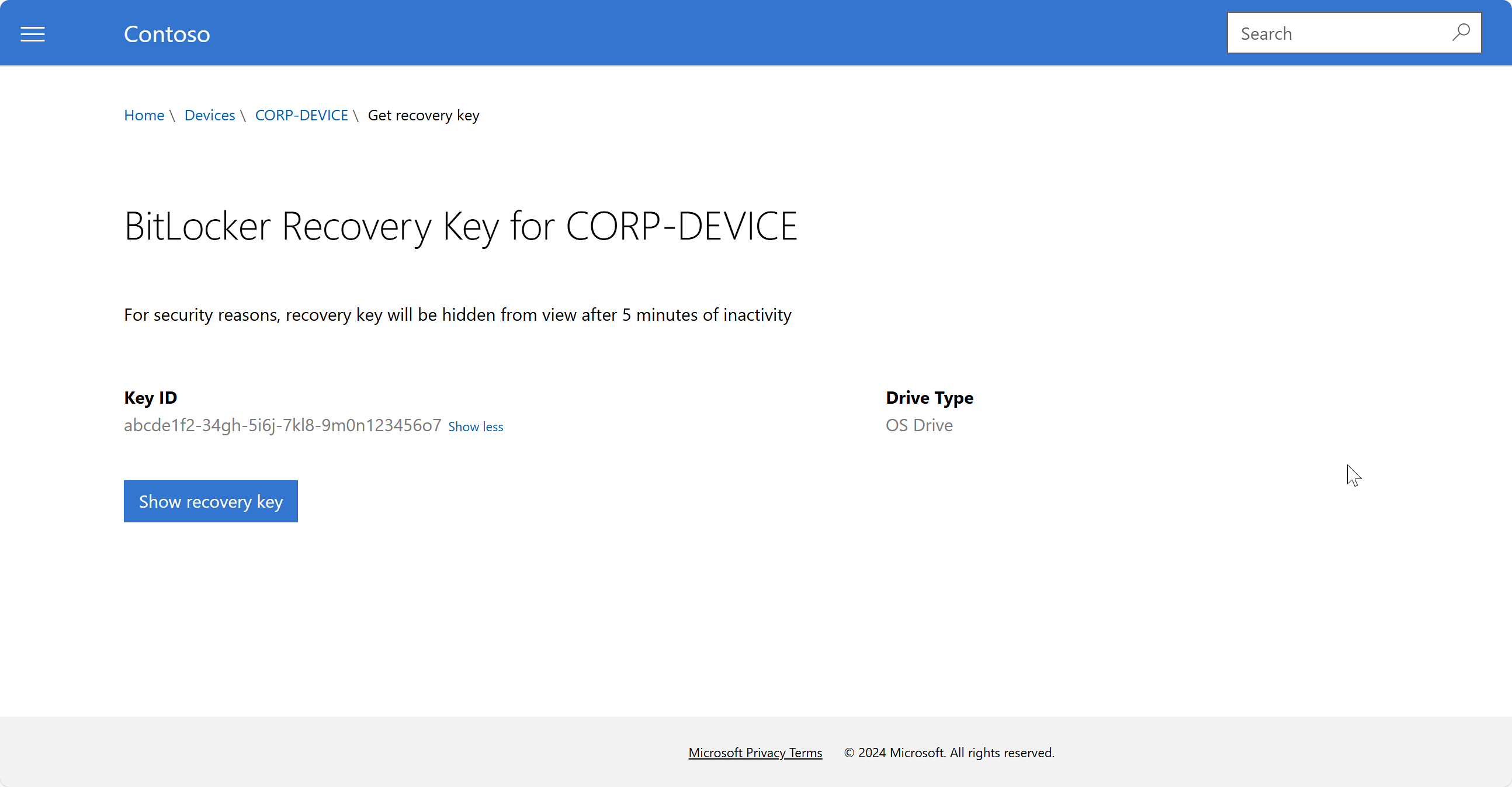
If you would rather users call the helpdesk, turn on Restrict non-admin users from recovering the BitLocker key(s) for their owned devices in the Entra Device settings. Deleting a device in Entra ID deletes its BitLocker keys too.
Removable drives
Deny write access to removable drives not protected by BitLocker makes every unencrypted USB drive read-only. People can still open files from a thumb drive but cannot copy company files onto one unless it is encrypted. Test this one with a pilot group first, because it surprises people.
Checking encryption
Intune has an encryption report that lists every Windows device with its TPM version, encryption readiness, and encryption status. Find it under Devices > Monitor. Microsoft's own pages give it slightly different names. It can take up to 24 hours to update, it only covers the operating system drive, and you can export it to CSV.
On the device itself, open Command Prompt as admin and run:
manage-bde -status c: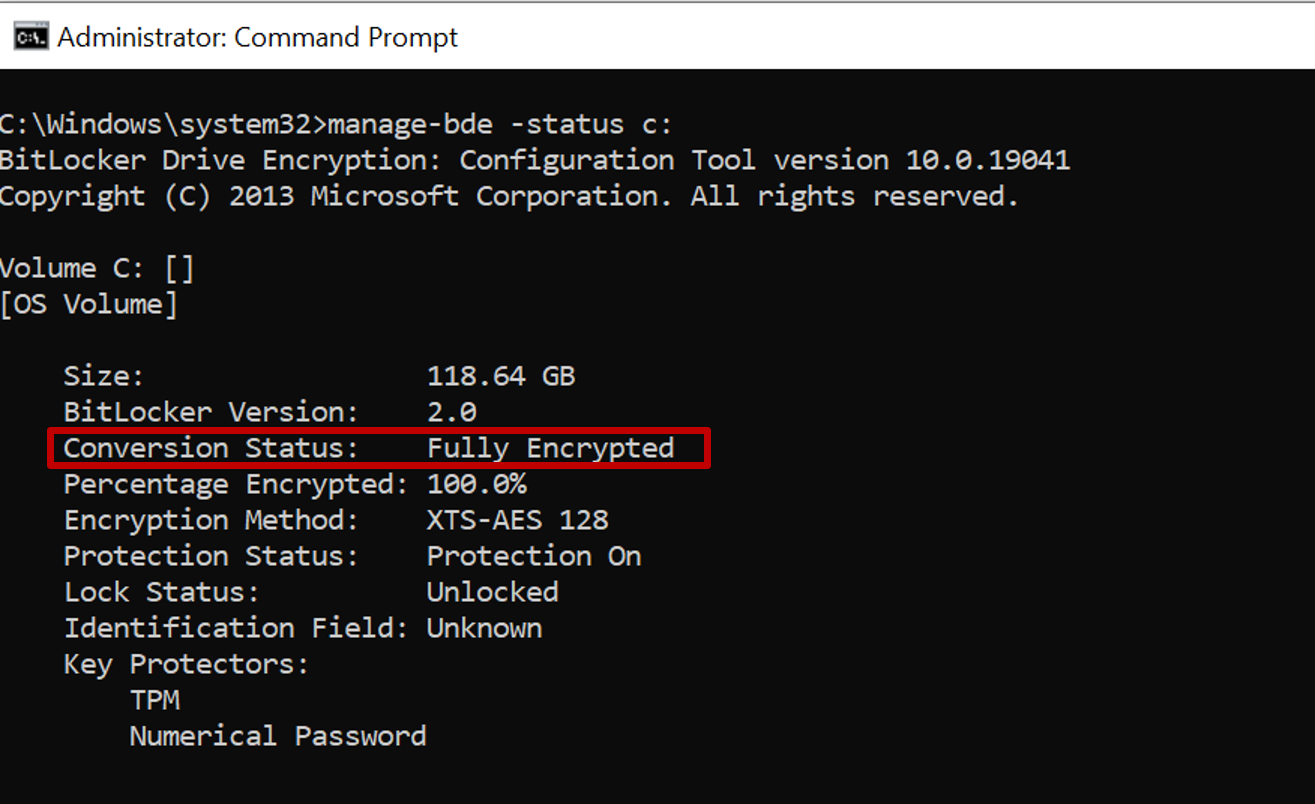
Fully Encrypted with Protection On is what you want. The Numerical Password listed under Key Protectors is the recovery password. PowerShell gives the same answer with Get-BitLockerVolume -MountPoint C | Format-List. The detailed log is in Event Viewer under Applications and Services Logs > Microsoft > Windows > BitLocker-API > Management.
When encryption will not start
- Failed to enable Silent Encryption with a note about conflicting settings: Something allows or requires a startup PIN or key. Check every policy, including the Defender for Endpoint security baseline, which allows a startup PIN by default.
- TPM is not available: The TPM is off in the BIOS or missing. Check with Get-Tpm or tpm.msc.
- The recovery environment is disabled: Run reagentc /info, then reagentc /enable.
- The device boots in legacy BIOS mode: Silent encryption needs UEFI.
- The encryption method of the OS volume doesn't match the BitLocker policy: Someone encrypted it differently before the policy arrived. The drive has to be decrypted and encrypted again.
- Recovery key backup failed: The device could not reach Entra ID, or it already has 200 keys stored, which is the limit.
A BitLocker baseline that works
Build one Intune BitLocker policy with silent encryption, TPM-only startup, XTS-AES on operating system and fixed drives, and recovery keys required in Entra ID before encryption starts. Assign it to devices, deliver it during Autopilot, and check the encryption report for anything stuck on Not ready.
What can we learn as a person
BitLocker has a rule I wish I followed. With the right setting, encryption will not turn on until the recovery key is stored somewhere safe. Lock the drive, sure, but only after someone else can get you back in.
I am great at the encryption part. Bad weeks and the stuff I do not say out loud stay locked down tight. I am terrible at escrow. When I lock myself out, there is no recovery key in anyone's account, and I sit at the blue screen alone.
Who holds your recovery key? And if the answer is nobody, who could you give it to?