

Office is the first thing anyone opens on a new laptop, which makes it the first thing they notice is missing. Getting Microsoft 365 Apps onto devices with Intune is mostly easy. Keeping every device on the same update channel and the same settings is where people get tripped up.
Two ways to install
Intune has a built-in Microsoft 365 Apps app type. It is the easiest path and covers most companies. The other option is the Office Deployment Tool, which Microsoft calls the ODT, wrapped up as a Win32 app. That gives you more control, and Microsoft recommends it when Office has to install during Autopilot. Both download Office straight from Microsoft's servers.
The built-in Microsoft 365 Apps app in Intune
- Intune admin center > Apps > All Apps > Create
- Under Microsoft 365 Apps, pick Windows 10 and later.
- On App suite information, give it a name.
- On Configure app suite, set Configuration settings format to Configuration designer and fill in the settings.
- Assign it, then Review + create.
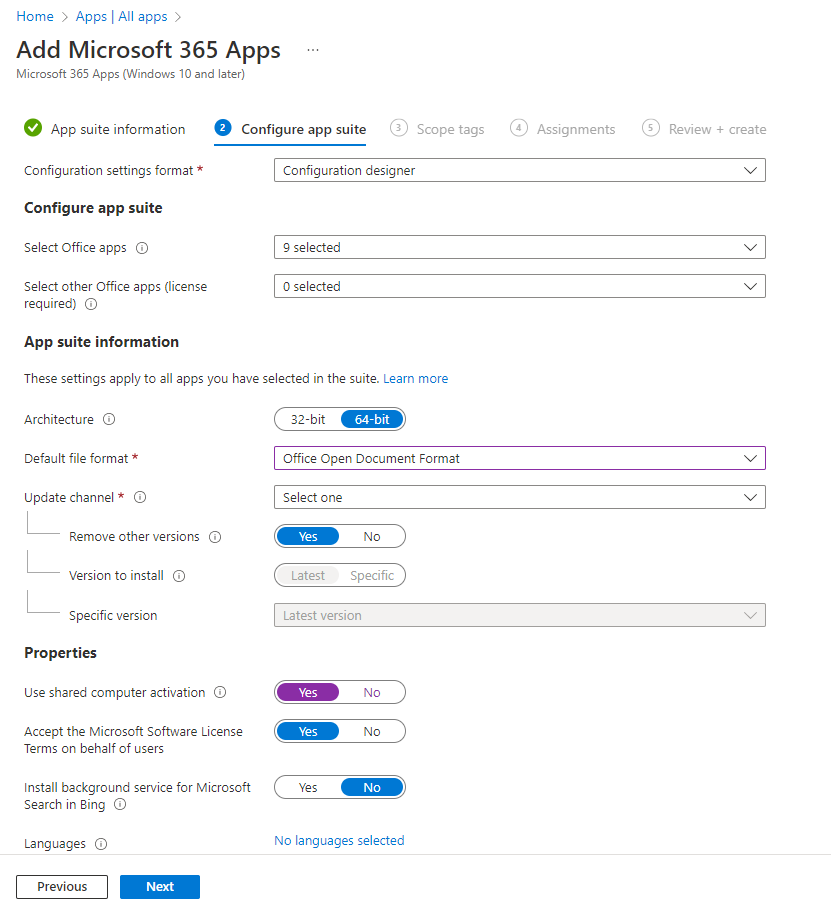
- Select Office apps: Which apps to install. Project and Visio sit under Select other Office apps, because they need their own licenses.
- Architecture: 64-bit unless you have an old add-in that only works in 32-bit.
- Update channel: How often Office updates. More on that below.
- Remove other versions: Yes removes old MSI-installed Office first. Leave it on.
- Use shared computer activation: For machines lots of people sign in to, like shared PCs or Cloud PCs.
- Accept the Microsoft Software License Terms on behalf of users: Yes, so nobody sees a license prompt.
- Languages: Pick them, or leave it to match the operating system.
Things the built-in app will not do
- A device only gets one Microsoft 365 Apps deployment. If you assign two, only one arrives.
- Old MSI-based Office has to come off first, or the install fails.
- If Office apps are open during install, it can fail, and unsaved work can be lost.
- It does not work on Windows Home.
- It does not go through the Intune Management Extension, so the Intune Management Extension logs will not help you.
The Office Deployment Tool
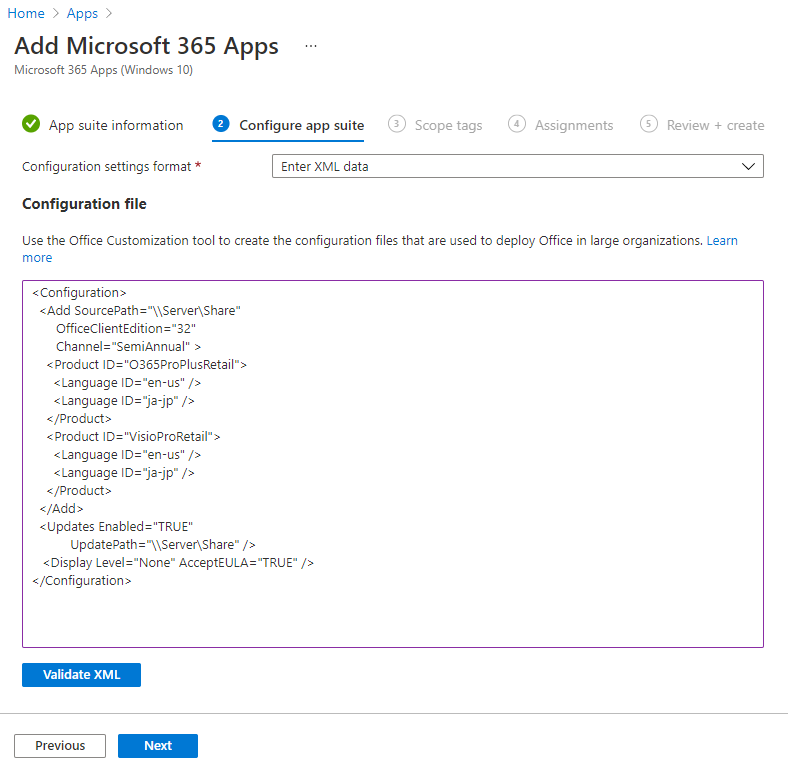
The ODT is a small program, setup.exe, that reads a configuration.xml file telling it what to install. You build that file at config.office.com with the Office Customization Tool, which gives you the same choices as the Configuration designer and more. Here is the sample from Microsoft's docs, switched to 64-bit to match the advice above:
<Configuration>
 <Add SourcePath="\\Server\share" OfficeClientEdition="64">
 <Product ID="O365ProPlusRetail" >
 <Language ID="en-us" />
 <ExcludeApp ID="Publisher" />
 </Product>
 </Add>
 <Display Level="None" AcceptEULA="TRUE" />
</Configuration>
Then you run it as admin. The download command pulls the files to a share. The configure command installs.
setup.exe /download configuration.xml
setup.exe /configure configuration.xml
Useful extras in the XML include RemoveMSI to clear out old Office and SharedComputerLicensing for shared machines. The channel values are Current, MonthlyEnterprise, and SemiAnnual. You can also paste the same XML into the built-in app by choosing Enter XML data instead of the Configuration designer.
Microsoft 365 Apps during Autopilot
If the Enrollment Status Page waits on Office, Microsoft recommends the Win32 route. The built-in app can start installing while a Win32 app is still running, and that collision fails the setup screen. Wrap setup.exe and your configuration.xml with IntuneWinAppUtil, use setup.exe /configure configuration.xml as the install command, and use a detection rule that only passes once Office is really there. I covered building those in Intune detection rules. Microsoft also says not to mix line-of-business and Win32 apps during setup, because both use the same Windows installer service.
Update channels
- Current Channel: New features as soon as they are ready.
- Monthly Enterprise Channel: One update on the second Tuesday of each month, with each version supported for three months.
- Semi-Annual Enterprise Channel: Features twice a year, but that is changing.
Starting with Version 2606 in July 2026, Semi-Annual Enterprise devices get monthly updates and show up as Monthly Enterprise Channel under File > Account. Microsoft says the first update after the switch is about 1.6 GB, so plan for that on slow connections.
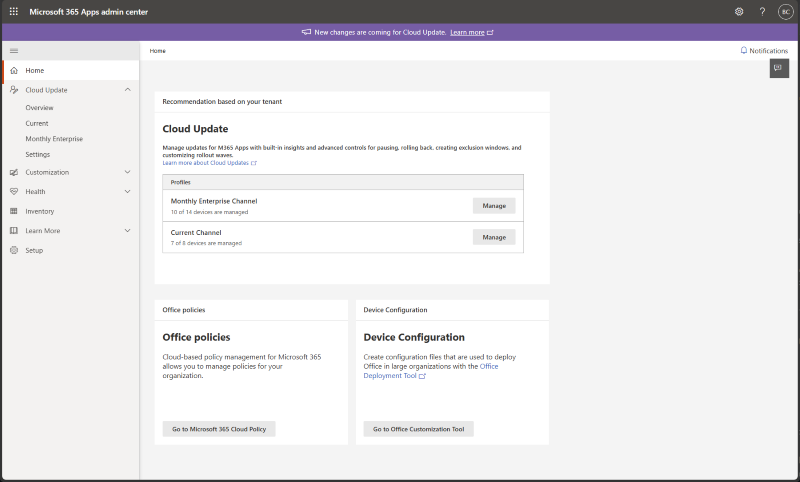
Set the channel in one place only. In Intune, use a settings catalog policy with Update Channel set to Enabled and Channel Name: (Device) set to the channel you want. The other option is Cloud Update in the Microsoft 365 Apps admin center at config.office.com. It has profiles for Current and Monthly Enterprise, you add groups under the profile's Device selection criteria, and the default deadline is 3 days. If both are set, Cloud Update wins. If the channel in the app and the channel in a policy disagree, devices flip back and forth.
Cloud Policy for Office settings
Cloud Policy sets Office settings for users, no matter what device they sign in on. It even works on personal machines that are not enrolled in Intune. Go to config.office.com, then Customization > Policy Management > Create. You can also reach it from Intune under Apps > Policy > Policies for Office apps.
Scope it to all users or specific groups. It only looks at users, so device objects in a group get ignored. Office checks in every 90 minutes for targeted users and every 24 hours for everyone else, and changes apply when the Office app restarts. If policies overlap, priority 0 wins, and Reorder priority changes the order.
If Cloud Policy is not applying, check that Office is activated, check the user's group membership and the policy priority, and look for an authenticated proxy in the way. To force a fresh check-in, delete HKCU\Software\Microsoft\Office\16.0\Common\CloudPolicy and restart Office.
Troubleshooting an install
To check what a device has, open any Office app and go to File > Account > About. If the install never seems to start, look in C:\Program Files for Microsoft Office and Microsoft Office 15 folders. Those show that Intune kicked it off. Then watch C:\Program Files\Microsoft Office\Updates\Download grow.
For detailed logs, turn on verbose logging, try the install again, and look in %temp% and C:\Windows\Temp for files named after the computer and a timestamp:
reg add HKLM\SOFTWARE\Microsoft\ClickToRun\OverRide /v LogLevel /t REG_DWORD /d 3- 1603: Old MSI Office is still installed, or you tried to put 64-bit over 32-bit.
- 17002: The install was canceled, another install was running, or the disk is full.
- 17004: The product ID in the XML is wrong.
- 1460: The download timed out.
- 0-1011 or 30088-1015: A network problem or not enough disk space.
To make Office check for updates right now, open Task Scheduler, go to Microsoft > Office, and run Office Automatic Updates 2.0.
A simple plan for Microsoft 365 Apps and Intune
Use the built-in Microsoft 365 Apps app in Intune with Remove other versions on. If Office has to install during Autopilot, use the ODT as a Win32 app instead. Pick one place to set the update channel, either the settings catalog or Cloud Update, and put Office settings in Cloud Policy so they follow the user.
What can we learn as a person
Microsoft is moving Semi-Annual Enterprise devices to monthly updates. Twice a year sounded calm, but each of those updates was big, and big changes are where things break.
If I could, I would put my whole life on Semi-Annual. Save every change up, then do them all at once in one huge, exhausting weekend. New routine and new budget, all at the same time. Then I wonder why the install fails.
What small change could you ship this month instead of saving it for the big one? And what are you holding back for a semi-annual update that could go out today?