

The Wi-Fi profile went out yesterday. Some of the iPhones have it. The rest are sitting on Pending like they never got the memo. The policy itself is probably fine. Basic troubleshooting for Intune on an iPhone comes down to a short list of checks. Most of them happen in the admin center before you ever touch the phone.
Here is that list, in the order I would work it.
Start with the user
A lot of policy problems turn out to be user or enrollment problems wearing a policy costume. The Troubleshoot pane shows both in one place.
- Intune admin center > Troubleshooting + support > Troubleshoot
- Click Select user, pick the user with the problem, and click Select.
- Look for a green check next to Intune license.
- Find the iPhone in the Devices list.

No license, no policies. If the green check is missing, the user needs an Intune license before anything else here matters.
In the Devices list, look at two columns. Managed should say MDM. Anything else means the phone is not enrolled, and it will not get configuration policies until it is. Last check in should be recent. Microsoft's own guidance says a check-in older than 24 hours points to a problem with the device. A phone that cannot check in cannot get your policies.
Make the iPhone check in
An enrolled iPhone checks in with Intune about every 8 hours. A newly enrolled one checks in every 15 minutes for the first hour, then drops to the normal schedule. When you assign or change a policy, Intune nudges the phone to check in early. Microsoft says that nudge can land right away or take a few hours. So a policy that went out 20 minutes ago and still says Pending is not a problem yet.
You can push it along from either end:
- On the iPhone, open the Company Portal app, go to Devices, tap the device, and tap Check status. Older versions of the app call it Check Settings.
- In the admin center, go to Devices > All devices, pick the iPhone, and click Sync.
Then have the user unlock the phone and leave it unlocked for a minute. An iPhone will hold off on some profiles while it sits locked. Intune reports this as error 2016341112, iOS device is currently busy. You usually see it when the phone restarted and nobody unlocked it yet, or when it is in the middle of an app install or an iOS update. Unlock it, let the update finish, and sync again.
The phone also has to reach Apple. Intune wakes iPhones up through Apple's push notification service. If a phone only misbehaves on one network, like a locked down guest Wi-Fi, try it on cellular.
Check who the policy is assigned to
If the policy never shows up for the device at all, it does not target that device. In the admin center, go to Devices > All devices, pick the iPhone, and click Device configuration. Every policy aimed at the phone shows up there with a status. If yours is missing, the phone is not part of the assignment.
To dig in, open the policy from Devices > Manage devices > Configuration > Policies tab and look at Assignments under Properties. Check these:
- Is the user or the device in an included group?
- Is the user or the device also in an excluded group? When both groups are the same type, the exclusion wins.
- Does the assignment use a filter? A filter can quietly skip devices based on things like OS version, ownership, or model.
Two group mistakes come up a lot. First, user groups and device groups behave differently. A policy assigned to a user group follows that person to every device they enroll. A policy assigned to a device group stays with the device no matter who uses it.
Second, do not assign to a device group and then exclude a user group. Microsoft does not support that mix. Intune does not connect users to their devices for exclusions, so the user's iPhone still gets the policy. Dynamic device groups also take a while to fill in after a phone enrolls, and the policy does not reach the iPhone until it lands in the group.
Why it says Not applicable
Not applicable means the phone cannot take the policy at all. On iPhones that usually comes down to supervision, the enrollment type, or the iOS version.
Supervised-only settings
A lot of iPhone restrictions only work on supervised devices. Supervised mode is for company-owned phones. They usually get it by enrolling through Automated Device Enrollment, which is the Apple Business Manager setup, or through Apple Configurator. Microsoft's restriction settings reference lists which enrollment types each setting applies to. If a setting only lists supervised Automated Device Enrollment, a regular phone skips it.
To check a phone, open Settings. A supervised iPhone shows a line at the very top saying this iPhone is supervised and managed by your organization. No line, no supervision. Intune cannot turn supervision on after enrollment. The only way is Apple Configurator, and it resets the phone.
Personal phones
Personal iPhones often use Apple User Enrollment. The user adds their work account under Settings > VPN & Device Management. That keeps work data on its own separate volume, away from personal stuff, and it gives Intune a much smaller set of controls. Supervision is off the table. If an existing policy lands on one of these phones, only the settings User Enrollment supports take effect. The phone ignores the rest.
Old iOS versions
Some settings need a newer version of iOS. If the phone is behind, the policy shows Not applicable until it updates. Check the version on the phone under Settings > General > About, and look for updates under Settings > General > Software Update.
One Not applicable is harmless. If an iPhone policy lands on a group that also has Android phones, those Android phones show Not applicable because the policy was never meant for them.
Conflicts and errors
Conflict means two policies set the same setting to different values, or something already on the phone stops Intune from changing it. Intune does not pick a winner between configuration policies. Someone has to fix it by hand.
Open the policy and click Per setting status. That shows exactly which setting is fighting. Then go find the other policy that sets it. Check the settings catalog, the device restriction templates, and the compliance policies. When a compliance policy and a configuration policy touch the same setting, the compliance policy wins.
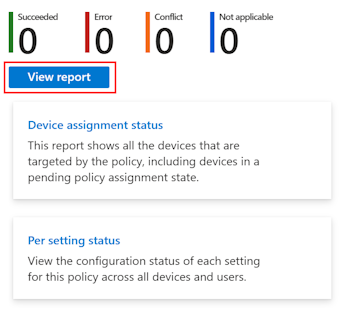
Custom profiles are the sneaky ones. If someone uploaded a .mobileconfig file as a custom profile, Intune delivers it without reading what is inside. If it fights with another policy, Microsoft's docs say Apple applies the settings randomly. Fun.
For Error, click into the device on the policy report. Most errors come with a code you can search on Microsoft Learn. Put that code in the ticket either way.
If someone loosens a policy, some iPhones hold on to the stricter version, and that looks like a conflict. Microsoft's fix for that is to retire the phone and enroll it again. That is a bigger job, so escalate it.
Profiles that depend on other profiles
Wi-Fi, VPN, and email profiles often use certificates to sign in. The Wi-Fi profile points to a client certificate profile, either SCEP or PKCS, and usually a trusted root certificate profile too. If those certificate profiles fail, or they do not go to the same users or devices, the Wi-Fi profile fails right along with them.
So when a Wi-Fi profile errors out, check the certificate profiles for that same iPhone first. Fix those, sync, and the Wi-Fi profile usually follows.
When every iPhone stops at once
If one phone is broken, it is a phone problem. If every iPhone and iPad in the company stopped getting policies on the same day, check the Apple MDM push certificate before anything else. Intune needs it to talk to Apple devices at all. It lasts 365 days, and someone has to renew it every year.
- Intune admin center > Devices > Device onboarding > Enrollment
- Select the Apple tab.
- Click Apple MDM Push Certificate.
- Check the Status and the Days until expiration.
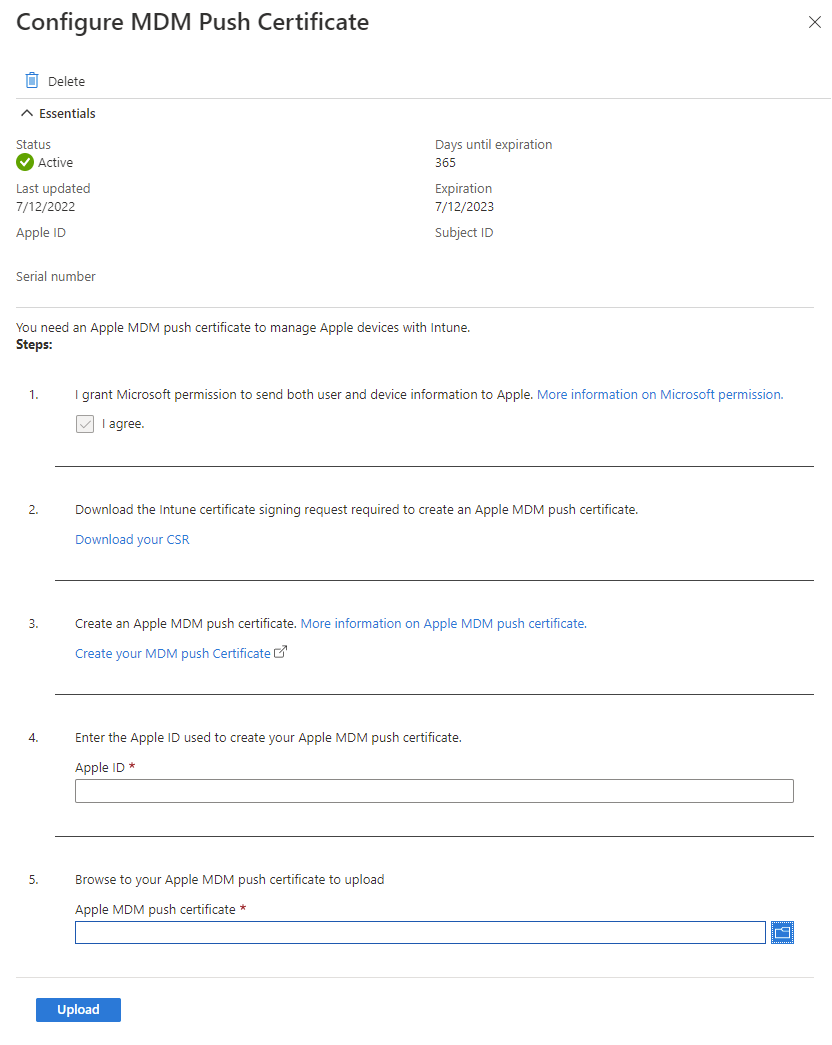
If it expired or is about to, escalate right away. After it expires there is a 30-day grace period to renew it, and the renewal has to use the same Apple ID that created it. Whoever handles it should renew the existing certificate, not create a new one. A brand new certificate means enrolling every Apple device again. That is a very long week.
While you are in there, check Tenant administration > Tenant status for active incidents. Sometimes the problem really is Microsoft.
What the iPhone can tell you
The phone keeps its own list of what Intune installed. Go to Settings > General > VPN & Device Management, tap the management profile, and tap More Details. You will see the profiles, restrictions, and certificates the phone actually has.
In basic troubleshooting for Intune on an iPhone, this is a quick way to cut the problem in half. If the Wi-Fi profile is in that list but the phone still will not connect, the profile arrived fine and the problem is the network or the certificate. If it is not in the list, go back to check-ins and assignments.
The basic troubleshooting checklist for iPhones
Basic troubleshooting on an iPhone with Intune is mostly the same handful of checks in the same order every time:
- Confirm the user has an Intune license in Troubleshooting + support.
- Confirm the iPhone shows Managed as MDM and has a recent last check-in.
- Unlock the phone, then sync from the Company Portal or the admin center.
- Make sure the policy shows in the device's Device configuration list.
- Check the policy's included groups, excluded groups, and filters.
- For Not applicable, check supervision, enrollment type, and iOS version.
- For Conflict, use Per setting status to find the other policy.
- For Wi-Fi, VPN, or email failures, check the certificate profiles first.
- If every Apple device stopped at once, check the Apple MDM push certificate.
- Look under VPN & Device Management on the phone to see what actually arrived.
If you escalate, include the user, the device name and serial number, the iOS version, whether the phone is supervised, the policy name, its status, any error code, and the last check-in time.
What can we learn as a person
Apple's MDM protocol has a status called NotNow. The phone got the command, it just cannot do it at the moment, so it says so and checks back later. I like how honest that is. It does not pretend it finished, and it does not ignore the request forever.
I send NotNow a lot. The doctor's appointment, the conversation I owe someone. The difference is the iPhone actually polls the server again later. I mostly do not. The command just sits at Pending until somebody notices my last check-in date is way too old.
So what have you been answering with NotNow? And when did you last check back in on it?