

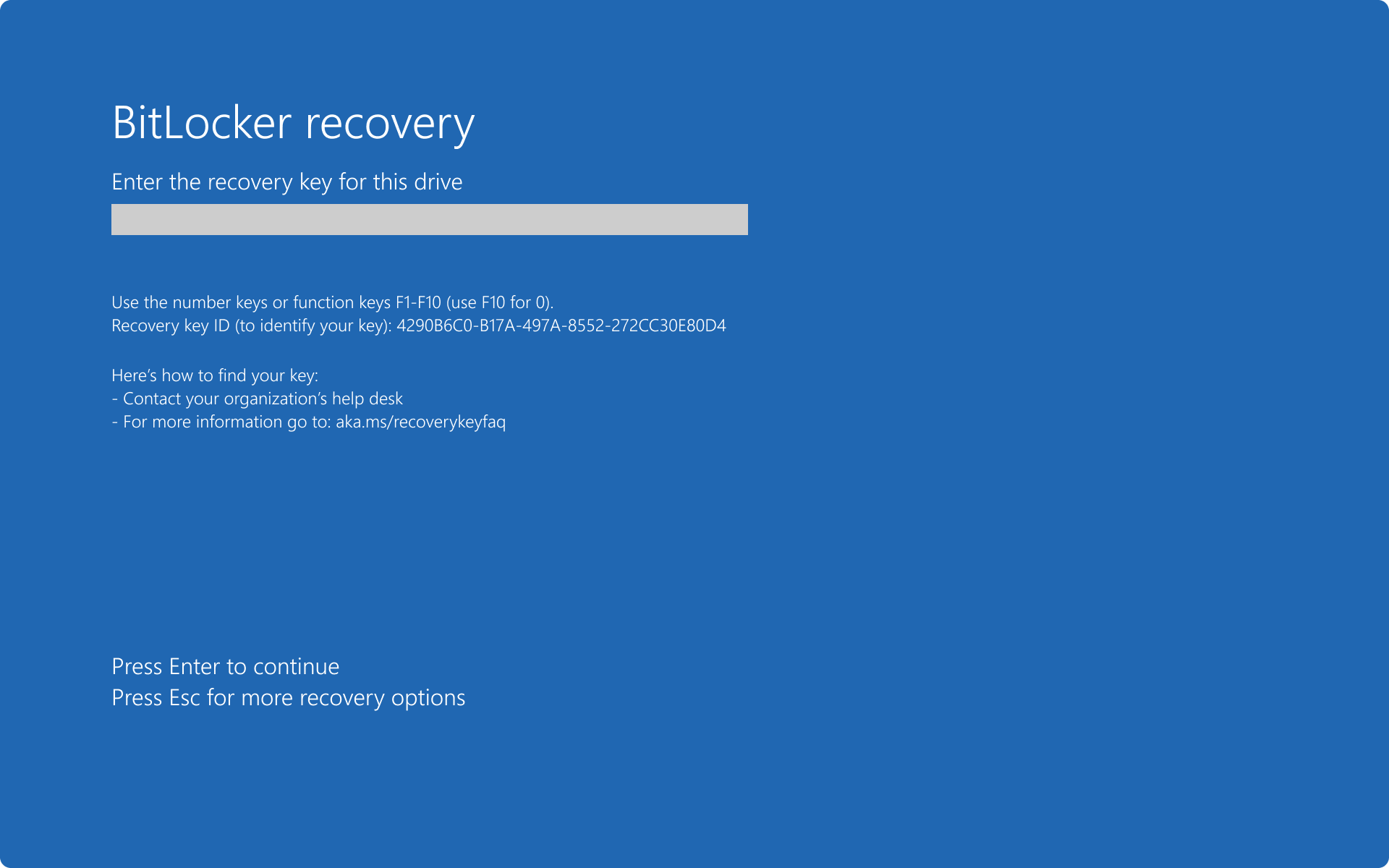
I once had a user call me at 8:00 AM on a Monday in a complete panic. Their screen was bright blue, asking for a 48-digit number they did not know. That was my introduction to the joy of troubleshooting BitLocker keys. They did not have the key. I did not have the key yet. We had to spend an hour digging through old documentation to find the key. It turned out the previous admin wrote it on a sticky note and stuck it under a keyboard in the server closet. Not ideal.
Ok, so here is the deal with BitLocker. If you do not know where your recovery keys are, you do not actually have a backup. We must store those keys in a safe place so we can access them when a user locks themselves out. First, we will look at where the keys live in Active Directory, Microsoft Entra ID, and Intune. Then we will configure the policies to back up the keys automatically.
Where to find BitLocker keys
If a machine locks a user out, you need to find the key fast. Depending on how you enrolled and encrypted the device, you can find the key in one of three places. Let's look at how to grab them.
Finding keys in Microsoft Intune
If you manage your devices with Intune, this is the easiest place to look. You need the right permissions, like Help Desk Operator or Endpoint Security Administrator. If your role does not have the Rotate BitLockerKeys permission, you wont see them. You can check the official Intune encryption docs on Microsoft Learn to verify the required roles.
To find the key in the admin center:
- Go to the Microsoft Intune admin center.
- Select Devices, then click All devices.
- Find and click on the locked-out device.
- Look under the Monitor section on the left menu and click Recovery keys.
- Review the list of key IDs and click Show Recovery Key to view the actual 48-digit key.
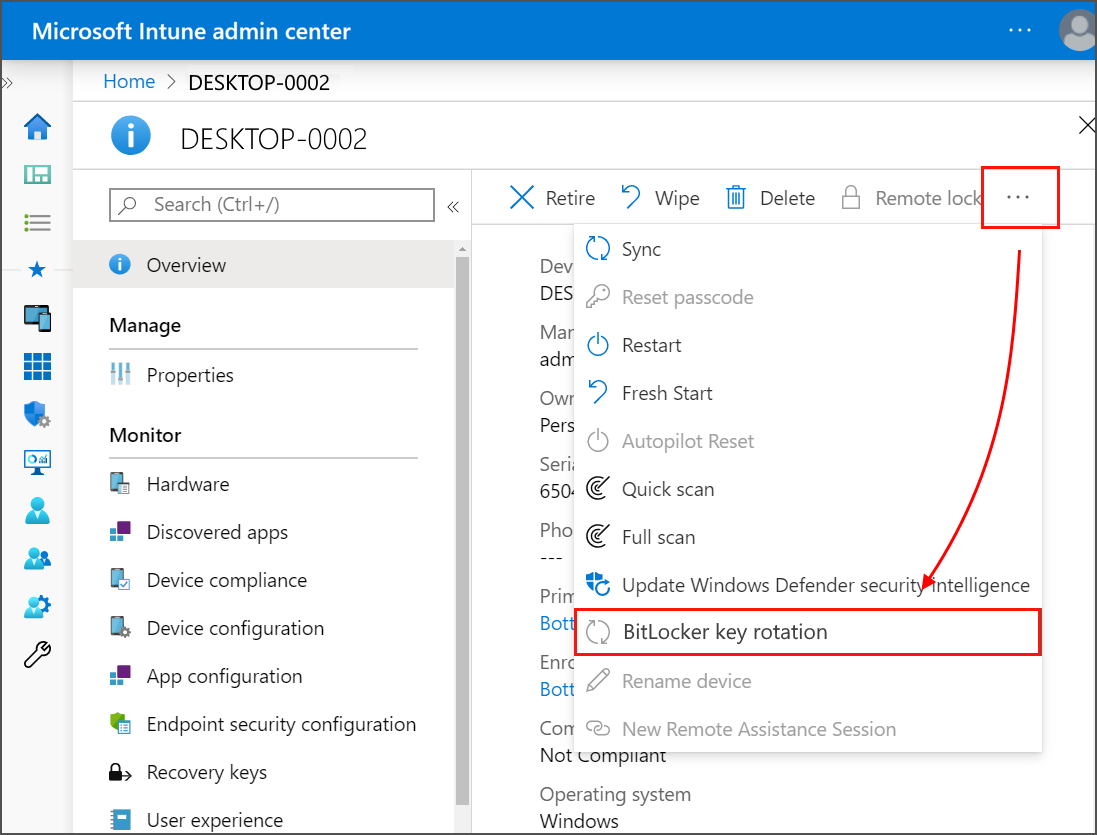
Intune also offers a self-service option. If your users lock themselves out and you do not want them calling the help desk, they can go to the Company Portal website at portal.manage.microsoft.com. Once they sign in, they can select their device and click Get recovery key to retrieve it. This saves a lot of time when dealing with remote users in different time zones.
Finding keys in Microsoft Entra ID
Sometimes you join a device to Entra ID without managing it in Intune. Other times, you might just prefer the Entra portal. Entra ID stores the keys directly on the device object.
Here is how to find them in the Entra portal:
- Open the Microsoft Entra admin center.
- Navigate to Identity, then Devices, and click All devices.
- Search for your device and click on its name.
- Look for the BitLocker keys link under the general properties section.
- Click the link to view the list of keys and copy the 48-digit recovery password.
Finding keys in Active Directory
Classic domain-joined computers send their keys to your local Active Directory domain controllers. You cannot see them out of the box, however. You must install a special administrative tool to view the keys.
First, make sure you have the BitLocker Recovery Password Viewer installed. It belongs to the Remote Server Administration Tools, which we call RSAT. You can read the Microsoft Learn recovery process guide to see how to install it. On Windows 10 or 11, you go to Settings, then Apps, then Optional features, search for RSAT BitLocker Drive Encryption Administration Utilities, and install it.
Once you install the tool:
- Open Active Directory Users and Computers. We call this ADUC.
- Find the computer object for the locked machine.
- Right-click the computer and select Properties.
- Click the BitLocker Recovery tab. If you do not see this tab, you probably forgot to install the RSAT utility, or you lack the required permissions because Microsoft restricts key access to Domain Admins by default.
- Review the recovery passwords list, which shows the Backup Date and Password ID for each key.
How to setup BitLocker backups in Entra ID and Intune
Now that we know how to find the keys, let's talk about how to configure automatic backups. If you do not configure your policies to back up the keys, Windows will encrypt the drive but will not save the key anywhere. This is a disaster waiting to happen.
In Intune, you should use the Endpoint Security disk encryption policy for this configuration. It is much cleaner than the old Device Configuration profiles. Microsoft explains this setup in their Intune BitLocker policy guide on Microsoft Learn.
- Go to the Microsoft Intune admin center.
- Select **Endpoint security**, then click **Disk encryption**.
- Click **Create Policy** and select **Windows 10 and later** as the platform and **BitLocker** as the profile type.
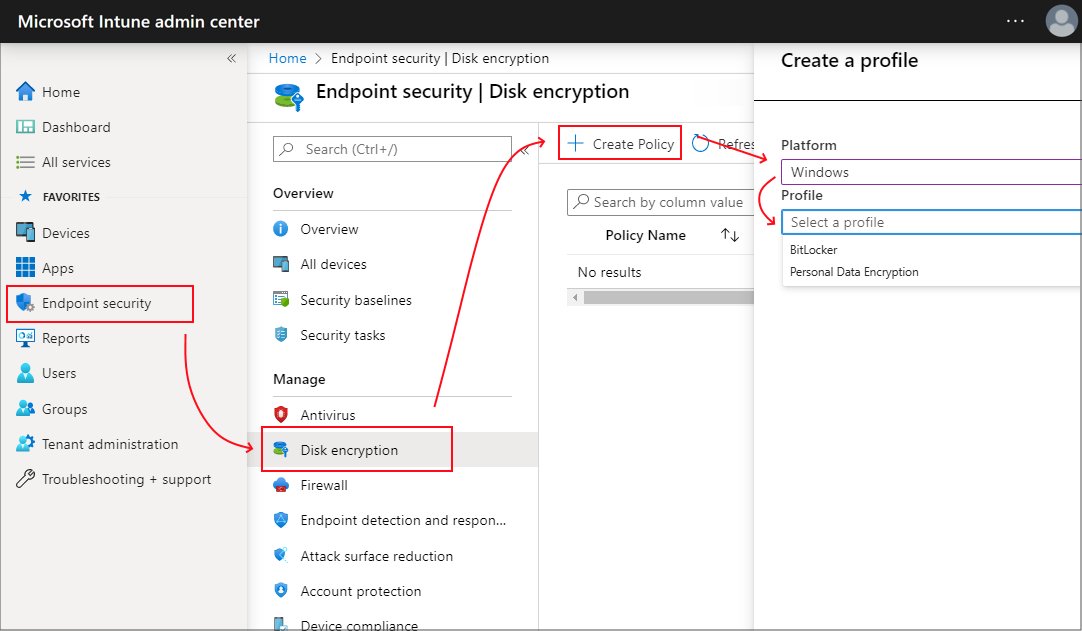
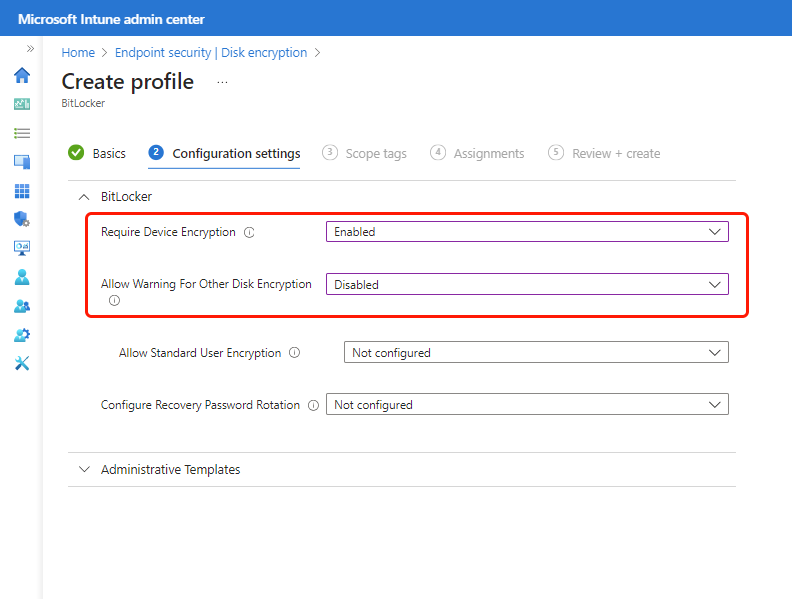
In the configuration settings, you want to focus on these critical knobs:
- Set **Base Settings > Enable BitLocker** to **Yes**.
- Configure the encryption settings under **BitLocker - OS Drive Settings**. If you want silent encryption, set **Compatible TPM Startup** to **Required** and set **Compatible TPM Startup PIN** to **Blocked**. This configuration ensures that the user does not see prompts or need to click buttons during setup.
- Turn on **Save BitLocker recovery information to Microsoft Entra ID** by setting it to **Enabled**.
- Set **Require device to back up recovery information to Microsoft Entra ID** to **Yes**. This is the most important switch. It prevents Windows from encrypting the drive if it cannot write the key to Entra ID first. If a user is offline, Windows waits for an internet connection and a successful backup before starting the encryption.
How to setup BitLocker backups in Active Directory
For domain-joined environments without Intune, you must use Group Policy. The concept matches the Intune setup, but the menus look different. You can read more about how Active Directory handles this on the Microsoft Learn BitLocker recovery overview.
Open your Group Policy Management Console and edit or create a GPO that applies to your computers. Navigate to this path:
Computer Configuration > Policies > Administrative Templates > Windows Components > BitLocker Drive Encryption
Here is what you need to configure:
- Double-click **Store BitLocker recovery information in Active Directory Domain Services** under the main BitLocker folder and set it to **Enabled**. Check the boxes to store both recovery passwords and key packages.
- Navigate to the **Operating System Drives** subfolder.
- Double-click **Choose how BitLocker-protected operating system drives can be recovered** and set it to **Enabled**.
- Check the box to **Save BitLocker recovery information to AD DS for operating system drives**.
- Check the setting that prevents BitLocker from enabling until Active Directory successfully stores the recovery information. If you do not check this, a machine might encrypt itself before it establishes a connection to the domain controller, which will cause you to lose the key.
Once the GPOs apply, domain computers will automatically push new recovery keys to Active Directory. If you already encrypted existing machines before deploying this policy, they will not push their keys automatically. You must run a script on those devices using a tool like PDQ Deploy or a startup script that runs a manage-bde command to force the backup. The command to run is manage-bde -protectors -backup c: -id {your-key-id} to push the key up.
What can we learn as a person
As sysadmins, we spend a lot of time building secure systems. We wrap everything in encryption, hide things behind firewalls, and lock down access. Doing this protects our servers and data from trouble. Honestly, we do the same thing in our personal lives. We encrypt our thoughts, secrets, or struggles to keep them completely to ourselves. This is a good self-defense mechanism. Not everyone deserves access to the inner workings of our brain, and keeping some boundaries is actually healthy for our mental health.
But the thing is, if you encrypt a drive and never back up the key, you are one bad boot away from losing everything. If you lock your thoughts and feelings down so tight that nobody has a copy of the key, what happens when you hit a crisis? What happens when you crash? You lock yourself inside your own head, and nobody can help you get out. We must escrow our keys. A few trusted people in our lives can act as our personal domain admins, holding the recovery keys for when we hit a wall. Who holds your recovery keys? Who do you trust enough to share the things you keep locked away?